
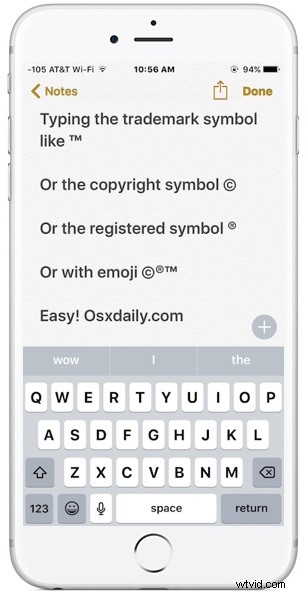
If you find yourself needing to type a trademark symbol, copyright symbol, or registered symbol on the iPhone or iPad, you can do so easily using either of the two methods below.
The first trick to typing the trademark symbol “™”, the registered symbol, “®”, or the copyright symbol “©” will utilize the QuickType suggestion bar on the iOS keyboard, and the second trick uses the Emoji keyboard to type the same special character symbols.
Typing Trademark, Copyright, Symbols on iOS with QuickType
The simplest way to type the trademark, copyright and other symbols in iOS is to use the QuickType bar across the top of the keyboard on the iPhone or iPad. If you haven’t done so already, be sure you show the QuickType bar on the iOS Keyboard to use this trick:
- Open the app where you want to type a trademark symbol, copyright symbol, or registered symbol (notes, Mail, Messages, etc)
- Type the following shorthand to trigger the QuickType keyboard to offer a symbol replacement:
- For trademark, type: TM
- For registered symbol, type (R)
- For Copyright symbol, type ©
- Tap on the appropriate symbol in QuickType bar to type the symbol offered
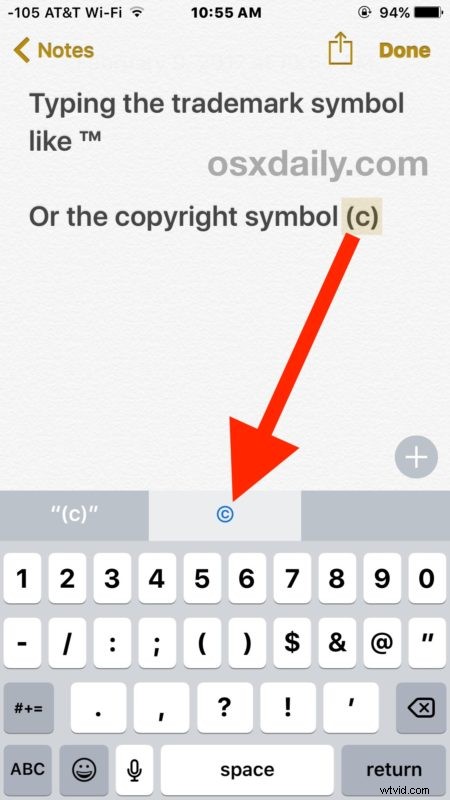
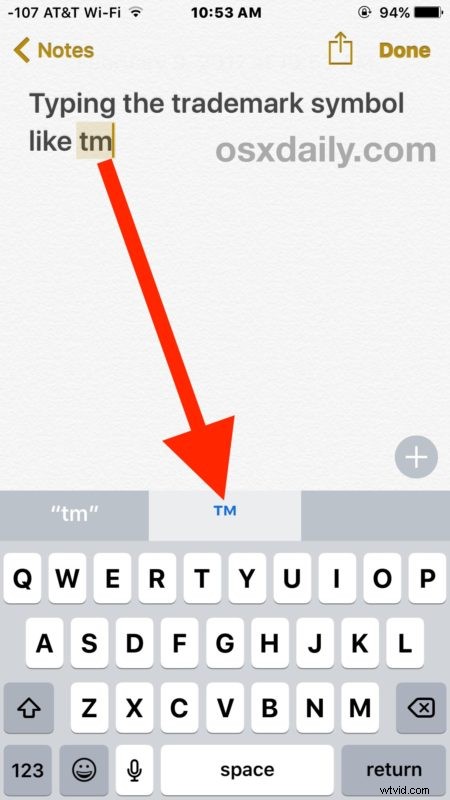
The QuickType method may be easiest for some users, but if you don’t use QuickType bar or you have a version of iOS that does not support it, you can also use the emoji keyboard on iOS to type the same special character symbols.
Typing Trademark, Copyright Symbols on iPhone and iPad with Emoji
Another option to type the various copyright, trademark and registered symbols is to use the Emoji keyboard, yes the same Emoji keyboard with all the goofy faces. First you must enable the Emoji keyboard on the iPhone or iPad if you have not done so already, the rest is easy:
- Open the app where you want to type the trademark, copyright symbols
- Tap the smiley face button to access the Emoji keyboard
- Swipe through the Emoji options until you get to the ‘Symbols’ section where you will find the trademark symbol “™”, the registered symbol, “®”, or the copyright symbol “©”
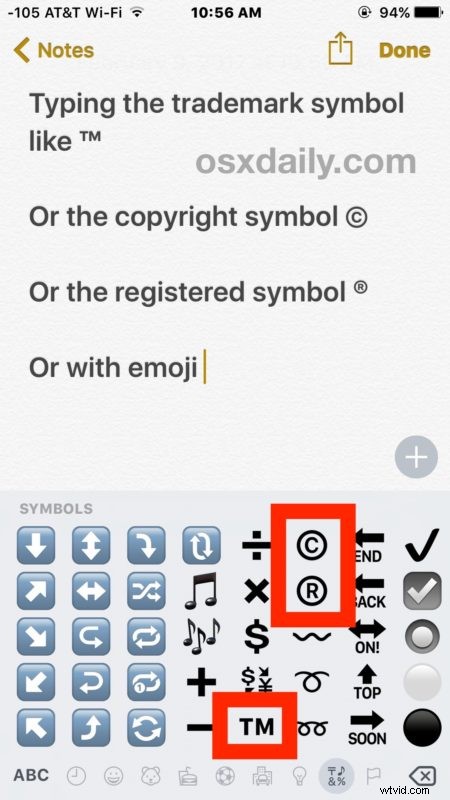
Don’t worry, tapping on one of the trademark or copyright emoji symbols will render the symbol in text, not as an emoji.
Option 3 for typing trademark symbol “™”, the registered symbol, “®”, or the copyright symbol “©” : Copy & Paste
A third option would be to use the iOS Copy & Paste function to copy the symbols and then paste them into the location where you want to type them, though that really shouldn’t be necessary if you use either the autocorrect method or the emoji keyboard method.
Know of another way to type various useful symbols on the iPhone or iPad? Have a better method available? Let us know in the comments below.