
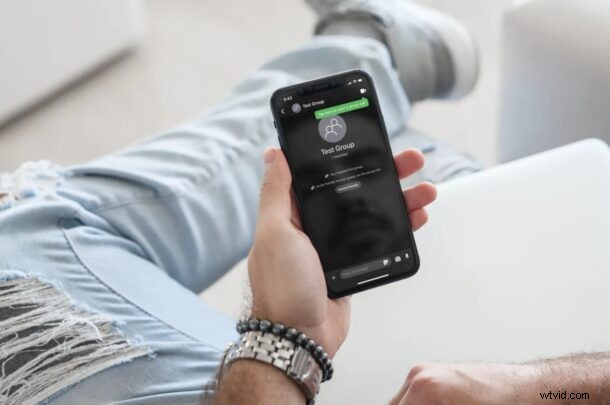
Unable to find the backslash symbol on your iPhone or iPad? If you’re relatively new to the iOS and iPadOS ecosystem, you’re probably not familiar with all aspects of the keyboard, so finding uncommon symbols like backslash might be an issue. But rest assured, you can type the black slash on the iPhone and iPad keyboards!
Although Backslash is rarely ever used while texting other people, the symbol is commonly used for technical processes, inputting Windows directories for connecting to Windows / SMB shares, and it could be useful for coders who’re familiar with JavaScript, C, or Python programming languages. Backslash is buried in the iOS keyboard with other uncommon symbols like +, =, #, copyright, trademark, and more. However, there is more than one way to access backslash on the virtual keyboard.
How to Type Backslash \ on iPhone and iPad
Finding the backslash symbol on the iOS and iPadOS keyboard just takes a couple of taps. Access the virtual keyboard anywhere on your device and follow the steps below to use it.
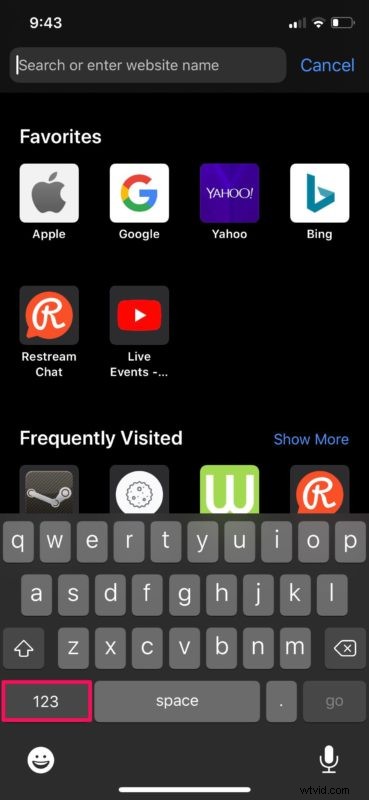
- Once you’ve opened the keyboard by attempting to type in an area, head over to the numbers section of the keyboard by tapping on the “123” key.
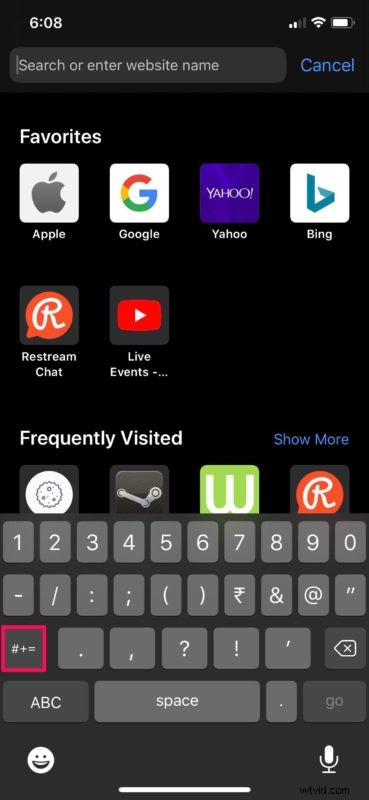
- Next, tap on “#+=” key located above the ABC key, as shown in the screenshot below.
- Now, you should be able to find and enter the backslash key.
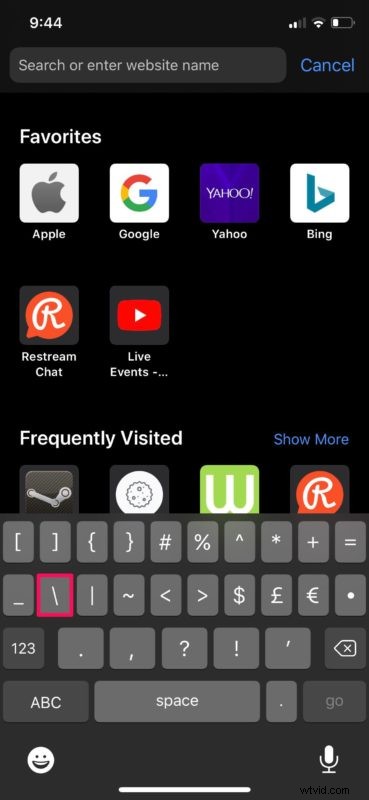
That’s really all there is to typing backslash with your iPhone or iPad keyboard.
Alternatively, you can also access the backslash symbol by long-pressing on the forward-slash key which is located in the numbers section of the virtual keyboard. You have the option to enter backslash using dictation too.
If you regularly use popular social networking sites like Twitter and Instagram, it should be easy for you to access the backlash symbol, since it’s located in the same place where you input hashtags. If not, just use the instructions above as you get the hang of things.
And now you know how to access and use the backslash symbol with ease on your iOS and iPadOS device. What other uncommon symbols did you find and familiarize by following this procedure? Share any relevant thoughts, tips, or experiences in the comments.