
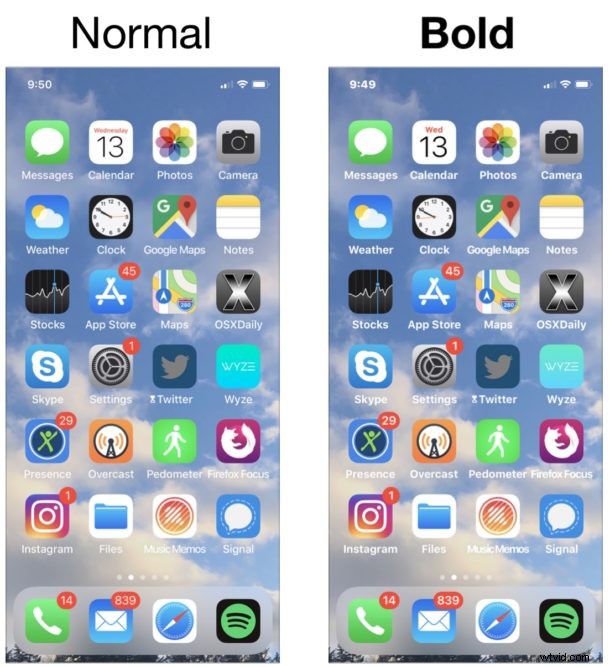
Want to make the fonts and text on your iPhone or iPad a bit easier to read? Then you might want to try out the Bold Text option available in iOS, which might improve text legibility for some users. Also, some people might simply prefer the way the bolder text looks throughout apps, and want to try it out for that reason alone.
Whether you just like the look of bolder text, or if you find the screen text on an iPhone or iPad to be difficult to read or the fonts to be a bit thin, enabling the bold fonts setting in iOS can make a big difference for some users ability to read text on screen. As the name implies, Bold Text quite literally bolds most of the onscreen text in iOS found in apps and throughout iOS itself, sort of like you would bold text yourself in a word processor app except that it applies everywhere, making the fonts and text far more legible for many users, particularly those who are not a fan of the default font weight and size.
The bold text option is available for both iPhone and iPad and is quite easy to enable, here’s how you can use it.
How to Enable Bold Text on iPhone and iPad
- Open the “Settings” app in iOS
- Go to “Display & Brightness”
- Scroll down to find ‘Bold Text’ and toggle the switch to the ON position
- Accept that you will restart the iPhone or iPad for Bold Fonts to take effect

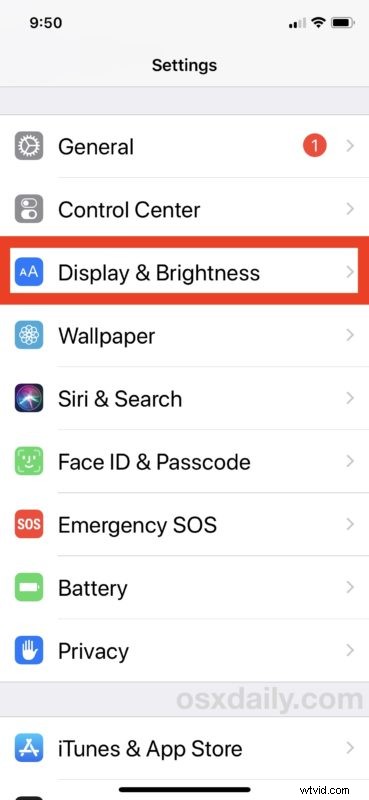
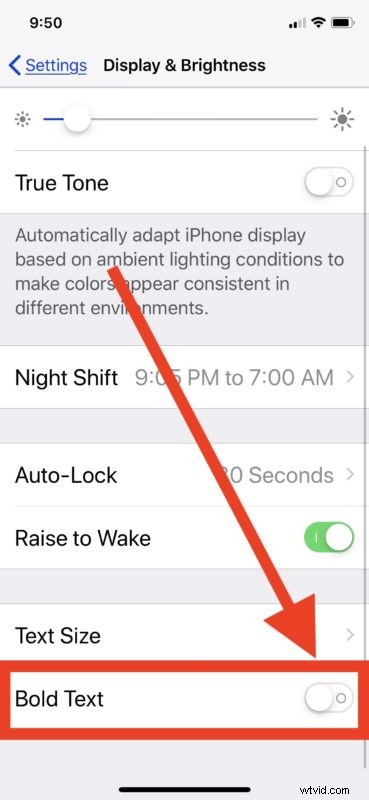
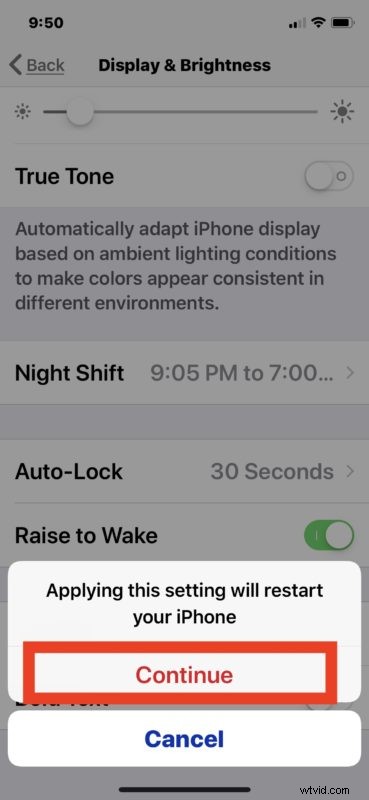
When the iPhone or iPad completes rebooting, the iOS device will have bold fonts enabled, which should be immediately noticeable on the lock screen and on the Home Screen of any iPhone or iPad. If you explore around in other apps, you should immediately notice the difference in font weights elsewhere as well.
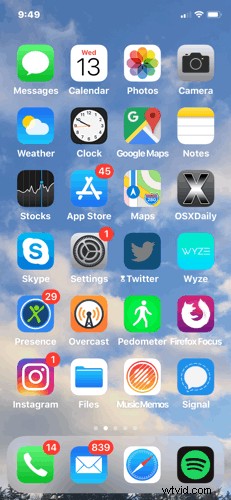
For a visual example (if want to have an idea of what to expect without toggling the setting yourself yet), the animated GIF image below shows a Home Screen of an iPhone with Bold Fonts OFF and then with Bold Fonts ON. If you look at the names of the app icons you should see a notable difference as the animated image changes between the two options, and the clock font is bolder as well:
Here’s a side-by-side comparison of it looks like when Bold Text enabled and disabled within the text of the iOS Settings app itself:
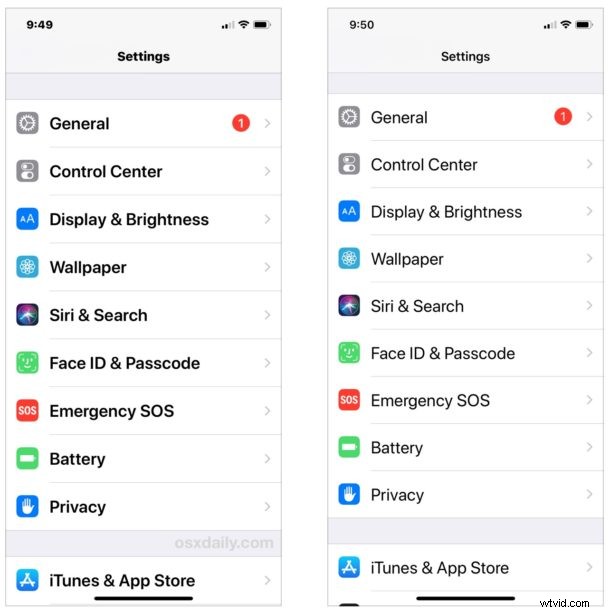
It’s not just the Settings app and Home Screen that will have bolder text however, and most apps will start using bold fonts and bold text as well, at least for the in-app fonts used in the app display. The bolding of the fonts can make the more legible to many users, and because the setting is widely adopted enabling it can make just about all text on screen easier to read for many iPhone and iPad users.
Note that using the Bold Text setting will have no impact on text on websites with something like Safari. If you want to make the size of text larger on a webpage, using Safari Reader Mode on iPhone or iPad can be great for that purpose.
Speaking of making text larger, the same Display & Brightness settings section in iOS also includes a ‘text size’ slider which can also be helpful for making on-screen text more legible. If the default text size options aren’t sufficient, you can enable extra large font sizes on iPad and iPhone with an Accessibility setting explained here.
Readability of screen text is one of the more common complaints for many tech users, whether they’re on an iPhone, iPad, Mac, Windows PC, or Android device, and features like Bold Text in iOS can help for many users. While Bold Text is available for iOS on iPhone or iPad, unfortunately there is not a similar setting available on the Mac, even as an accessibility option.
This is one of the very first settings I enable on my personal iOS devices, and I always enable it on most relatives and friends iPhones and iPads as well particularly if their vision is not perfect, with or without glasses. Aside from the potential legibility benefit, some users also might just prefer the text appearance of the bold font look compared to the default font width in iOS. You can try it out yourself, and if you don’t like it simply return to the same Settings screen to toggle the switch back off.
Note the Bold Text option was originally introduced as an Accessibility option in older iOS versions, but has now been relocated to the general Display & Brightness preference panel. Thus if you’re on a modern iOS release the instructions are as covered here, whereas earlier iOS versions may have to look in Accessibility instead.