

Want to know what the air quality index is at a particular destination? The Apple Maps app on iPhone and iPad can give you this information.
Those who are concerned about air quality will find it useful to know that the Maps app on iPhone and iPad has an optional feature that allows you to see the Air Quality Index (AQI) and accompanying color code directly in the Maps app, but first you must enable the feature, and have a compatible version of iOS system software on the device. This is obviously helpful for planning trips and maps routes for groups who impacted by air quality, and offers another way to see air quality information on an iOS device.
Finding the optional Air Quality Index information in the Maps app of iOS requires iOS 12.2 or later to be installed on the iPhone or iPad, as earlier versions do not support AQI index (though they do support weather). iPhone users with earlier iOS versions can get air quality information in the Weather app on iPhone, and both iPhone and iPad users can find AQI index info from Siri, whereas iPad users with earlier iOS versions will want to use either a website or dedicated weather app for this same information. Assuming you’re on iOS 12.2 or later though, here’s how you can enable and see AQI details in Apple Maps.
How to View Air Quality Index in Maps on iPhone or iPad
- Open the “Settings” app on the iPhone or iPad
- Go to “Maps”
- Find the setting for ‘Air Quality Index’ and toggle that switch to the ON position
- Exit Settings
- Launch the Maps application in iOS
- Search for a location or destination in Maps as usual
- Note the ‘AQI’ score in the corner of Maps app as you search and use the Maps app on iPhone or iPad
You’ll also notice the weather is shown in Maps directly above the AQI index, offering further information about the destinations and locations you’re viewing in the Maps app of iOS. If you don’t see the weather in Apple Maps, then you may have it turned off in the Maps Settings, directly above the Air Quality Index information.
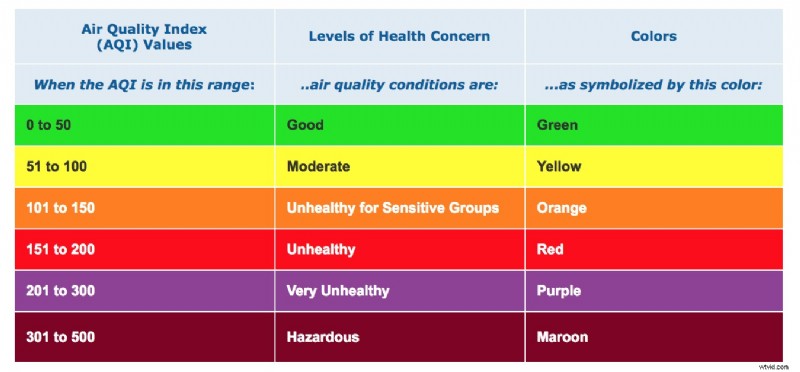
Any Air Quality Index rating between 0-50 is considered to be ‘Good’, while anything over 50 is of declining quality, over 100 to be considered ‘unhealthy for sensitive groups’, with increasing severity of air quality health concerns from numbers beyond that. You can refer to the below chart from AirNow.gov for reference of air quality index, color codes, and the health concerns associated with them:
While AQI information may be irrelevant to some iPhone and iPad users, others will find it to be a very helpful feature, especially if you or someone else has trouble with particulate matter, air pollutants, or even allergies, asthma, COPD, or the myriad other conditions where the quality of air matters tremendously.