
 Many people and professions rely on week numbers to plan events and schedule their time, particularly on a longer term yearly basis. By default, the iOS Calendar app does not show week numbers, but a simple settings change can make it so week numbers appear in the Calendar app of iPhone, iPad, and iPod touch.
This is a really welcome change if you use week numbers for planning, and it’s quite easy to switch on or off to suit user preferences. On any iOS device, here’s how you can toggle the week numbers on in Calendar app of iPhone and iPad:
- Open the Settings app and go to “Mail, Contacts, Calendars”
- Scroll down to the “Calendars” section of the preferences
- Toggle “Week Numbers” to the ON position
- Open the Calendar app into Month view to see the change
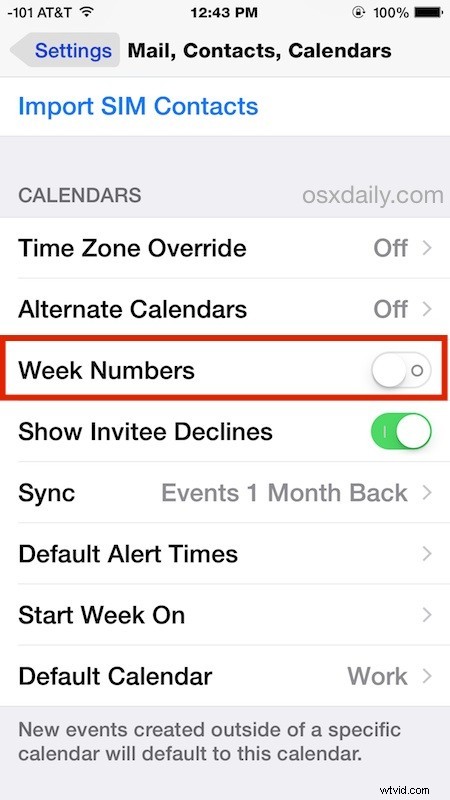
The week numbers will appear directly before the start of the week in a lighter gray text in Month view and Dates List view, on the leftmost side of the week start date, though it will shift slightly if you changed your weeks start date to Monday rather than Sunday.
Here’s what Week Numbers in iOS Calendar app looks like before and after being enabled:
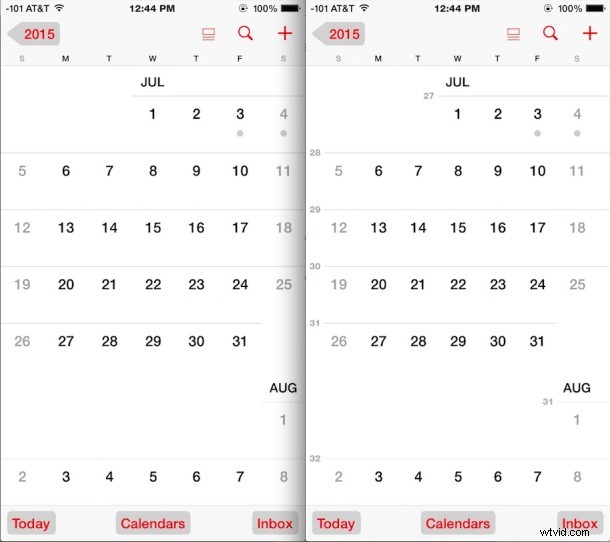
It’s subtle enough that even if you don’t rely on knowing a given week number all the time, having it enabled is not going to be intrusive even for occasional use.
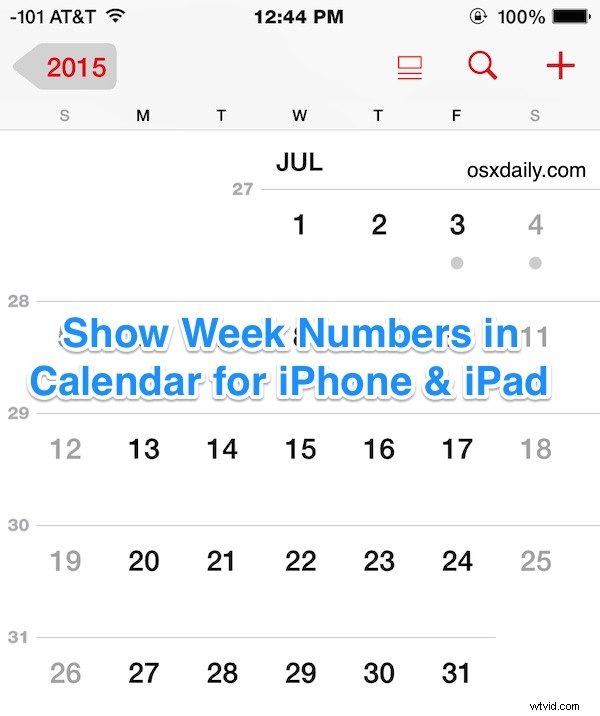
Of course, you could just toggle the switch ON when necessary to know the number of a given week, and toggle it off when you no longer want to see it, but for my iPhone I’ve decided to leave it enabled all the time. Now it’s easy to tell if a visible Holiday falls on a particular week of the year or if a particular week is too busy and will conflict with other happenings.
This feature is only available on iPhone, iPad, and iPod touch running modern versions of iOS, if you do not see the Week Numbers toggle within your Settings app for the Calendar, you’d need to update iOS to reveal the settings change.