

Did you add your appointments or other events in the wrong calendar on your iPhone or iPad? If so, you can easily move or copy them using the Calendar app on iOS and iPadOS.
The bundled Calendar app on the iPhone and iPad lets you create multiple calendars and even sync calendar events from third-party services like Google, Exchange, and Yahoo. Multiple calendars are undoubtedly useful, but they can also lead to some occasional mixup and confusion. For example, you might have added a work-related event in the calendar that you use for personal use, or you might want to move one of your events from Google Calendar to iCloud.
In situations like these, moving or copying events from calendar to another becomes necessary. This article will cover how to do that using iPadOS and iOS.
How to Move & Copy Calendar Events on iPhone & iPad
Moving and copying events within the Calendar app is not as hard as you may think. Let’s take a look at the procedure.
- Open the stock “Calendar” app on your iPhone or iPad.

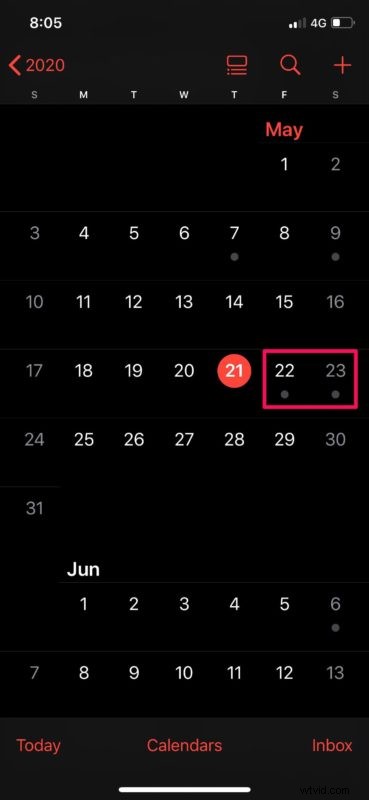
- Days with events are indicated by a gray dot, as shown in the screenshot below. To view and move one of your calendar events, tap on the specific date for the event.
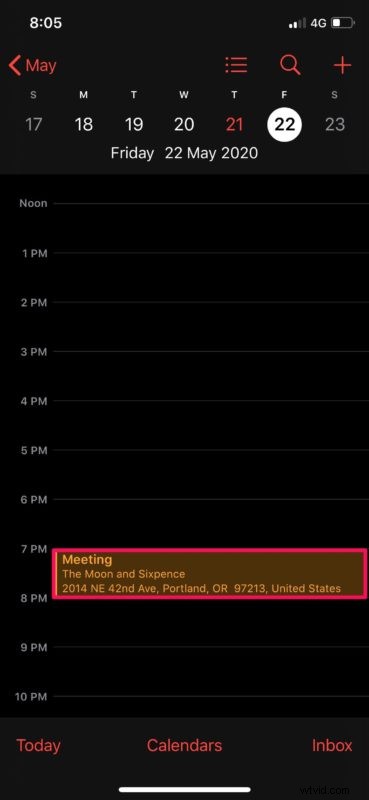
- In this menu, you’ll be able to see all your events on that particular day. Simply tap on the event. Tap on the event you want to move or copy.
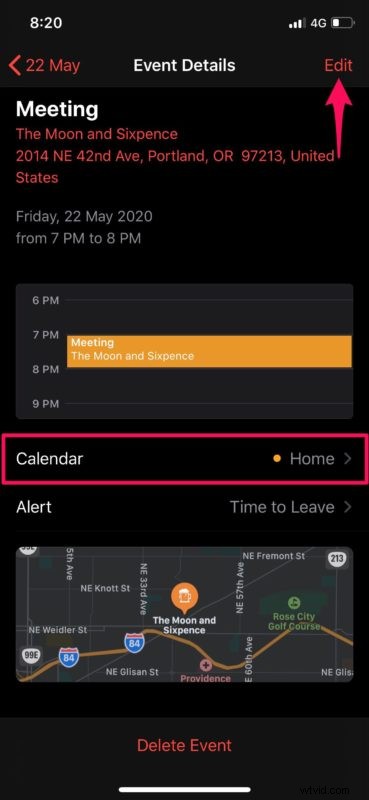
- In order to move the event to a different calendar, choose the “Calendar” option and select one of your calendars. However, if you want to copy the event and paste it somewhere else, tap on “Edit” at the top-right corner of your screen.
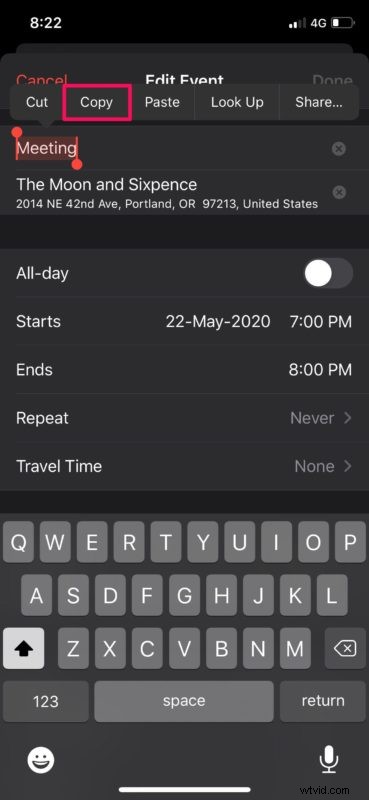
- Now, double-tap on the event’s title to select it and then choose “Copy”.
- Go back to the main menu and open a date in the Calendar app. Now, long-press on the timing you want to choose for your new event.
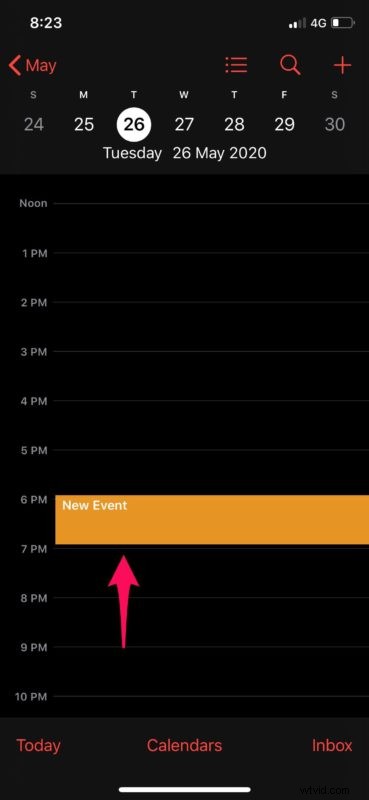
- As soon as you take the finger of the screen, you’ll enter the event menu. Double-tap on the title and choose “Paste”. Alternatively, you can type the title of the event that you want to duplicate and it will show up in suggestions, as shown below. Just select the event to automatically fill up the details for it and tap on “Add”.
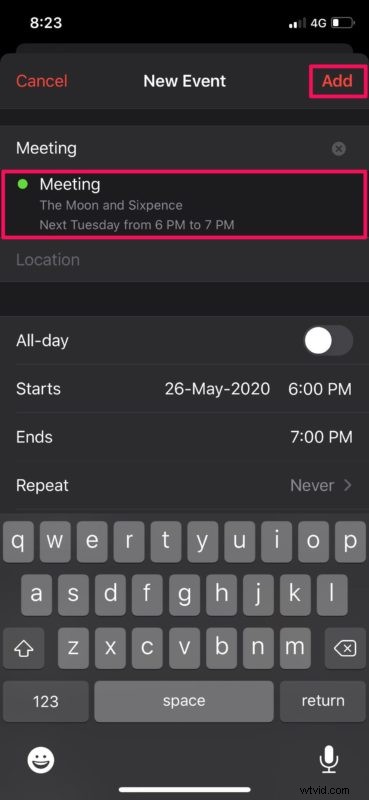
That’s the last step. You now know exactly how to move and copy calendar events on your iPhone and iPad.
The events you’ve moved or copied within the Calendar app will be synced across all your other Apple devices with the help of iCloud. Therefore, regardless of whether you’re using your iPad or decide to switch to your MacBook for work, you can seamlessly keep track of your updated schedule.
If you use a MacBook, iMac, or any other macOS device, you might be interested in viewing all the calendar events you added from your iPhone or iPad as a list on your Mac.
Similarly, the iOS and iPadOS Calendar app allows users to add and remove your scheduled events from any of your calendars with ease. To make things even more convenient, you can use Siri to view and manage your calendar events too. To be fair, scheduling appointments with Siri is a whole lot faster.
Did you move any misplaced events or copy appointments from one calendar to another using the iPhone or iPad? Share your thoughts and experiences in the comments section down below.