
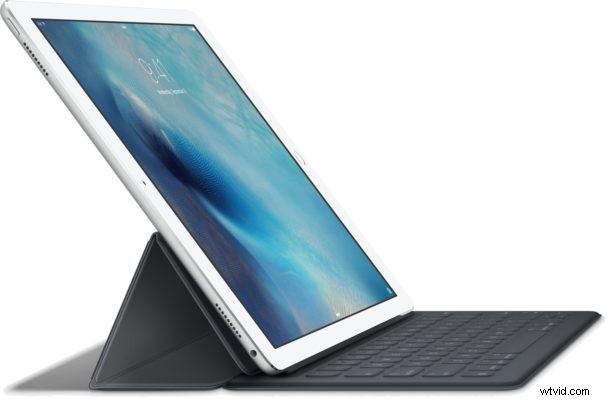
Using copy and paste on iPad and iPhone is easy, and much like copying and pasting on a desktop computer or Mac, you can copy just about anything to the iPad clipboard and paste it just about anywhere that will accept input. Whether you want to copy and paste a text clip, a photo or picture, video, drawing, or nearly anything else does not matter, as long as you can select it, it can be copied and then pasted elsewhere into a different app.
We’ll show you how to copy and paste using the iPad contextual menus found in iPadOS and iOS, as well as a few handy tricks unique to iPad that allow you to paste any copied data by using the onscreen keyboard, or using keystrokes to cut, copy, and paste with iPad and Smart Keyboard. All of this applies to copying and pasting on iPhone as well, but we’re focusing primarily on iPad here.
How to Copy and Paste with iPad
This will copy data from one source to the iPad clipboard, and then paste from the iPad clipboard into a new location:
- Open the app where you’d like to select and copy something from, for example Safari
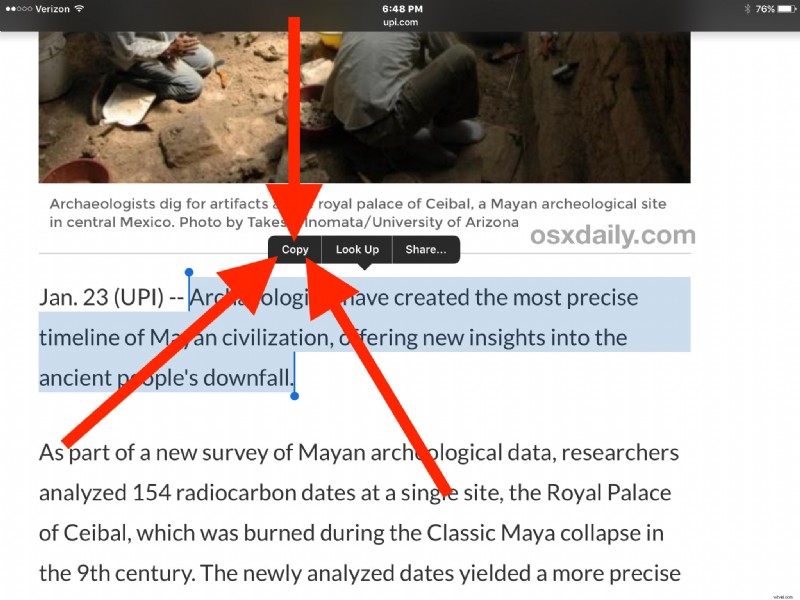
- Tap and hold to select what you’d like to copy to iPad clipboard, use the selection grabber if necessary
- Now choose the “Copy” option from the pop-up menu to copy the selected text or image to the clipboard on iPad
- Open the app where you would like to paste the copied item into, for example the Notes app, or a Mail composition window
- Tap and hold on the screen where you’d like to paste the clipboard data into, then choose “Paste”
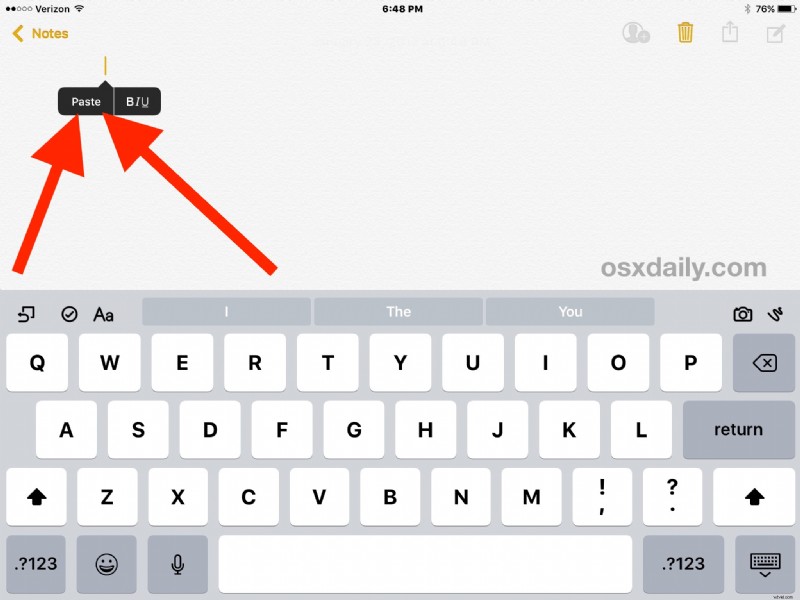
The copied item, text, picture, movie, or data will now be pasted into the new app where you chose the Paste command.
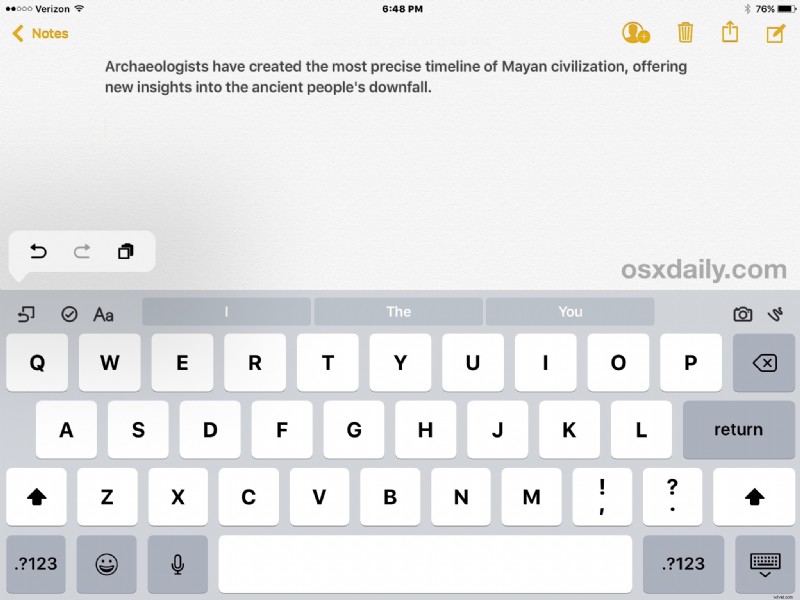
In the screenshot examples above, we copied a block of text from an article in Safari and pasted it into the Notes app, but you could use the same procedure just about anywhere in iOS to copy and paste between Notes, Pages, Numbers, Garageband, Photos, Mail, Messages, and most other apps as well.
How Do You Cut & Paste on iPad?
Cut and paste and copy and paste on iPad are nearly identical, with a few minor but important differences.
To perform a cut and paste rather than copy and paste, you simply choose “Cut” from the pop-up contextual menu item when you have selected the text as outlined above.
Pasting the cut text or data is exactly the same as before.
Remember, when you use “Cut” and paste you are literally cutting the data from the source and then moving it to the pasted location. Cut differs from copy in that it “cuts” it out of the original location, whereas copy simply copies it.
Note that you can only “cut” a piece of text, picture, or data from a selected source that can be edited, like a dynamic document, email, or message thread. A static selected source only allows the “copy” function since it can not be modified, like a web page rendered in Safari.
Pasting with iPad Virtual Keyboard
There’s another great copy, cut, and paste feature that is unique to iPad, and it utilizes the onscreen virtual keyboard.
iPad users can also paste any data from the clipboard that has been copy or cut by using the keyboard paste tool, accessible by tapping on the little undo button and then choosing the square overlapping a clipboard icon.
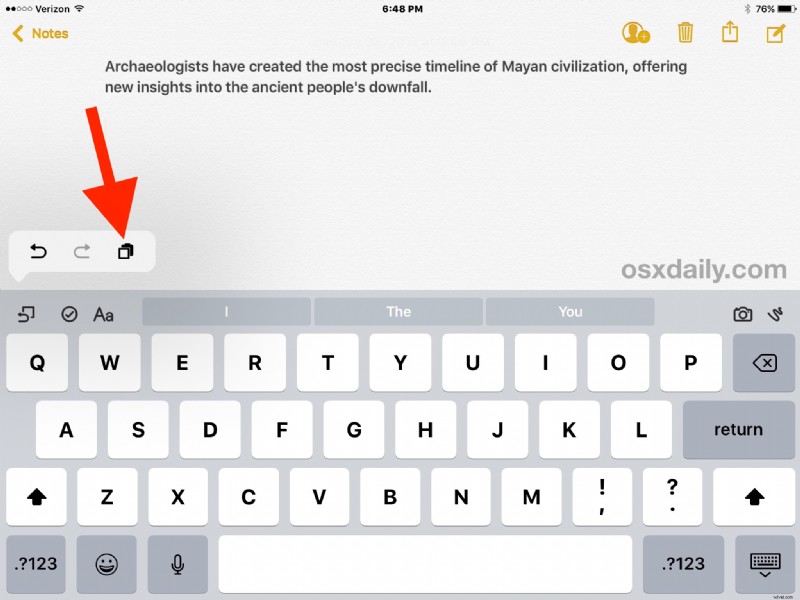
This keyboard based paste function will use the exact same clipboard data as the contextual menu version.
Cut, Copy, Paste on iPad with Keyboard Shortcuts
iPad users who have the Smart Keyboard or an external keyboard can use specific keyboard shortcuts to perform the clipboard modifying actions. Using the keystrokes to cut, copy and paste on iPad still require you to select data first, but then you can use the Smart Keyboard to interact with the clipboard.
- Cut – Command + X
- Copy – Command + C
- Paste – Command + V
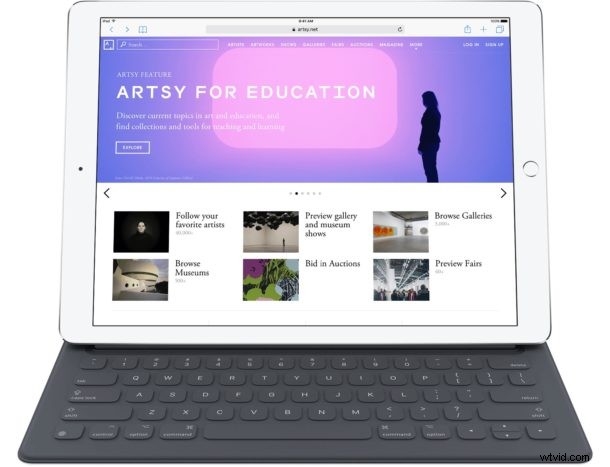
Desktop computer users should recognize these keystrokes as being the same copy and paste keystrokes used on Mac, using the same command key functions, and they should be familiar to Windows users as well except that they use the Command key rather than Control key to interact with the clipboard.
Copying & Pasting on iPad to/from Other Devices with Universal Clipboard
One of the more interesting features brought to modern iOS and Mac OS versions is the cross-platform Universal Clipboard feature. Using Universal Clipboard allows you to copy and paste to or from an iPad and another completely different device, whether it’s another iPad, Mac, iPhone, or iPod touch. You can learn more about using Universal Clipboard here, it’s a great feature.
Have any other helpful copy and paste tricks for iPad users? Let us know in the comments below!