
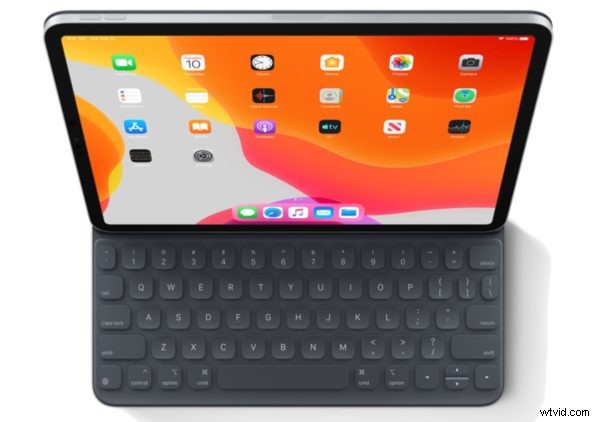
Want to stop iPad typing curly quotes so that you can use ASCII friendly straight quotes instead? You may have noticed that iPad defaults to typing curly quotation marks rather than straight quotation marks, this can be particularly problematic for anyone trying to do scripting, programming, shell work, remote administration, or anything else that requires precise syntax and the usage of straight quotes rather than curly quotes.
This article will show how to type straight quotes on the iPad rather than curly quotes. And yes this applies to all iPad models including iPad Pro, iPad Air, iPad mini, iPad, and for typing straight quotes on iPhone too, though iPad users may find this to be more useful thus the emphasis here.
How to Type Straight Quotation Marks on iPad & iPhone
- Open the “Settings” app on iPad or iPhone
- Go to “General” and then go to “Keyboards”
- Locate the setting for “Smart Punctuation” and turn that to the OFF position
- Exit out of Settings, the change in quotation mark style takes effect immediately
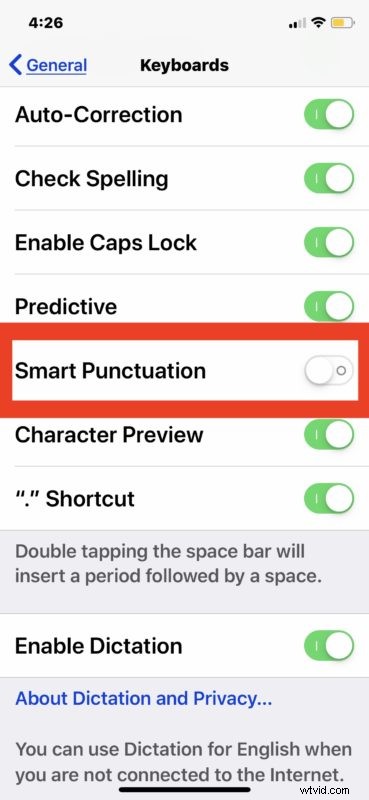
You can confirm that straight quotations are now working by opening any application on iPad and typing the quotation marks, they should be straight quotation marks rather than curly quotes now.
Curiously, there does not appear to be a method of just typing curly quotes or straight quotes while maintaining the other quotation style as a default, so you’d either need to resort to copy and paste or turning this feature off and on again if you need to use both curly quotes and straight quotes. There may be a way around that, if you happen to know of a method to directly type quotation marks in either straight or curly style without toggling a setting on iPad or iPhone then share it with us in the comments below.
This change will carry over to the keyboard on the iPhone or iPad of all types, meaning if you’re using a bluetooth keyboard with iPad (or iPhone) or you’re using a Magic Keyboard, Smart Keyboard, a keyboard case, an iPad as a desk setup, then the change will persist on all keyboards and all quotations marks will be straight rather than curly quotes.
Note this settings change will also a few other punctuation items to make the more ASCII friendly for various environments and for programming and development work. For example this setting will also impact the single quote to be straight (‘) as well as the aforementioned double quotation mark, and it will also impact typing the dash, so you’ll be able to type a double dash like “–” without it converting into a long dash.
If you know of any other methods of approaches to typing straight quotation marks on iPad and iPhone, or perhaps some method to easily intermingle curly quotes and straight quotes, then share it with us in the comments below.