
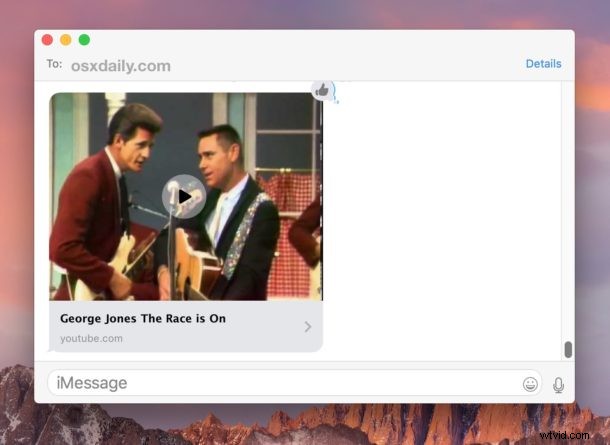
Embedded video playing in Messages is one of the more subtly helpful and interesting features available on modern versions of iOS and Mac OS. Essentially what this means is that when you or someone else sends a video link through the Messages app, say a YouTube or Vimeo link, the thumbnail of the video that is shown is actually playable directly within the Messages app – no need to open a web browser, you can just tap and play the video directly.
Embedded videos can be played in Messages for both Mac OS and iOS, as long as you’re running a modern version of system software. For iPhone and iPad, that means anything beyond iOS 10, and for Mac that means anything beyond Mac OS 10.12.
How to Play Embedded Video Messages in iOS and Mac OS
This trick works the exact same whether you’re in Messages on iPhone, iPad, or Mac:
- Open the Messages app and go into any iMessage thread as usual
- Send or receive a video URL link from YouTube, Vimeo, etc (for example, here’s a YouTube video)
- Tap the subtle play icon in the middle of the thumbnail of the video embedded in the message to start playing
The feature is the same on Messages for Mac and iOS:
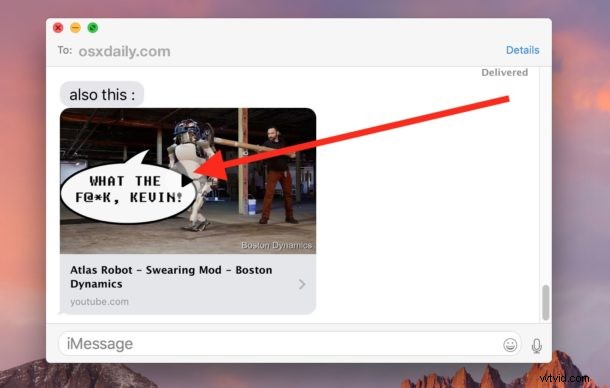
Once the video is playing you can tap anywhere in the video embed to stop or pause the video.
This is great because it allows you to watch a shared video without having to open a different app or leave a message conversation.
Of course you can still open the sent/received video URL into a web browser app if desired, to accomplish that you simply press on the link underneath the video embed thumbnail and it will open into Safari in iOS or the default web browser on the Mac.
This is a subtle feature but it’s really quite useful, give it a try. Remember this is intended to work with video URLs and links shared from the web, where thumbnails are drawn for the shared link. A video sent through messages will also play directly in the messages app, though it opens in a separate viewing screen.
Like other multimedia messages (and messages in general), these can be deleted if you no longer want the embedded video to show up in your messages app, or you can delete the entire message thread too.