
KineMaster is a powerful mobile video editing application, and there’s no official version of KineMaster for PC. If you want some similar programs for your desktop, you can try these KineMaster alternatives in the post (including MiniTool MovieMaker).
KineMmaster is a popular video editor available for Android and iOS, this app has an intuitive interface, and this video editor is easy to understand and operate. And many users also want to use KineMaster on their computers. Unfortunately, there’s no official PC version of KineMaster for PC.
Therefore, this post has compiled a list of the 6 alternatives to KineMaster for PC. Look through this post now and find your favorite KineMaster alternative for PC.
What Is KineMaster
KineMaster is a comprehensive video editing tool on your Android, iPhone, and iPad and makes it easy to create and edit videos. This app is equipped with all the amazing features and tools to enhance your video creation. One of the biggest reasons for its popularity is the user-friendly editing tools that can control video effects and transitions precisely.
You can use KineMaster for free with limited functions and KineMaster watermarks. To access more editing tools and remove the watermark, you should have a KineMaster Premium subscription.
The following is the main features of KineMaster:
- Tools to trim, cut, splice, crop, rotate, flip videos/images, text, audio, effects
- Combine video clips, stickers, images, special effects
- Add music, voiceovers, sound effects, and voice changes to the video
- A collection of 2,500+ downloadable transitions, effects, pictures, videos, stickers, fonts, and animations
- Reverse, speed up, slow down videos and add blending modes
- Perfect color filters and color adjustment tools
- Apply motion to layers with the keyframe animation tool
- Import and export project files
- Save video in 4K 2160p at 30FPS
- Share video on YouTube, Facebook, TikTok, Instagram, and more
Is KineMaster for PC
Because of KineMaster’s flexibility and creativity, many users want to use KineMaster on their PC to make awesome videos. Is KineMaster available for your PC? Can you download KineMaster on your PC?
In fact, there’s no official version of KineMaster for desktop, although you can find many results of KineMaster for PC. And in this post, we’ll introduce 6 alternatives to KineMaster for PC to help you enhance your video creation on desktop.
KineMaster Alternatives for PC
#1. VCDS Video Editor
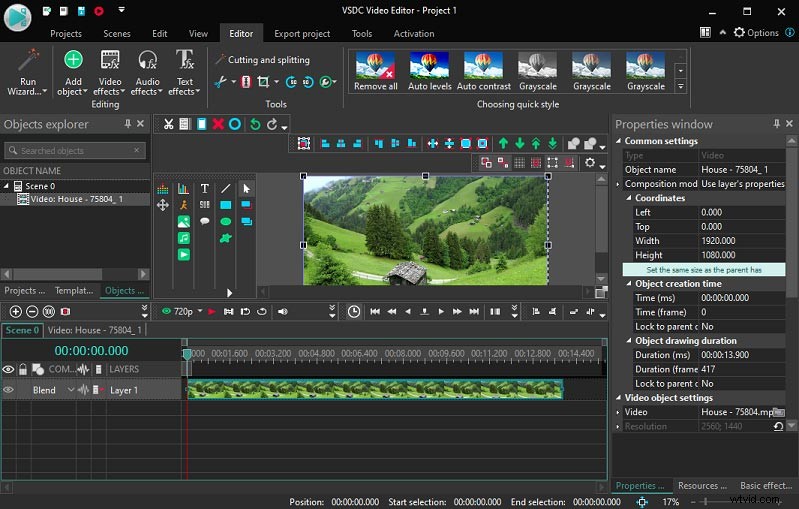
VSDC Video Editor is the first recommended alternative to KineMaster for Windows. It has both free and Pro versions. VSDC Free Video Editor supports all popular video and audio formats and brings a set of editing tools, such as splitting, rotating, cutting, cropping, merging, zooming. And it offers a standard Chroma Key tool to remove video background and a huge library of video effects, transitions, and filters.
Other reasons making VSDC Free Video Editor popular include essential tools like 360 video editing, speed control, color correction, animated text effects, and ability to make stop-motion, remove background noise, blur faces in a video, do video overlays… as well as low system requirements.
For experienced users, VSDC Pro Video editor is a better choice of alternatives to KineMaster for Windows, and this version provides more pro-level editing tools. For example, the Pro version has advanced tools of motion tracking, video mask, Chroma Key, and it’s able to stabilize shaky video, record real-time voiceovers, and more.
VCDS Video Editor is a good KineMaster replacement for your desktop, and you should choose the right version based on your needs.
#2. Cyberlink Power Director
Cyberlink Power Director is a full-featured PC video editing software program and also one of the best apps like KineMaster for PC.
Firstly, this KineMaster alternative provides multiple video templates and a royalty-free stock library of videos, images, and music tracks to help you create videos. Secondly, this software has some tools to edit your media, such as splitting a clip, trimming video and audio, stretching and cropping images, adjusting video aspect ratio, muting audio, setting a clip’s duration, and more.
To enhance your video, Cyberlink Power Director gives more possibilities. It allows you to make titles with animated templates and custom tools, choose and add a transition and an effect from various styles.
What’s more, Cyberlink Power Director has other effective functions to help you make professional-level videos, including keyframing, green-screen effects, video mask, motion tracking, video stabilization, speed control, zoom and pan effects, lens correction, voice-over recording, etc.
All in all, PowerDirector is a reliable alternative to KineMaster for desktops.
#3. MiniTool MovieMaker
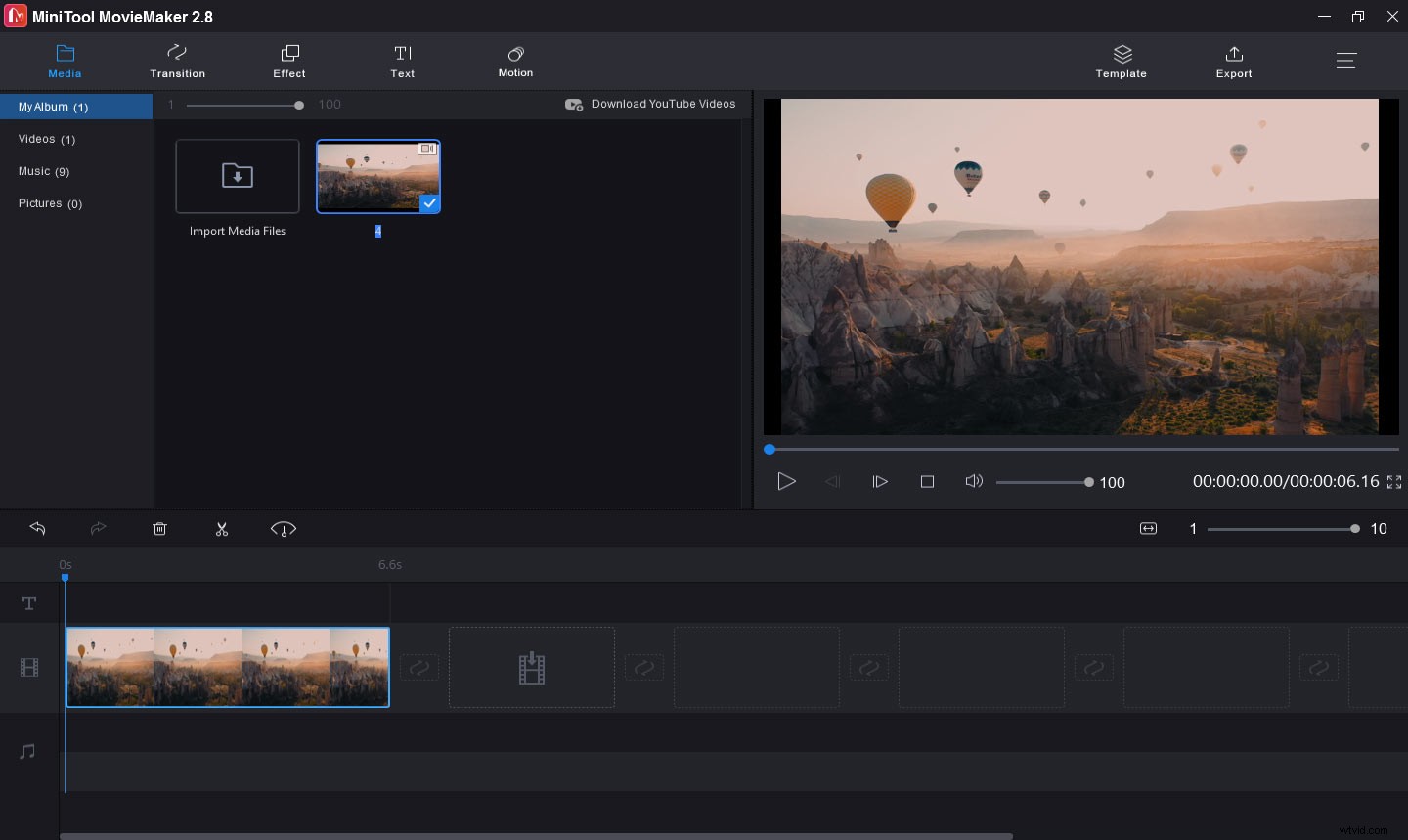
MiniTool MovieMaker is another KineMaster alternative for PC. If you’re a beginner, you may need some time to be familiar with the above video editors. If you choose MiniTool MovieMaker, you’ll learn how to use it in a few minutes. It has a user-friendly and well-organized interface where you can easily navigate to the target editing tool.
With MiniTool MovieMaker, you can make awesome videos from images, video clips, and background music. To personalize your videos, this program allows you to trim video, split video, rotate video, flip video, slow down or speed up video, reverse video, adjust video’s brightness, contrast, saturation, etc.
To enhance your videos, you can choose from a variety of video transitions and video filters and add motion effects to your still images. Additionally, MiniTool MovieMaker offers many templates of titles, credits, and captions to help you add text to the video. What’s more, this KineMaster alternative can remove audio from video and make a GIF from a video.
MiniTool MovieMaker is a completely free video editor without ads, bundles, or watermarks. And it’s really simple to use.
#4. Movavi Video Editor Plus
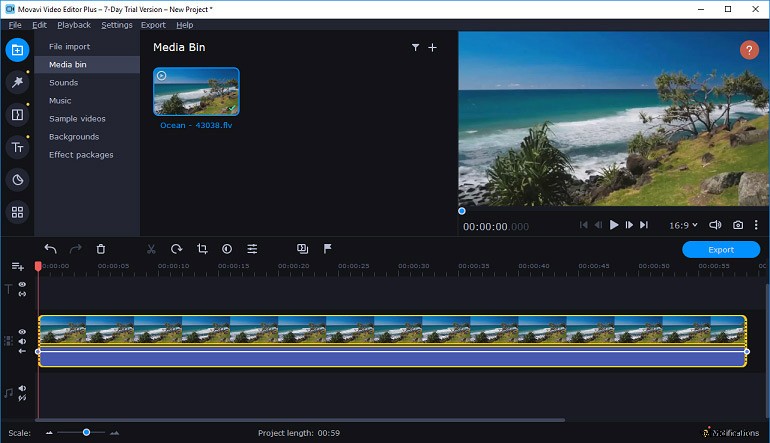
Movavi Video Editor Plus is also one of the best apps like KineMaster for PC. It’s also a perfect tool to show your creativity. With this software, you can create videos with special effects, keyframe animation, and pre-designed intros.
Of course, it has multiple tools to customize your video. You can split, rotate, crop, cut, merge, flip, and reverse videos, change video speed, do color correction, overlay videos, remove noise from the video, import and add logos to the video, apply filters, add transitions between sections.
Moreover, it lets you create perfect backgrounds for your video with the Chroma Key tool, adjust the video aspect ratio for YouTube Instagram, Facebook, smooth our videos by decreasing camera shake, create a picture-in-picture effect, add voiceover to your video, and more.
#5. VideoPad Video Editor
Developed by NCH Software, VideoPad is a professional video editor for everyone and it’s also a nice choice of alternatives to KineMaster for desktop. Firstly, it has a fast video stream processor to help you create and edit videos in minutes. Secondly, this video editor offers various video transitions and pre-designed templates for intros, outros, titles.
Additionally, VideoPad allows you to add custom logos and watermarks to the video, add animated text, use Chroma key green screen video production, and supports 2D to 3D stereoscopic conversion.
To further optimize your video, this KineMaster alternative can split, trim, crop, and mix videos, fine-tune video color and effects, change video speed, stabilize shaky videos, and export video without quality loss.
After editing, VideoPad can directly share videos to YouTube, or upload videos to OneDrive, Google Drive, Dropbox, or save videos to PSP, iPod, iPhone, and 3GP mobile phones,etc. And it works with a wide range of input and output formats. In a word, VideoPad is also one of the best apps like KineMaster for PC.
#6. Kapwing
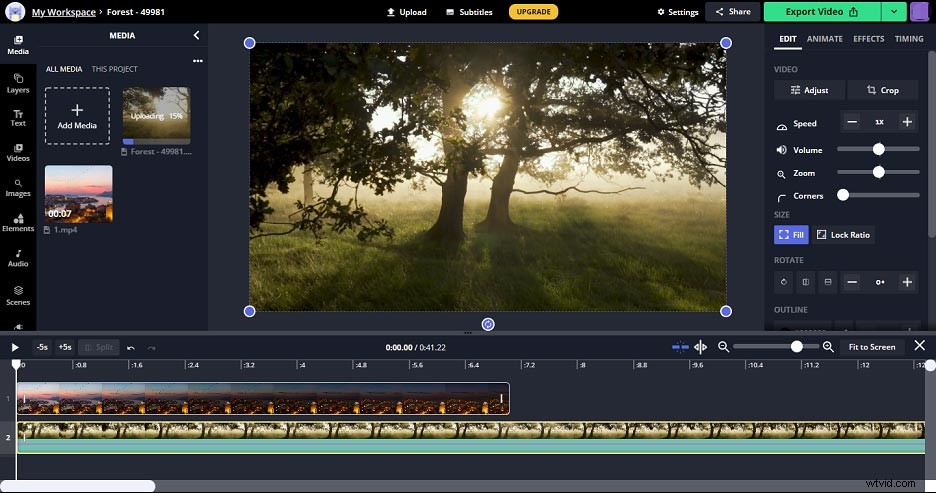
If you need an online KineMaster alternative for PC, Kapwing is recommended here. As a powerful online video editor, it’s equipped with all basic editing functions, such as color adjustment, filters, cropping, trimming, reversing, speed control, volume control, zooming, rotation, Chroma Key, etc.
Moreover, Kapwing offers many text templates to help you add unique text to the video, and it also lets you add shapes or add emojis to the video and apply animation effects to the video. And with the plugins of Unsplash, GIPHY Text, GIPHY Search, Pexels, and Google Photos, you can browse over their images/videos/GIFs and import and edit them.
What Is the Best KineMaster Alternative for PC
After learning about some editing features and functions of these apps like KineMaster for PC, let’s look at the below table and get the information about their compatibility and price to select a suitable alternative to the KineMaster app for PC.
|
KineMaster for PC |
Operating System |
Price |
|
VSDC Video Editor |
Windows |
Free and Pro ($19.99 per year) |
|
Cyberlink Power Director |
Windows and macOS
|
Lifetime License: $99.99 for PowerDirector 20 Ultra, $139.99 for PowerDirector 20 Ultimate Monthly Subscription: $19.99 PowerDirector 365, $29.99 Director Suite 365, $69.99 PowerDirector 365 Business Annual Plan: $69.99 PowerDirector 365, $129.99 Director Suite 365, $299.99 PowerDirector 365 Business |
|
MiniTool MovieMaker |
Windows |
Free |
|
Movavi Video Editor |
Windows and macOS |
$40 Video Editor Plus 1-year license /1 PC, $50 Video Editor Plus Lifetime /1 PC, $60 Video Suite Lifetime /1 PC |
|
VideoPad Video Editor |
Windows and macOS |
A free version for non-commercial use only, Master’s Edition $99, Home Edition $60 |
|
Kapwing |
Web-based |
Free, Pro $17 |
Further Reading: How to Fix KineMaster Exporting Error
When you export videos with KineMaster, you may suddenly receive a message saying: “An error occurred while exporting. Please try again.” How to fix the KineMaster exporting error? Here’re 5 methods.
1. Clear Background Running Apps
One common reason for the KineMaster exporting error is that other apps may be using the video decoder of your device. Thus, the first solution is to clear the background apps, then open KineMaster and try exporting again.
2. Choose a Lower Video Resolution
When your phone cannot export the video with your selected resolution, the exporting error also happens. To solve this issue, you can try exporting video in a lower resolution. If you choose the 4K video previously, then you can try QHD 1440p or HD 1080p.
3. Force Quit KineMaster
If you’re still facing the exporting error, then you can try to force quit the KineMaster app. Alternatively, you can restart your phone. Then open KineMaster and retry exporting.
4. Clear Cached Data
Another method is clearing KineMaster cached data. Just go to Settings > Apps > KineMaster, then clear the cache data.
5. Update KineMaster to the Latest Version
If the KineMaster version is not compatible with your phone, it may also cause exporting error. Thus, you should go to the Google Play Store or Apple Store to update this app.
Need to repair damaged videos on your computer? Check this post - Free Ways to Repair Severely Damaged Videos (MP4/MOV).
Conclusion
This post describes 6 alternatives to KineMaster for PC. All of them have unique tools and features to help you create amazing videos. And if you’re a beginner, MiniTool MovieMaker is highly recommended here. It’s simple to learn and operate.
And this post also gives 5 methods to fix KineMaster exporting error. When you encounter this problem, you can try these solutions.
If you’d like to share other KineMaster alternatives for PC or if you have any questions, you can leave your recommendations in the comments area or contact us via admin@wtvid.com.