
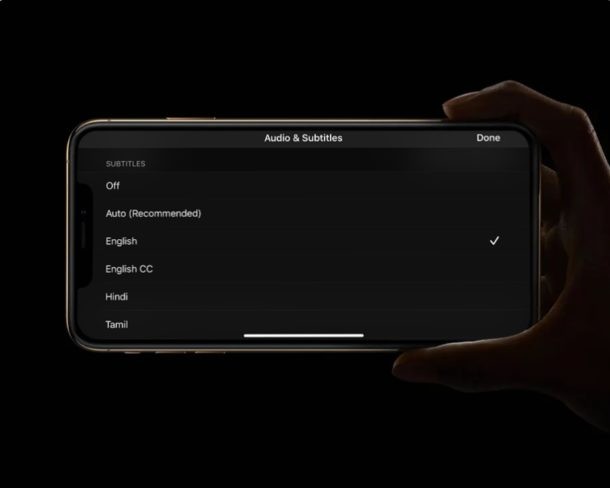
Want to use subtitles or closed captioning on videos on your iPhone or iPad? Do you watch movies and other video content in foreign languages? If so, you’ll be pleased to know that you can view subtitles and closed captions on your iPhone and iPad, as long as they’re available for whichever video or service you’re watching.
Many people take advantage of subtitles while watching videos on their devices. This could be due to various reasons, ranging from watching foreign language films, to hearing impairment, to watching a video with low audio, to language barriers. Subtitles and closed captioning are considered an accessibility feature in iOS and iPadOS, and the procedure to enable and use subtitles often depends on what app or service you use to watch videos.
How to Enable Subtitles & Closed Captions on iPhone & iPad
If you have hearing impairment or just want to use the feature for any other reason, you can take advantage of the Subtitles & Captioning accessibility feature that’s buried in settings. Let’s take a look at the necessary steps.
- Head over “Settings” on your iPhone or iPad.

- In the Settings menu, scroll down and tap on “Accessibility”.
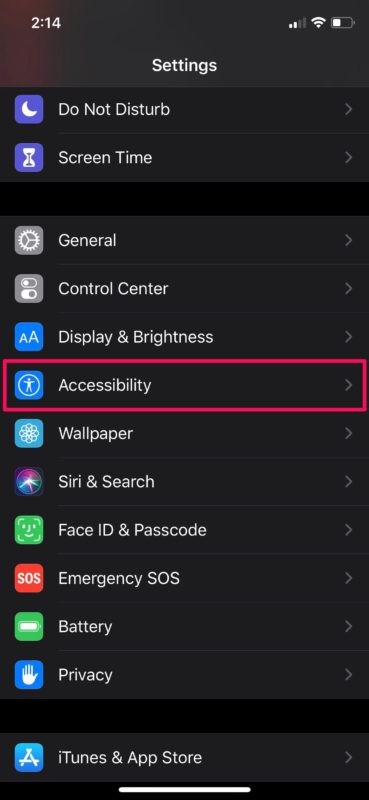
- Next, scroll down and choose “Subtitles & Captioning” located under the Hearing category, as shown below.
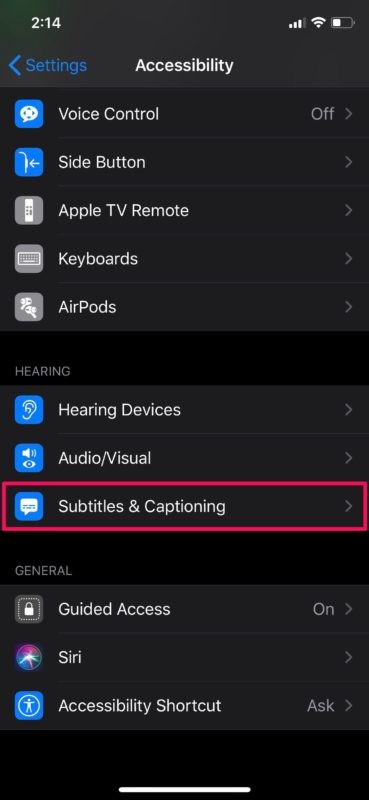
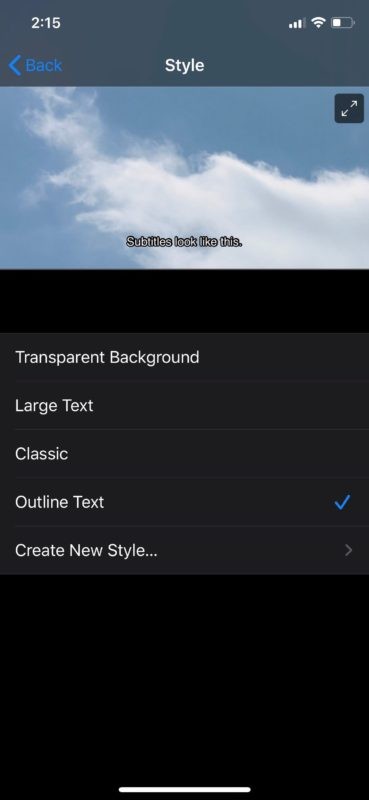
- Now, simply tap on the toggle to turn on closed captions and subtitles for deaf and hard of hearing. If you want to customize how your subtitles look, tap on “Style”.
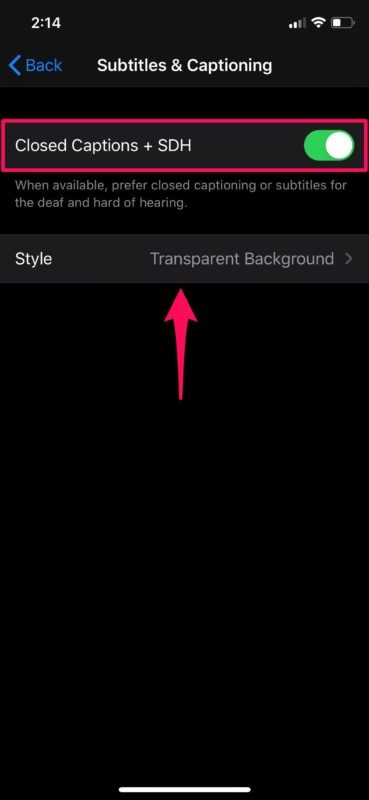
- As you can see here, you have multiple style options to choose from. If that’s not enough, you can even create your own new style. You can preview how the subtitles look in the same menu.
There you go, you’ve now learned how to enable and use subtitles on your iPhone and iPad.
From now on, whenever you’re watching video content on your iOS or iPadOS device, subtitles or closed captions will be displayed on your screen whenever they’re available. Also, look out for the subtitle icon in the playback icon if they don’t show up automatically.
When this accessibility feature is enabled, you’ll need to choose the option that says “SDH” from the list of available subtitles. SDH stands for subtitles for deaf and hard of hearing, and they differ from regular subtitles.
How to Enable Subtitles in Apple TV App
If you watch movies and TV shows with your Apple TV+ subscription, it’s pretty easy to access subtitles within the Apple TV app. Simply follow the steps below to get started.
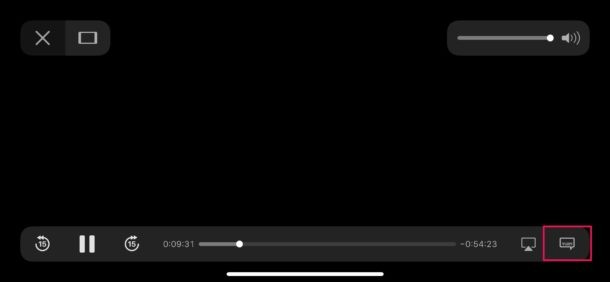
- Play any movie or TV show of your choice. Tap on the screen to access the playback menu. Here, you’ll notice the option for subtitles located right next to the AirPlay icon, as shown in the screenshot below.
- Now, just choose a preferred language for subtitles. In the same menu, you can also change the audio language, if available.
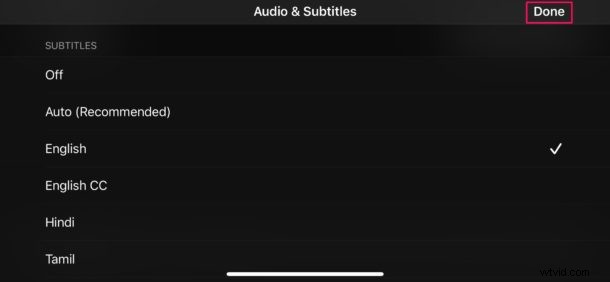
You can follow the exact same method to enable subtitles in any other supported third-party app like Netflix, Disney+, etc as well.
If you own a Mac, you’ll be pleased to know that you can change your subtitle font and size for iTunes and video playback on your macOS device. This could be handy, as the default text size for subtitles is on the smaller side for most people.
We hope you managed to enable and use subtitles and closed captions on your iOS or iPadOS device without any issues. What are your thoughts on this accessibility feature? Share your experiences and thoughts in the comments section.