

If you’re one of those countless people who use Netflix to watch movies and TV shows on your iPhone, iPad, or Apple TV, you’ll be pleased to know that you can indeed use subtitles while watching any Netflix content, as long as they’re available anyway.
Many people take advantage of subtitles while viewing video content on their devices for any number of reasons, ranging from hearing impairment, to language barriers, to watching foreign films, to watching a movie or show quietly, to help in comprehension, to aid foreign language learning, amongst many other reasons. Although iOS, iPadOS, and tvOS have a built-in accessibility feature for using subtitles and closed captions, the official Netflix app features an option to quickly enable/disable subtitles while you’re watching content too.
Trying to find this option in the Netflix app? Well, you’ve certainly come to the right place then. In this article, we’ll be discussing exactly how you can easily enable/disable subtitles on Netflix on iPhone, iPad, and Apple TV.
How to Enable/Disable Subtitles on Netflix on iPhone, iPad, Apple TV
If you already have a Netflix subscription, it’s pretty and straightforward to access subtitles within the Netflix app. Make sure you’ve installed the latest version of Netflix from the App Store for iOS, iPadOS or tvOS, and simply follow the steps below to get started.
- Open the “Netflix” app on your iPhone, iPad, or Apple TV.

- Next, select the movie or TV show that you want to watch.
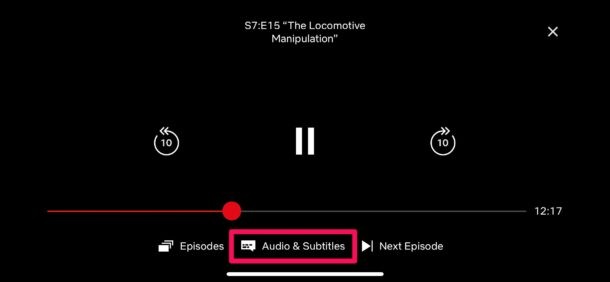
- Once you’ve started watching the content, tap anywhere on the screen to access the playback menu. Now, tap on “Audio & Subtitles” as shown in the screenshot below.
- Here, you’ll be able to enable and disable subtitles at your convenience. Or, you can even switch to a different subtitle language.
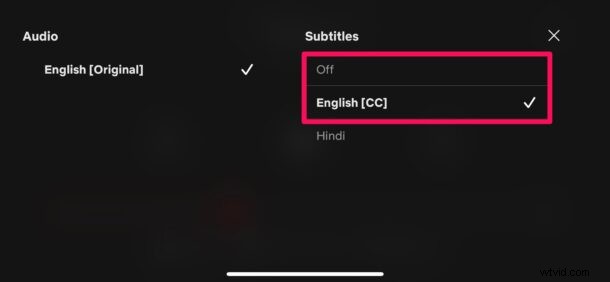
That’s how easy it is to turn subtitles on and off while watching Netflix content on iOS, iPadOS, or tvOS.
You can use the same menu to switch to a different language for the content you’re watching, provided they’re available. That being said, languages available will vary depending on the country you live in.
Be mindful that once you turn on subtitles while watching a movie or TV show, the setting will be applicable to all the content you watch on Netflix from then on. So, make sure you disable subtitles when you don’t need it anymore.
The default text size for subtitles is on the smaller side for most people. However, if you have less than perfect eyesight, you can easily change your subtitle font size regardless of whether you’re using Netflix on an iPhone, iPad, or Apple TV.
Do you use Apple TV+ instead of Netflix for watching movies and shows? If so, you’ll be able to access subtitles within the TV app in a fairly similar way. Just like Netflix, you can change your preferred language for the audio and subtitles as well.
Are you using subtitles for your favorites Netflix show? Do you have any helpful related tricks or insight? Let us know in the comments!