
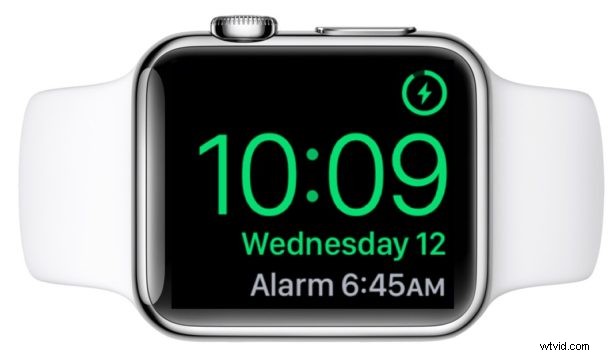
Want to set up a silent alarm clock on your Apple Watch? How’d you like to be tapped on your wrist to wake up? The Apple Watch can go beyond the iPhone silent vibration alarm feature and actually tap you on the wrist as a wake-up instead, and it’s a pretty neat feature for obvious reasons.
Your Apple Watch has tons of different uses whether you’re using it to stay on track with your health goals or just want to make sure you don’t miss a notification on your iPhone. But it’s the simplest of uses that people often overlook, including using it as an alarm clock. It’s really good at waking you up. And you can make it happen silently, too.
Nobody likes to be woken up by a blaring alarm, especially when you don’t need to actually wake up, or your partner doesn’t need to wake up. It’s a problem that partners have faced for as long as we’ve had alarm clocks and the Apple Watch does a wonderful job of fixing that by waking you up silently. The watch taps your wrist to wake you and your partner need never know it’s happening.
We’ve already shown you how to set an alarm that will wake you on Apple Watch – and everyone unfortunate enough to be near you – but there’s a subtle difference for anyone who wants to be woken silently. We won’t be covering the basics again – including how to snooze your alarm! – so be sure to start over there if you’re new to the Apple Watch.
With that said, and with your alarm all set and your PJs on, here’s how to make sure that your alarm won’t wake the dead.
How to Set a Silent Tap Alarm on Apple Watch
- Swipe up from the bottom of your Apple Watch’s screen when the watch face is being shown.
- Tap the bell icon to place your Apple Watch into Silent Mode.
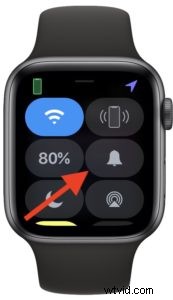
That’s everything you need to do!
With Silent Mode enabled you’ll also notice that inbound notifications are also silent with your Apple Watch tapping your wrist instead of blaring sounds at everyone. That’s obviously a good thing if you’re asleep – although you should probably have Do Not Disturb enabled overnight, too.
It’s also important to note the difference between Do Not Disturb and Silent Mode.
With Silent Mode, inbound notifications will be delivered silently but with a tap on the wrist for the latter.
But Do Not Disturb prevents any form of aural or physical notification, although they will still be available in Notification Center when you wake.
Do Not Disturb is also available on your Mac as well as iPhone and iPad, too, and it’s a very handy feature for trying to get some peace and quiet, maintain focus while working, or just to tune out to the world for a while.
Do you use the Apple Watch silent alarm? Perhaps you will now! Do you have any other handy tips or advice about using Apple Watch as an alarm clock? Let us know any of your thoughts or experiences in the comments.