

Need to restore your Apple Watch? Did you upgrade the Apple Watch you have to a newer model? Perhaps, you accidentally set it up as a new device and you want all the data you had on your old Apple Watch? If so, you may be interested in learning how you can restore your Apple Watch from a previous Apple Watch backup.
Just like iPhones, iPads, and Macs, your Apple Watch uses backups to store all your data in case you ever need it later. Unlike other devices, you don’t actually need to manually back up your Apple Watch because it automatically backs up all your data to the iPhone it’s paired with. When you back up your iPhone to iCloud or iTunes, your Apple Watch backups are also included in the data.
If you’re having trouble accessing your previous Apple Watch data on your new Apple Watch, don’t fret. In this article, we’ll be discussing how you can restore your Apple Watch from a previous backup.
How to Restore Apple Watch from Backup
You cannot manually restore your Apple Watch from a previous backup once it’s set up already. Hence, you’ll need to unpair your Apple Watch and set it up all over again. Simply follow the steps below.
- Launch the Apple Watch app on the companion iPhone.

- This should take you to the “My Watch” section of the app. Here, tap on “All Watches” located at the top-left corner of the screen.

- Next, select the Apple Watch you’re currently using and tap on the “i” icon next to it.
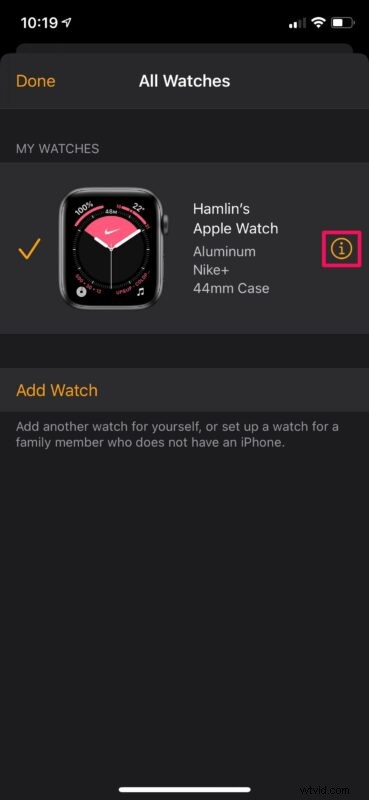
- In this menu, select the “Unpair Apple Watch” option.
- You’ll now be prompted to type in your Apple ID password. Enter the details and tap on “Unpair” to initiate the process. It could take a minute or two to complete.

- Now, you’ll see the following screen in the Apple Watch app. Tap on “Start Pairing” to pair the Apple Watch you just unpaired.

- Next, instead of setting up as a new Apple Watch, select the previous backup that you want to use and tap on “Continue”.
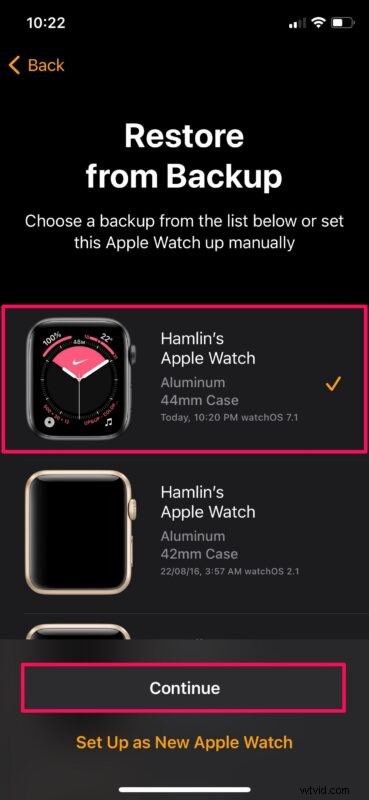
You’re good to go at this point. It’ll take several minutes to set up your Apple Watch with all your old data.
Other than this method, there’s no other way to restore an Apple Watch from a previous backup. So, if you ever want to use a different backup data at some point, you’ll need to unpair your Apple Watch and redo the whole process by following the above steps again.
It’s worth pointing out that when you unpair an Apple Watch, your iPhone will automatically create a backup of your Apple Watch before all the data is erased. However, if your Apple Watch is unpaired when it’s out of range of the companion iPhone, the backup might not happen and you may not have access to the latest data.
Note that Apple Watch backups do not include data like Bluetooth pairings, credit or debit cards that are used for Apple Pay, passcode, and messages. Also, if you’ve set up an Apple Watch for a family member using your iPhone, the backups will be made directly to the family member’s iCloud account instead of your iPhone.
We hope you were able to restore your Apple Watch data from a previous backup without any issues. Do you want Apple to give users the option to manually backup data whenever necessary? Let us know your valuable opinions and share your personal experiences in the comments section down below.