
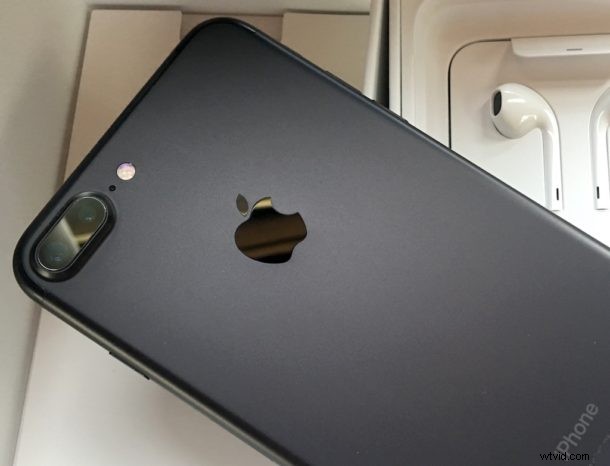
Want to transfer everything to a new iPhone 7 or iPhone 7 Plus from your old iPhone that it’s replacing, and without losing any data, pictures, apps, or passwords? Then you’re in the right place, as we’ll show you exactly how to migrate your data from an old iPhone to a new iPhone 7 and bring everything with you.
The key to successfully migrating everything from an old iPhone to a new iPhone is to create a fresh encrypted backup. You can do this with iCloud or with iTunes, or both if you want, but ultimately you’ll just use one of the backups to restore and migrate your stuff to the new iPhone 7. Keep in mind you will need sufficient storage space in iCloud or the computer to complete the backup, that may mean bumping up your iCloud storage plan if you go that route, or if the hard drive on the computer is low on storage, you can backup the iPhone to an external hard drive with these instructions for a Mac.
How to Migrate & Transfer Everything to a New iPhone 7
This is broken into two primary sections for a successful transfer and migration; backing up your data from the old iPhone, and then setting up and migrating that backed up saved data to the new iPhone 7 or iPhone 7 Plus so that everything comes with you to the new device. It’s a pretty easy process as you will see, let’s get to it.
Step 1: Back Up the Older iPhone
You’ll want to make a new fresh backup of the older iPhone that is being replaced by the iPhone 7. If you regularly make backups with iCloud then you should start a quick manual backup to iCloud anyway so that everything is fresh.
Option 1: Backup to iCloud
- Open the ‘Settings’ app and go to “iCloud”
- Choose “Backup” and make sure the setting is ON, then select “Back Up Now” and let the backup process complete
iCloud backups are efficient but can take a while for a larger device.
I personally prefer to use iTunes because it’s much faster than using iCloud to restore, but this depends on how much stuff you have on your iPhone and how fast your internet connection is.
Option 2: Backup to iTunes
- Open iTunes and connect the old iPhone to the computer with USB cable
- Select the old iPhone and go to the summary screen in iTunes
- Find the Backups section and choose “This Computer” and then be sure to check the box for ‘Encrypt Backups’ – encrypting iTunes backups makes sure that passwords and health data are backed up along with everything else, if you don’t encrypt the backup it will not be a complete backup
- Choose “Back Up Now” and let the backup complete
Whether you used iTunes to backup or iCloud to backup, once it has been completed you are ready to migrate your stuff to the new iPhone 7 or iPhone 7 Plus.
Step 2: Setup New iPhone 7 / iPhone 7 Plus and Migrate Data Over
With your fresh backup completed, you are ready to setup the new iPhone 7 or iPhone 7 Plus and transfer all of your stuff over.
- Power on the new iPhone 7 and go through the typical setup process of picking a language, connecting to wi-fi, and configuring preliminary settings
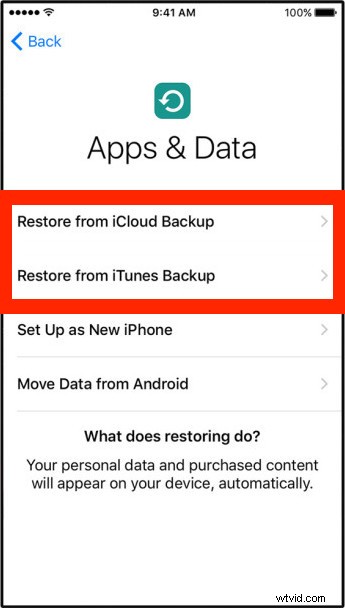
- When you get to the “Apps & Data” screen, this is where you can select your backup to migrate everything over from
- Choose “Restore from iCloud Backup” to migrate using the previously made iCloud backup
- Choose “Restore from ITunes Backup” to transfer everything from the iTunes backup, requiring a connection to the computer
- Let the transfer of everything from the backup complete to the new iPhone 7 or iPhone 7 Plus
When the process has completed, you will have successfully migrated everything from an older iPhone to the new iPhone 7 / iPhone 7 Plus.
It’s really that easy. If you happen to notice the screen looks a little bit warmer or yellow than you’re used to, you can adjust color on the iPhone 7 display to correct it to suit your preference. Enjoy your new iPhone 7 or iPhone 7 Plus, and don’t miss some of the best new iOS 10 features you’ll find on the device.