
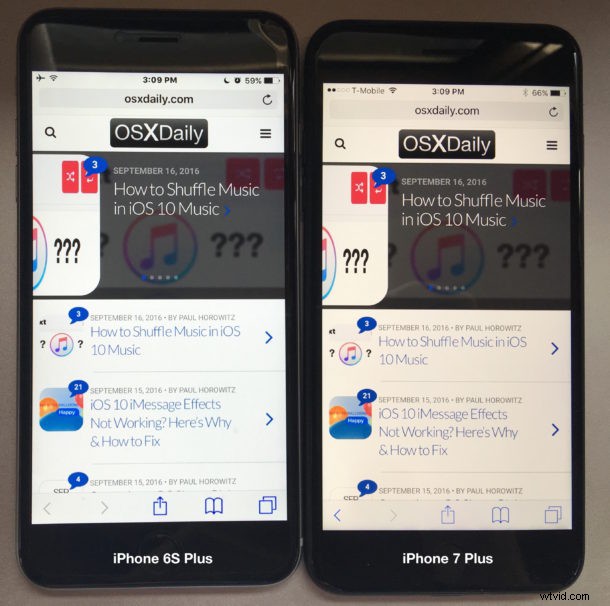
Some iPhone 7 and iPhone 7 Plus screens appear very yellow, or at least seem to display a much warmer color spectrum than what many people were used to on a prior iPhone display. If your new iPhone has a yellow screen or a warmer display, we’ll show you how you can color correct the iPhone display quickly and do away with any yellow screen tint.
Before proceeding, realize that on some occasions, select prior iPhone and iPad devices have had a yellow tint to the screen that seemingly resolves itself over a several day period. Supposedly this is because an adhesive on the display is not yet entirely dried, which can cast a slight yellow color hue onto the display. If this is the issue, it should resolve itself just by doing nothing other than waiting a couple of days for that glue to dry. Consider this before adjusting the iPhone display color hue as we’ll cover next.
This walkthrough is shown with a brand new iPhone 7 Plus which undoubtedly has a warmer display than an iPhone 6S Plus it is being compared to. But with a simple color hue adjustment, you can actually make it cooler or bluer as desired.
How to Color Correct the Yellow Screen of iPhone 7 or iPhone 7 Plus
On the device with the yellow tinted or unusually warm display, do the following:
- Open the “Settings” app and go to “General” and then to “Accessibility”
- Tap on “Display Accommodations” and then tap on “Color Filters”
- Flip the “Color Filters” setting to the ON position
- Select the “Color Tint” option from the filter list
- Now adjust the Hue to be less yellow by sliding the Hue bar, move it around until your screen is closer to the color hue you are looking for
- Slide the “Intensity” filter to a low setting to offer a more subtle color correction
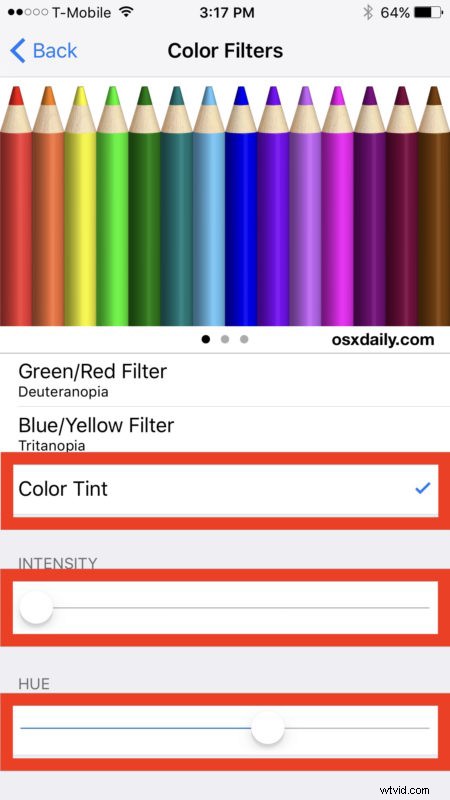
Adjusting the color tint intensity and hue should let you quickly get to a display that does not have a yellow tint or warmer hue. You can also easily overdo it and get a very blue cooler screen, or an ultra warm screen, but adjust away according to your own visual preference.
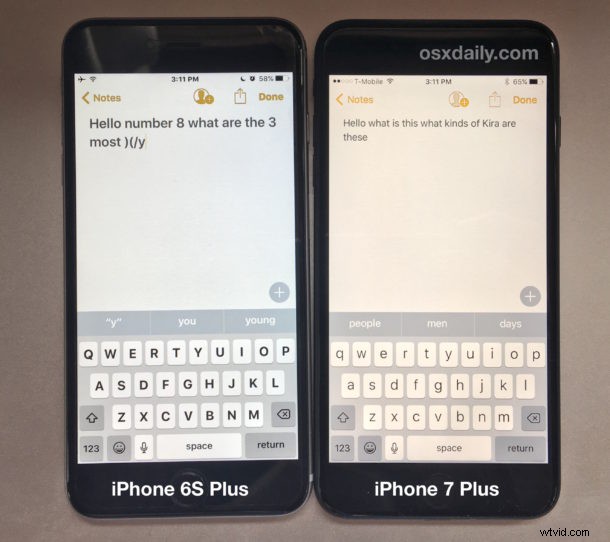
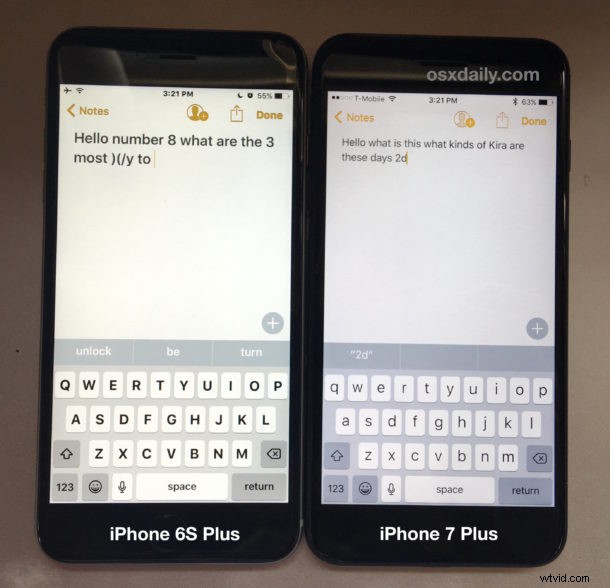
BEFORE: Yellow Screen iPhone 7 Plus vs iPhone 6S Plus Side-by-Side
You can see a few different examples of the yellow screen side by side before color correction, the regular color iPhone 6S Plus is on the left and yellow tint iPhone 7 Plus is on the right. These pictures were taken with an iPhone 6 Plus so they’re not going to be the most amazing photos in the world, but they do demonstrate the notable difference in screen warmth:
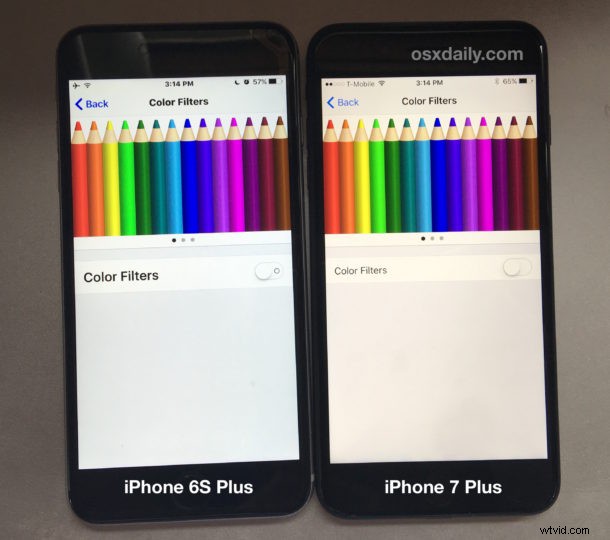
AFTER: iPhone 7 Plus vs iPhone 6S Plus Side-by-Side
Here is what the iPhone 7 display can look like after color correcting or shifting the hue via Color Tint, as you can see they’re now basically identical if set it properly:
You’ll notice in this picture the iPhone 7 Plus has been probably overly corrected too blue as now the iPhone 6S Plus screen looks yellow.
Adjust the Color Tint yourself, you’ll see how it works and how sensitive the color adjustments can be.
Do note that if the earlier mentioned adhesive screen glue drying thing is legitimate (and not just a longstanding rumor that seems to recirculate with every iPhone and iPad launch), then your iPhone 7 or iPhone 7 Plus display is probably going to look oddly cooler in a few days, so you’ll probably want to return back to the Color Tint settings and either turn the feature off, or re-adjust it as needed.
The ability to adjust color tint on the iPhone (or iPad) screen is a new feature to iOS 10 and it’s really quite nice, sort of similar to how calibrating a screen on the Mac works in Expert Mode with precise color adjustments. Since adjusting the screen tint to be slightly more cool seems to do away with this yellow display tint, it makes you wonder if the iPhone 7 and iPhone 7 Plus display was just color calibrated to be warmer to begin with. Time will tell, because if it’s just a yellowish screen glue thing, it’ll go away on it’s own shortly.
Did your iPhone 7 or iPhone 7 Plus screen have a yellow tint or warmer hue? Did you use the color adjustment tip to fix it? Let us know in the comments.