
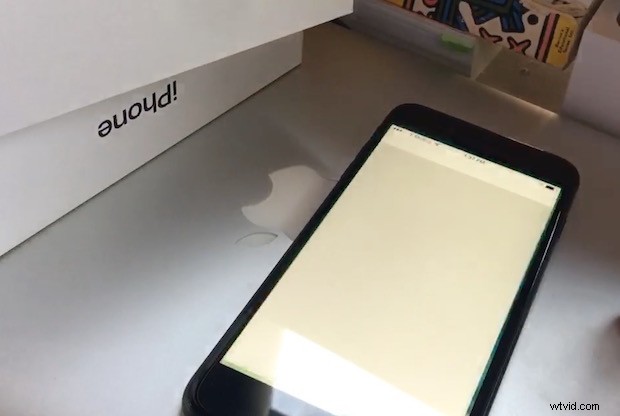
After getting a new matte black iPhone 7 Plus and setting it up as new, I discovered nearly every pre-installed app on the iPhone was crashing immediately on launch. The primary apps like Safari, Phone, and Messages worked, but any of the secondary bundled apps like Numbers, Pages, iTunes U, iMovie, Keynote, Garageband, iBooks and similar apps all crashed instantly upon opening. Sometimes if you repeatedly tried to open a specific crashing app, the app would hang on launch instead and get stuck on a white or black screen, and then eventually crash itself. Hmm…
Not to worry! Fortunately it was super easy to fix the app crashing issue, so if you experience it on a new iPhone 7 you’ll be able to get everything sorted really quickly.
Here’s what you’ll need to do to stop the apps from crashing or hanging immediately on open:
- Install any waiting software update, found in Settings > General > Software Update (it is likely versioned as 10.0.1 and the iPhone 7 may ship with iOS 10.0)
- Install and let the iPhone reboot as usual
- Open the App Store
- Download any new app at all, literally any app, whether it is free or paid does not matter
- You’ll see a pop-up message saying Terms and Conditions have changed, accept the new terms by tapping on the numerous “Agree” screens
- Exit the App Store
- Return to the Home Screen and launch the app(s) that were crashing initially
Now the apps should work flawlessly.
A key component of this is to agree to the new App Store terms and conditions, which seems to prevent the apps from launching and instead causes them to instantly crash.
The instant app crashing and hanging on launch issue is shown in this video below. It’s not going to win any Academy Awards, but it shows what happens if you’re having the problem.
It’s fairly unlikely for this to be a widespread problem since it appears that restoring a backup to transfer data from an old iPhone to new iPhone 7 avoids the issue entirely, and many users start downloading apps from the App Store as soon as they get a new iPhone anyway. But, in the odd event that you or someone you know experiences instant app crashes, just remember to update the device software and then download a new app from the App Store so that you can agree to to the new Terms & Conditions (after carefully reading all five hundred billion pages, of course). This seems to be necessary, as many of the traditional troubleshooting steps to fix crashing apps in iOS like force quitting and re-opening or rebooting a device alone don’t resolve the issue.
For what it’s worth, this problem has almost certainly nothing to do with the new iPhone 7 or iPhone 7 Plus itself, it’s likely just a quirk or bug with iOS, so it’s possible the same issue could be experienced on any iPad or iPod touch that is new as well. Oh and by the way, if you think the iPhone 7 screen looks yellow, this video was done before it was calibrated and fixed as described here.