
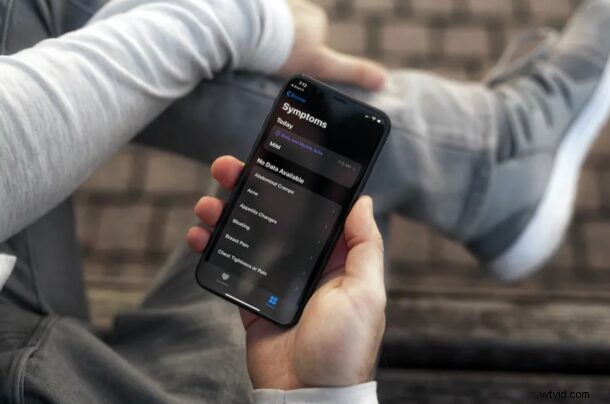
Do you use Apple’s Health app to track your activity and keep a medical record on your iPhone? In that case, you’ll be pleased to know that Apple has added a whole new section to add symptoms with the most recent iOS update.
The built-in Health app on iOS devices already allowed users to track a variety of personal health data which includes vitals, nutrition, hearing, sleep, and more. The ability to add symptoms data is one step further in the right direction, as most people have become increasingly health-conscious recently, in the wake of the COVID-19 pandemic.
Let’s check out how to add symptoms data to the Health app on iPhone.
How to Track Symptoms with Health App on iPhone
Before you go ahead with the following procedure, make sure your iPhone is running iOS 13.6 or later, as the new Symptoms section isn’t available on older versions. Simply follow the steps below once you’ve updated your device.
- Open the “Health” app on your iPhone.

- You’ll be taken to the summary page when you open the app. Tap on “Browse” located at the bottom of the screen.
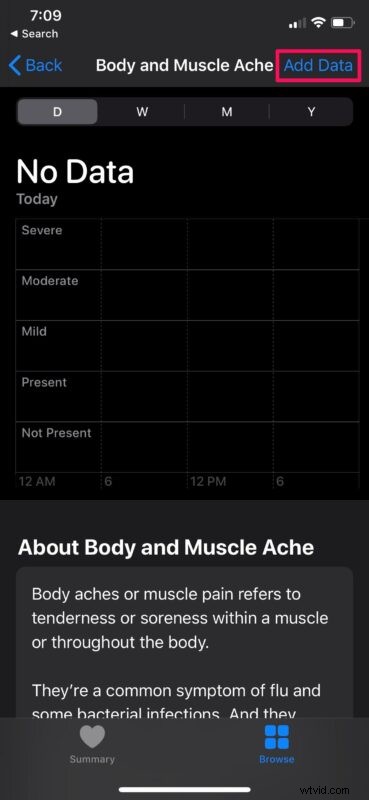
- Here, scroll down and you’ll find the Symptoms category. Tap on it to proceed further.
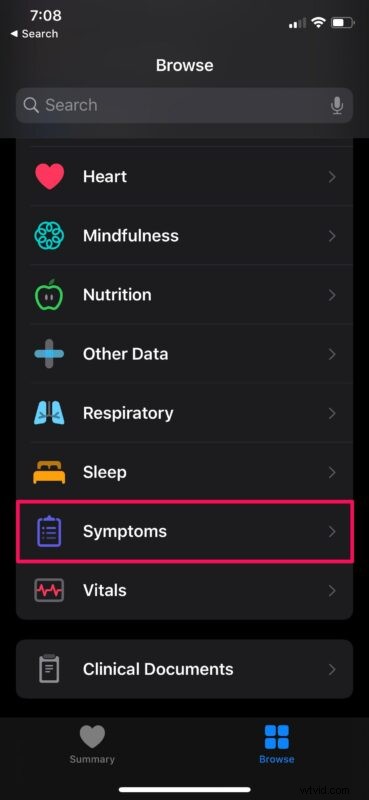
- Next, just choose any one of the symptoms that you’re affected by.
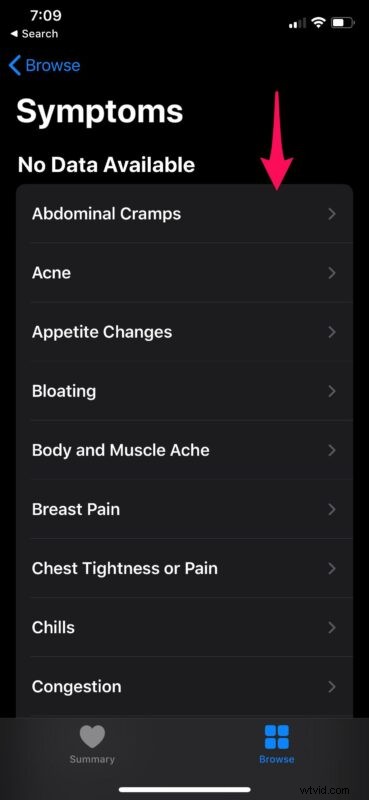
- Now, you can tap on “Add Data” to log this symptom in the Health app.
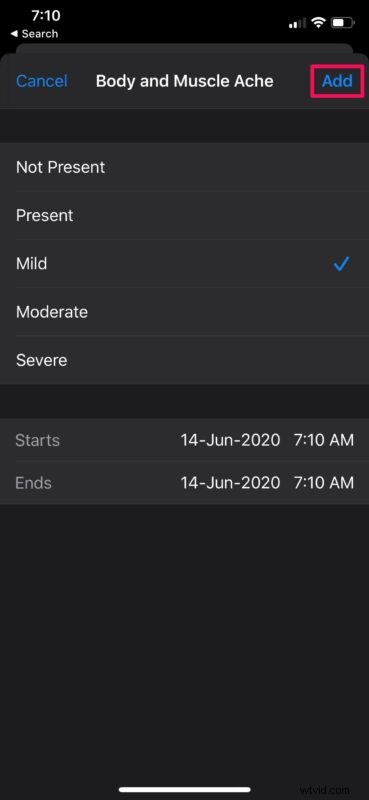
- In this menu, you can select if you have mild, moderate, or severe symptoms and choose a start/end date. Once you’re done, tap on “Add” to finish adding the data.
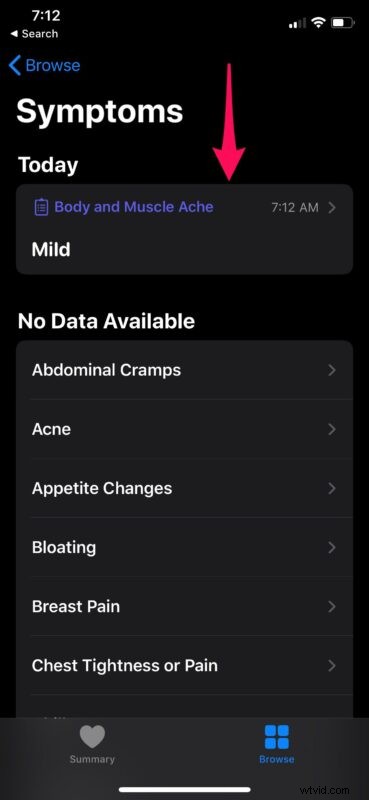
- Now, if you head back to the Symptoms section, the data you added will be listed right at the top, along with the date and time you added it.
There you go. Now you know how to use the Health app on your iPhone to log symptoms.
Although we were focusing primarily on the iPhone, you can use the Health app on a supported iPod Touch to track symptoms in a similar way too, if you still have one lying around.
Be mindful when you select start/end dates though, as you’re only allowed to enter up to four days at a time. There’s no way to remove this limitation as of now either.
Every symptom listed in the Health app comes with a brief description of how it feels, how it’s normally caused, and what diseases it could indicate. This helps iOS users to stay informed without having to look everything up on the internet.
Any information you enter in the Health app is encrypted, provided your iPhone is locked with a passcode, Touch ID, or Face ID. Plus, you have complete control over which third-party apps can access your data through the Health app, so your medical information remains secure just the way you’d want it to be.
We hope you were able to add symptom data and track your symptoms with the built-in Health app on iPhone? What are your overall thoughts on this addition? Is this something you’ll be using on a regular basis? Do share your valuable opinions and experience in the comments section down below.