
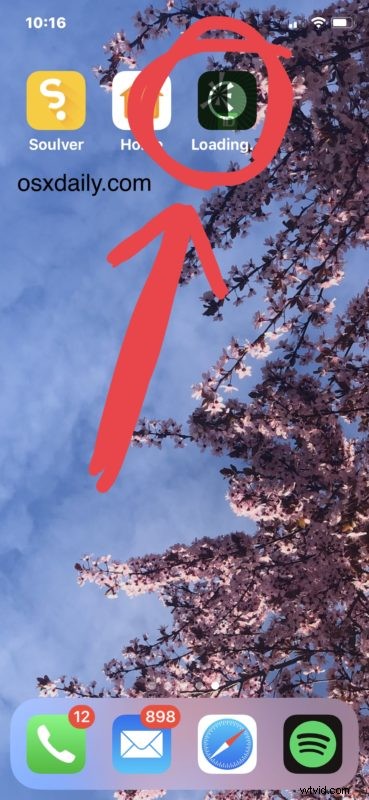
If you’re updating several apps or downloading multiple apps at the same time on an iPhone, you can choose to prioritize a specific app download over the others with the help of a 3D Touch trick.
As you may have guessed by now, the iPhone must have 3D Touch functionality to have access to the Prioritize Downloads feature as used this way. Currently there do not appear to be other screen tap methods to access the same functionality.
How to Prioritize an App Download or Update on iPhone with 3D Touch
- Update several apps or download multiple apps at the same time from the iOS App Store onto the iPhone
- At the Home Screen, use 3D Touch on the app that you want to prioritize the download for
- From the list of options available in the 3D Touch menu, choose “Prioritize Download”
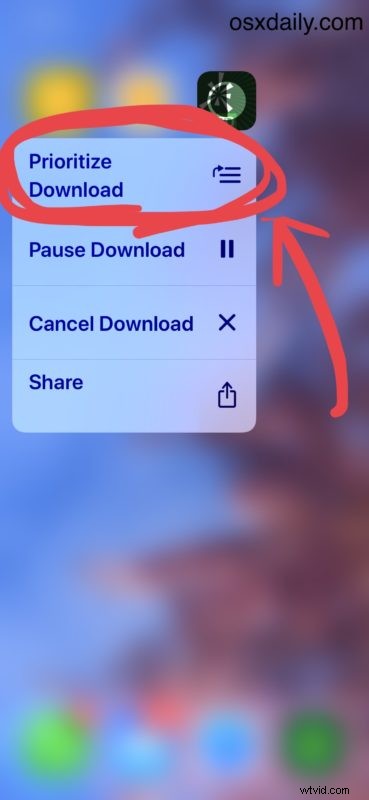
For the less familiar, 3D Touch is activated by a firm/hard physical press on the iPhone screen, and you’ll know when it works because you’ll feel some slight haptic feedback push against your finger. You can change the pressure sensitivity of 3D Touch if desired to make it easier to use for you. 3D Touch is not the same as a long press or regular tap, and not all iPhone models support 3D Touch. If you’re sure that your iPhone has 3D Touch but it’s not working, check out these 3D Touch troubleshooting steps.
This trick essentially places the prioritized app into the top of the app download or update queue, this is helpful if you’re updating multiple apps but you need to use one in particular as soon as possible. Just prioritize that app download, and it will download sooner than the others.
Other apps being downloaded will either be postponed, paused, or slowed down to allow for the prioritized app to download first.
This is a really handy trick but it appears limited to work with 3D Touch iPhone models only, and thus it does not work on the iPad or other iPhone models without 3D Touch. If you know of another method of accessing the Prioritize Download feature on the iPhone or iPad, that does not require 3D Touch, then share with us in the comments below.