
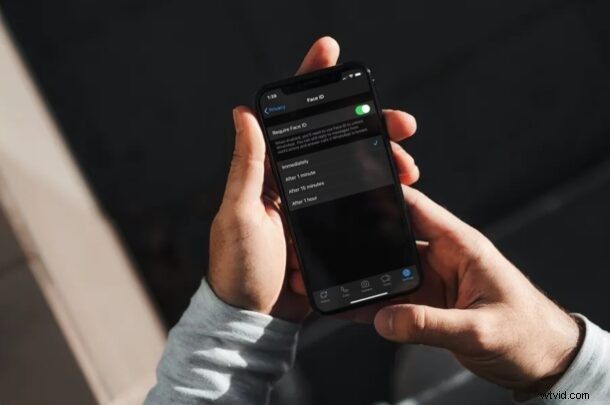
Have you ever wanted to lock your WhatsApp conversations behind a password? If so, you’re certainly not alone. Thankfully, there’s now a way to actually lock your WhatsApp behind Face ID or Touch ID to add a second layer of security to your data.
One might argue that locking your WhatsApp isn’t absolutely necessary since Face ID and Touch ID are required to unlock your device anyway. But, what if you’re passing your iPhone to a friend for taking and sharing pictures or anything else? What if they snoop around and read your WhatsApp conversations without your knowledge? This is exactly where WhatsApp’s screen lock feature comes to the rescue. Interested in setting up this security feature on your device? Then read on to follow steps to lock down WhatsApp on your iPhone.
How to Lock WhatsApp on iPhone with FaceID or Touch ID for Added Privacy
Turning on Screen Lock for WhatsApp application on your iOS device is a lot easier than you may think. You can do this right within the app. Simply follow the steps below to get started.
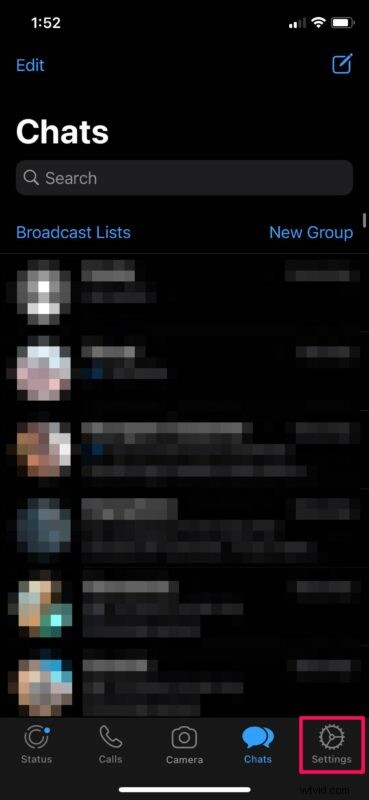
- Open “WhatsApp” on your iPhone.

- This will take you to the Chats section of the app. Tap on “Settings” located at the bottom-right corner of your screen.
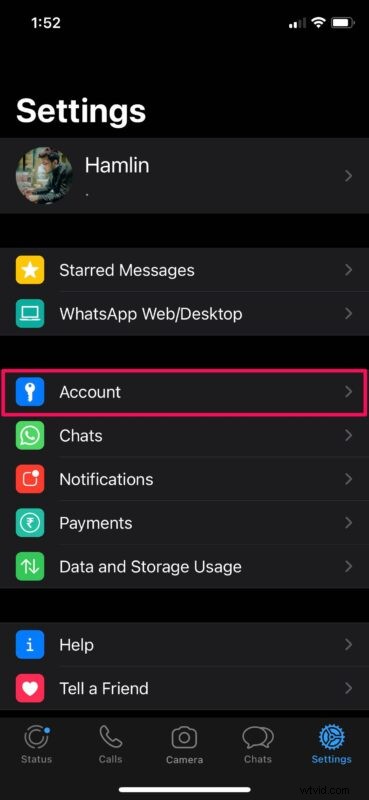
- In the Settings menu, choose “Account” located right below the WhatsApp Web/Desktop option.
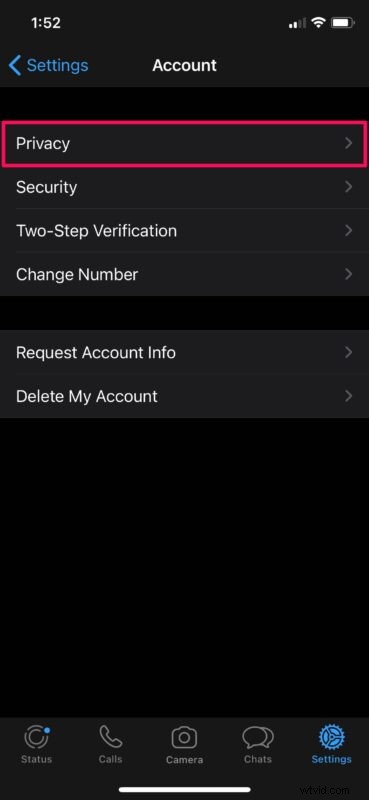
- Next, tap on “Privacy” to adjust your privacy settings for your WhatsApp account.
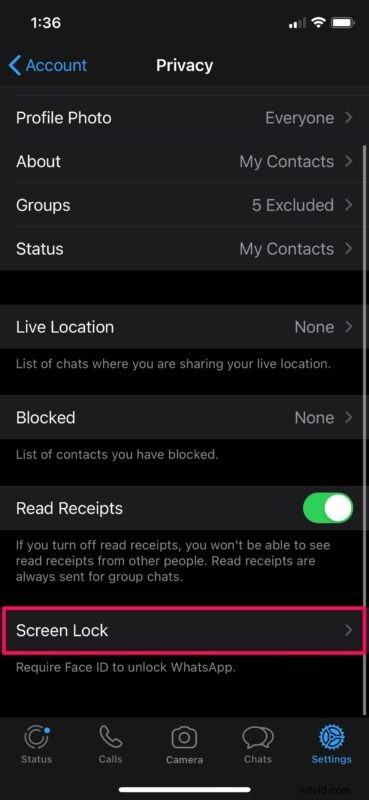
- Here, scroll down to the very bottom and tap on the “Screen Lock” option as shown in the screenshot below.
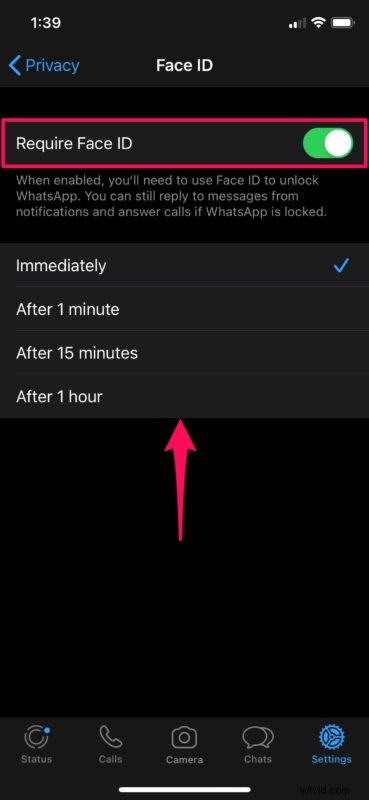
- Now, you can use the toggle to enable Face ID or Touch ID for unlocking WhatsApp depending on the device you own. Additionally, you can adjust the duration WhatsApp can remain on standby before Face ID or Touch ID is required again. As you can see here, there are four different options to choose from.
There you go. Now you’ve learned how to lock WhatsApp on iPhone with Face ID and Touch ID.
Keep in mind that you will still be able to reply to messages from notifications and answer voice/video calls even if WhatsApp is locked. If you’re unable to unlock with Face ID/Touch ID or if the authentication fails, you’ll be prompted to type in your device passcode.
This feature could prove to be extremely useful when someone’s asking for your iPhone, maybe for making a phone call, taking a picture, or anything else really. This is one way to make sure your private information remains safe even if your device is unlocked. This is the closest we have come to see an app lock-like feature on an iPhone.
This is such a handy feature that hopefully other developers start implementing similar security and privacy features on other popular apps too.
Did you secure all your WhatsApp conversations with the help of Face ID or Touch ID on your iPhone? What are your overall thoughts on this feature that works like an app lock? Share any thoughts or related opinions and experiences in the comments below, and don’t miss browsing through other WhatsApp tips if you’re interested in the messaging client.