
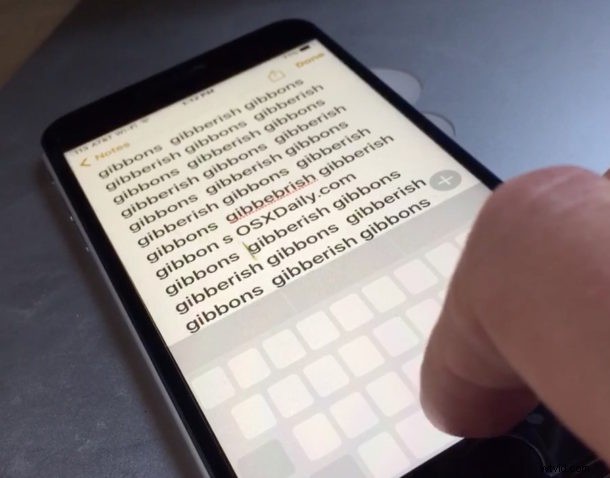
Navigating around text blocks in iOS is typically done by hunting and pecking with a finger to tap in between precisely the write characters or words. There’s certainly nothing wrong with that approach and that’s what we have all become used to on the iPhone, but the 3D Touch enabled devices offer a much better way by transforming the keyboard into a trackpad.
Not only can you move around text with the keyboard as a trackpad trick, but you can select text on iPhone with this 3D Touch trick as well. Let’s review how this works.
Using the iPhone Keyboard as a Trackpad
Want an easier time moving the text cursor around in an exactly precise manner? This 3D Touch trick is the way to do it:
- Open any application where the keyboard is accessible and a text entry field is available, for this example we use Notes app
- Input some text as usual, then hard press on the keyboard to activate the 3D Touch trackpad
- Continue holding the press and swipe around on the keyboard to move the cursor
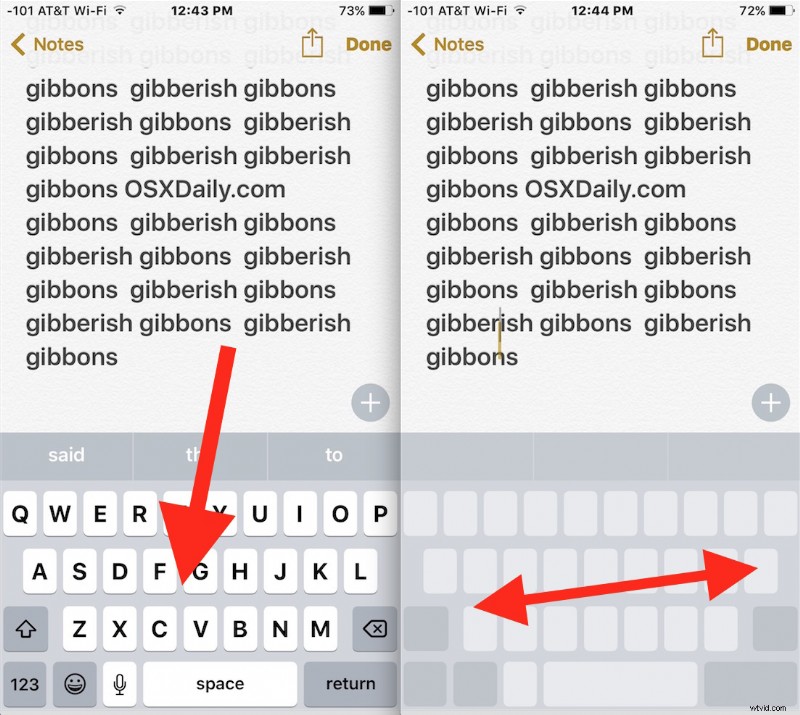
You’ll notice the keyboard keys disappear and turn blank to indicate the trackpad is active. When you release the hard press, the trackpad transforms back into the regular keyboard on the iPhone.
Here is how the iPhone keyboard trackpad looks in animated GIF form to give a general idea of how it works and what it looks like:
It may take a little bit of practice to get right, but once you get used to it it makes text selection and editing infinitely easier on the iPhone screen.
Selecting Text with the Keyboard 3D Touch Trackpad Trick
Another great trick which is a little harder to master is the ability to select text with the 3D Touch trackpad trick. This is basically the same as using the keyboard as a trackpad as outlined above with two critical difference:
- Open any app with text entry and keyboard input but where selectable text exists (like Notes, Pages, Mail, etc)
- Use a softer press on the keyboard to activate the 3D Touch trackpad as usual
- When you navigate the cursor to the desired location, hard press to start selecting text, and continue to hard press as you swipe to the rest of the text block to select, then release as usual
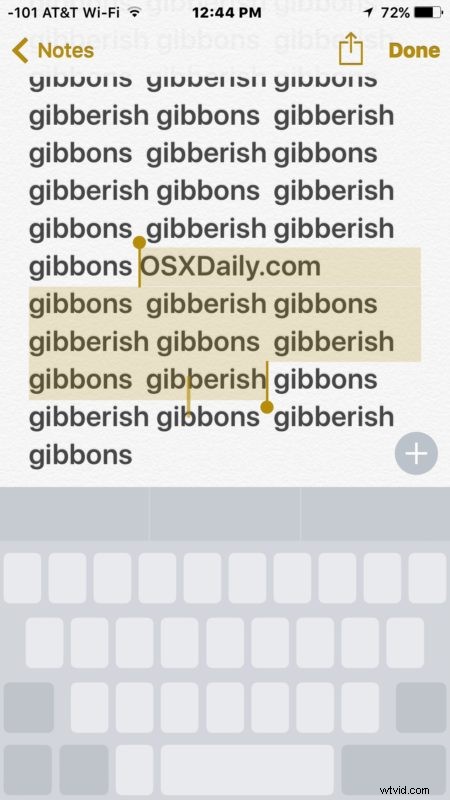
This one takes a bit more practice to master, but once you get it down, it’s quite handy. For best results you may want to change how sensitive 3D Touch is to pressure on iPhone so that it’s easy to distinguish between the soft and hard press.
This may be one of the best 3D Touch features out there, and while it missed a spot in a recent round up of eight particularly useful 3D Touch tricks for iPhone, it easily deserves a spot out there as many of our commenters pointed out.
Looking for some more great 3D Touch tricks? Browse through our 3D Touch articles here.