
If you created an Apple ID based on your own unique email address and use that for logging in to iCloud and other Apple services, you may have missed the part where you can create a new separate @icloud.com email address. Not to worry though, if you decide you want to create a new and separate @icloud.com email address for identifying with your Apple ID, you can do so easily as we’ll demonstrate in this walkthrough.
Obviously if your Apple ID already is or has an @icloud.com email address associated with it you won’t need to do this. This is exclusively for people who use a separate email address to login with iCloud and Apple ID, maybe a @gmail or @yahoo address, but want to create a new separate email address for whatever reason – maybe for easier logins, for web services, for using as a personal or private email address, for whatever. This will create a new @icloud.com email address, but not a @me.com or @mac.com email address, which are no longer available.
We’ll show you how to make a new @iCloud.com email address from Mac OS X, iPhone, iPad, and iPod touch. Once it has been created and attached to the Apple ID, it is easy to enable and use on any other associated device.
How to Create a New @iCloud Email Address from Mac
- Go to the Apple menu and choose “System Preferences”
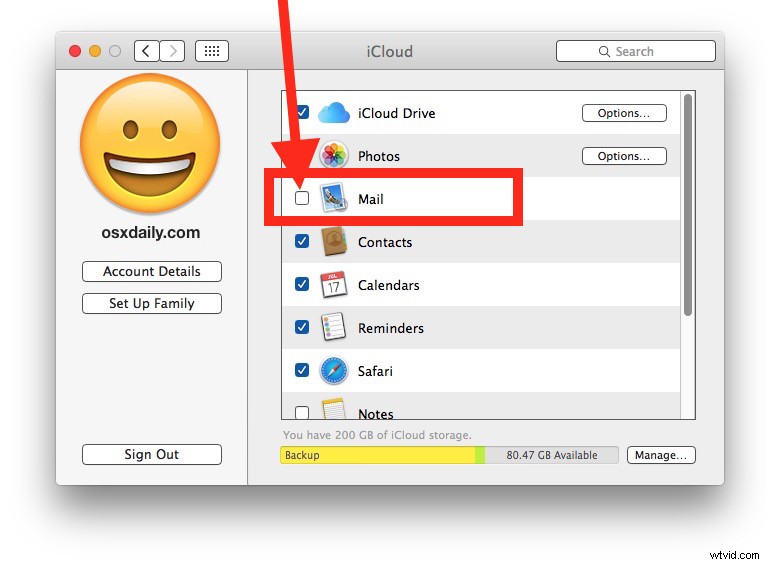
- Select “Apple ID” or “iCloud” (or “Internet Accounts”)
- Check the box next to “Mail” so that it’s enabled (this will always be unchecked if you don’t yet have an iCloud.com email address)
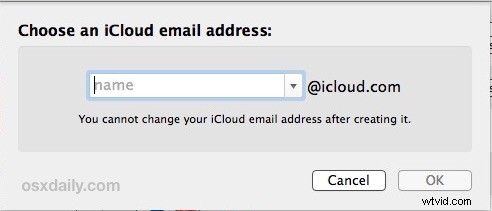
- Enter the desired iCloud email address to claim and click on “OK” – this is permanent and you can’t change the address after you have made one, it binds to the Apple ID, so choose wisely
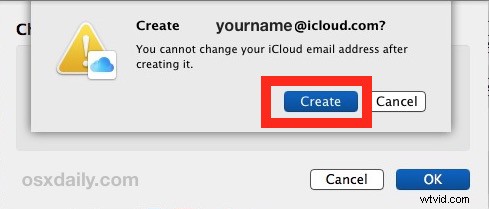
- Confirm that you wish to create the email address selected by clicking “Create”
- Close out of System Preferences
- Launch Mail app in Mac OS X and the new “yourname@icloud.com” email address will have been created and added to the Mail app – you’ll get a welcome email indicating this
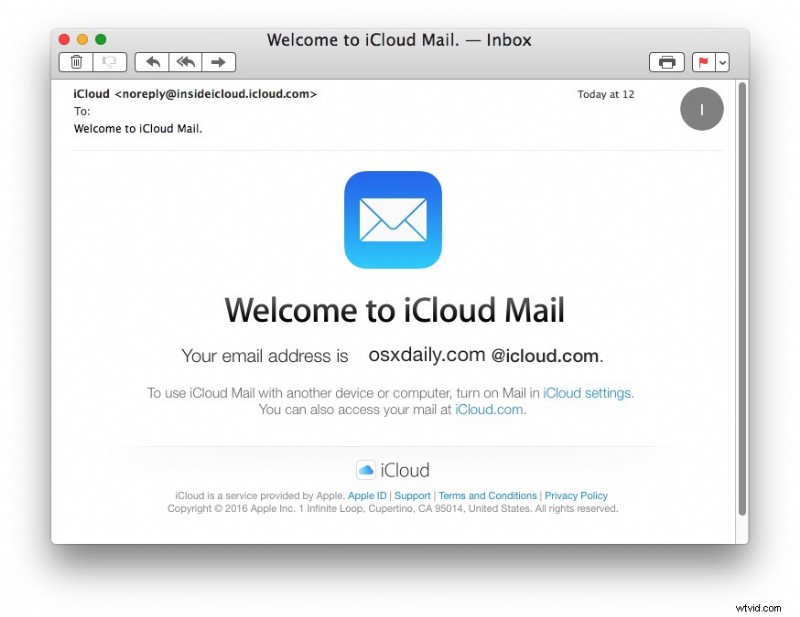
You’ll also shortly get a system pop-up in Mac OS X asking “Add name@icloud.com fro iMessage and FaceTime?” for which you should probably choose “yes” if you want to associate the newly created iCloud.com email with the Apple ID, offering another option for contacts to reach you through iMessage and FaceTime.
This can be helpful if you have changed the Apple ID on a Mac or on an iPhone or iPad, and want to create a new email address specifically for it.
How to Create an @iCloud Email Address from iPhone or iPad
- Open the “Settings” app and go to your Apple ID (or “iCloud”)
- Locate the switch for “Mail” and toggle it ON position – this will be OFF if you do not yet have an iCloud.com email address
- Enter the email address to create “name@icloud.com” and choose “OK” and confirm that you want to make the new iCloud email address
- Go to the Mail app to find the new iCloud address setup and a confirmation email from Apple
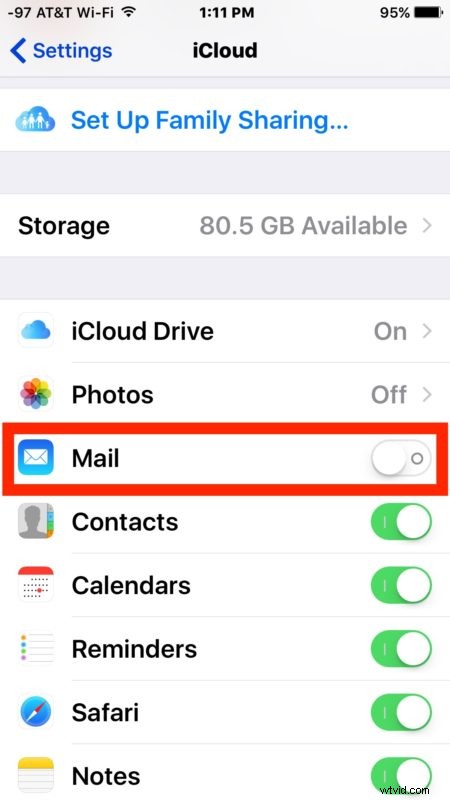
iOS will push a popup message requesting to add your new email address to FaceTime and iMessage on each device the Apple ID is registered to, to which you should probably choose “Yes”.
Assuming you use the same Apple ID on multiple devices, as most users do, you only need to create the address once and then simply enable it on the others through the Mail settings. In other words, if you create the email address on a Mac, you can just enable it on the iOS device by flipping the ‘Mail’ switch on, and vice versa. You can also access the @icloud.com email address form the iCloud website.
And now you have your very own @icloud.com email address, enjoy! Note that you can longer create a @me.com MobileMe email address, but if you already have a @me.com email address you can create a new secondary @icloud.com email address as well through the method outlined above.