

iOS has an excellent flight-lookup feature which allows users to instantly get flight information about planes that are coming and going. All you need to use this great ability is a flight number embedded somewhere, like a text message, email, note, or webpage, and the rest is just a matter of knowing how to retrieve the flight data from that flight number.
This is a great iPhone trick for anyone picking up or dropping someone off at an airport, and it’s likely most useful on the iPhone for obvious reasons, but it works the same on iPad and iPod touch as well. Here’s how to use this handy flight info feature.
How to View Flight Info on the iPhone Quickly with a Tap
- On the iPhone, open an email, text message, note, or elsewhere with a flight number shown in text
- Look for the flight number itself, it should be underlined indicating that you can get information about the flight data by tapping on it
- Tap on the flight number to see the details of the plane, arrival time, takeoff time, flight status, a map, and more (or, alternatively 3D Touch users can soft press to see a quick look at the flight information)
In the example below the flight number is tapped on from an instant message in Messages app.
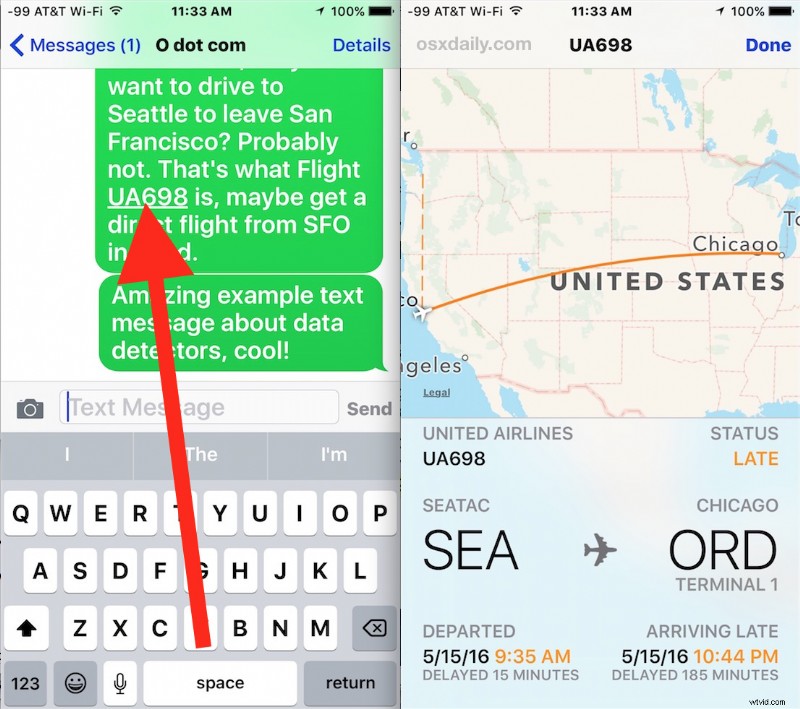
The flight information is practically live, so if you are actively tracking an arrival for someone you can use it to see if they’re on time and when their plane gets in. Users can zoom in and out of the flight map too.
For users with a 3D Touch equipped device, the soft press will show the same flight details, and you can then hard press to interact with the flight information if need be.
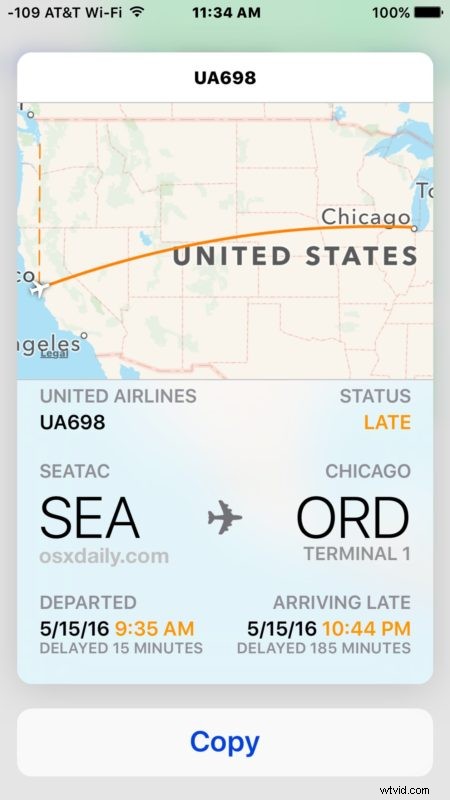
This is obviously for the mobile world with iOS, but desktop and laptop users can use a similar data detector trick to get flight information on the Mac instantly as well.
Siri also has some interesting flight observance capabilities, including the ability to tell you what planes are directly overhead, but many direct flight inquiries with Siri will be sent to the web instead, making the flight lookup method in this article perhaps