
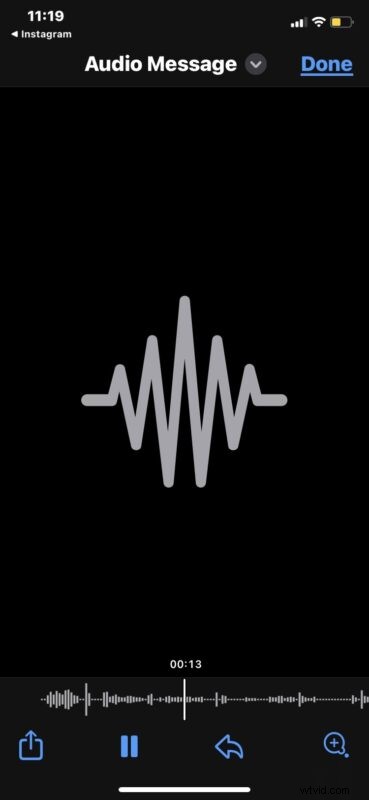
Ever get sent a lengthy audio message to your iPhone and while you’re listening to it, the screen turns off and the voice audio message is interrupted, forcing you go to re-listen to the entire thing again? That’s annoying, right?
The next time you get sent a long audio message to your iPhone, use this handy trick and you’ll find it much easier to listen to the audio message, and to scrub around within the audio message too, thanks to a little known feature that allows you to access a dedicated audio message player, directly within the Messages app.
How to Access Audio/Voice Message Player in Messages on iPhone
This is a great trick if you frequently use the audio messages feature:
- Open the Messages chat with a received audio message
- Tap and hold on the audio message you want to listen to
- When the Quick Look screen pops up, tap that again to open a dedicated audio player for the audio message
- You can now listen to the audio message in this audio player, and scrub around using the scrubber on the bottom of the audio message player
- Tap Done when finished to return to the messages screen
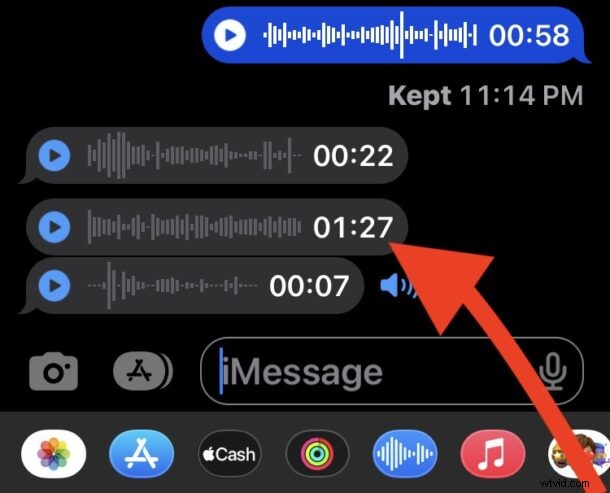
You can access this voice audio message player with any audio message on the iPhone or iPad, just remember to long-press (past the Tapback feature which initially appears).
Voice audio messages are pretty great, especially if you’re driving or have your hands busy, or simply want to have a bit more of a personal conversation with someone that does not depend on texts alone. In a way, they’re a cross between a phone call and text messaging, and if you’re not using them, they’re worth trying out!