
Have you ever opened a text message or iMessage on iPhone, and then forgot to reply to it because it’s no longer marked as unread? Or perhaps you read a message and want to think about how to reply, and have a reminder to do so? Nearly all of us have had these situations, and that’s why being able to mark a message as unread is one of the handier new features available on iPhone.
With any iPhone running iOS 16 or newer, you can mark a message as unread, which maintains the notification badge both on the Messages icon and also the indicator next to the message itself. Marking messages as unread makes it super easy to return to messages and respond to them at a later time, just like marking emails as unread works.
How to Mark Messages as Unread on iPhone
Marking messages as unread (or read) is super easy, here’s how it works:
- Open the Messages app if you haven’t done so already
- Locate the message you want to mark as unread
- Swipe to the right on the message to reveal a “Mark as Unread” option
- The message will immediately be marked as unread, indicated by the little dot icon next to the left of the persons avatar
- Repeat with other messages to mark them as unread as well
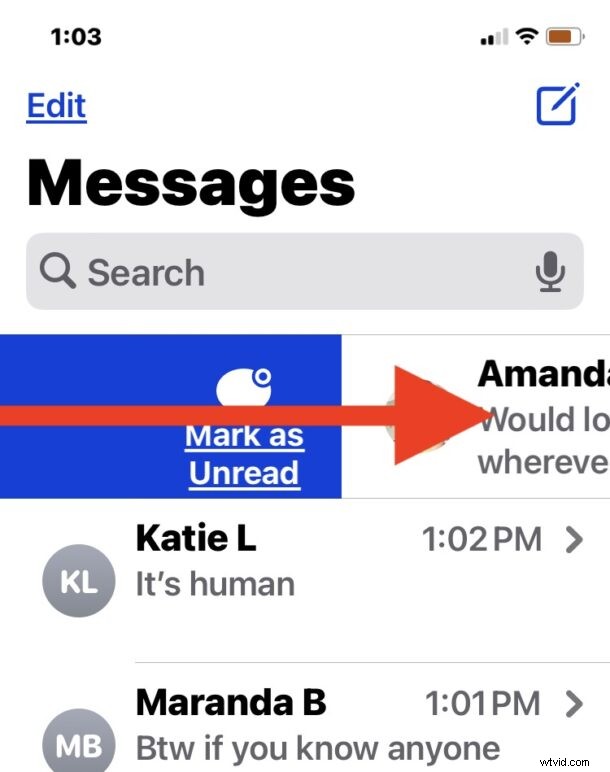
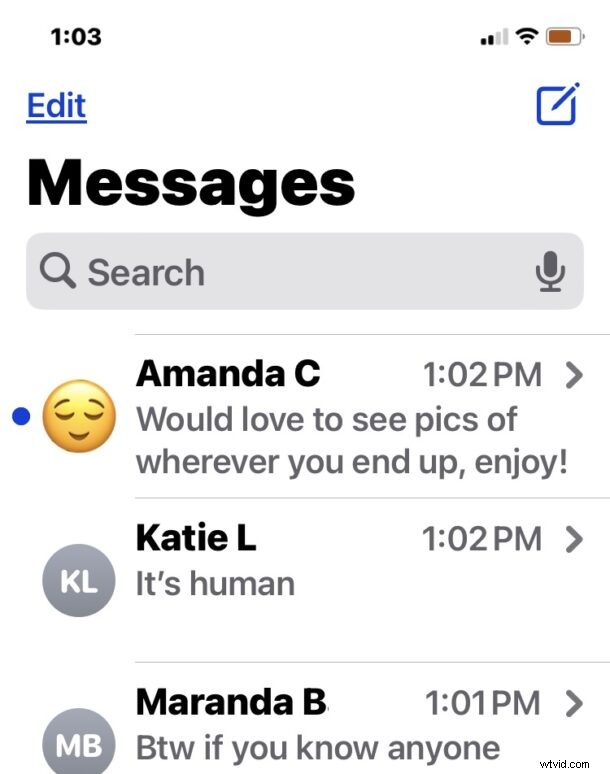
You can do a quick swipe to the right and release to mark the message as unread. This works the same with both iMessages (blue messages) and text messages (green messages) in the Messages app.
And similarly, you can also mark messages as read on iPhone too, by using the same gesture and trick, by swiping right on a new message to mark it as read.
If you’re already familiar with marking emails as read in the Mail app on iPhone, this gesture will be familiar to you, and you’ll be using it right away.
Remember, if you mark a message as unread, the red badge icon will also appear or adjust on the Messages icon on your Home Screen to reflect that a message is unread.
For what it’s worth, this trick works the same on Messages for the iPad as well, as long as the iPad is running iPadOS 16.1 or later.