
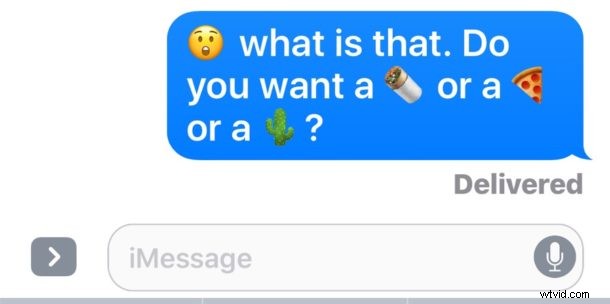
Emojifying words and messages is one of the many new fun features of Messages in iOS. With a simple trick, you can choose words to replace them with Emoji icons, converting a generic text message into a colorful message intermixed with Emojis.
The Emoji text replacement tool works on iPhone and iPad as long as you have a modern version of iOS. Let’s review how to use this playful new component of Messages in iOS.
You will need to enable the Emoji keyboard first if you have not done so already, and you’ll need any version of iOS past 10.0 as well. Once you’ve met those simple requirements, the rest is easy.
How to Replace Words with Emoji in Messages for iOS
- Open the Messages app on iPhone or iPad and go to a message thread as usual (or start a new message conversation)
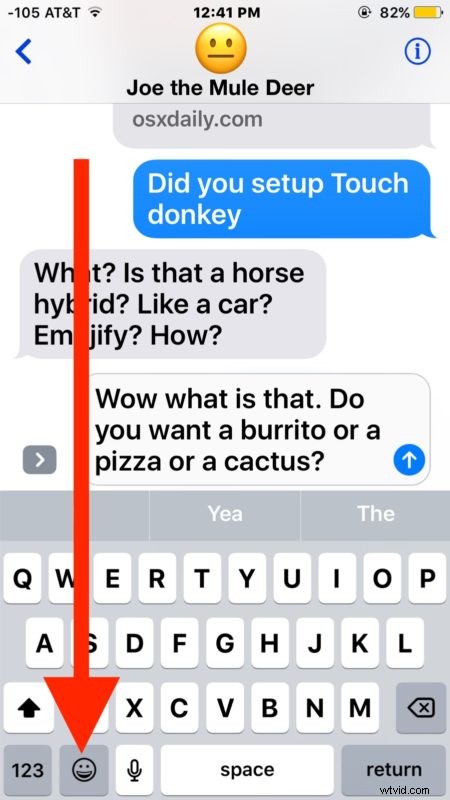
- Type out a message with words that are able to be represented in Emoji, like “pizza” or “cat”
- Tap on the Emoji keyboard button to bring up the emoji screen
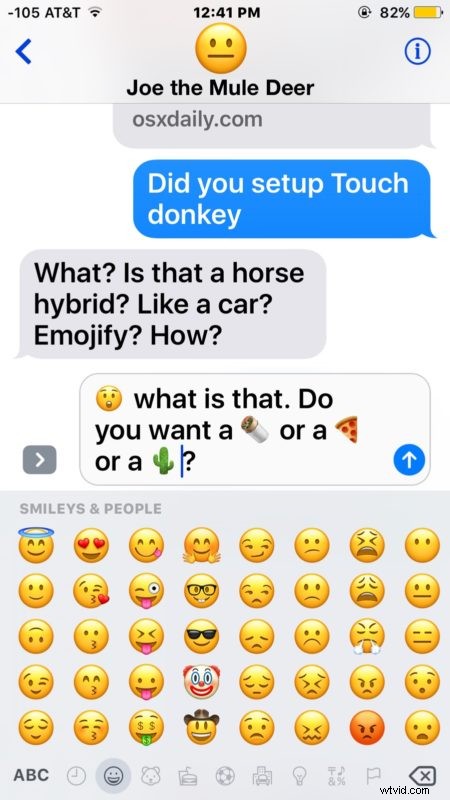
- In a moment, words that can be converted to Emoji will appear highlighted as orange, tap on each eligible word to “Emojify” that word and convert the text to emoji
- Send the newly converted Emojified message as usual
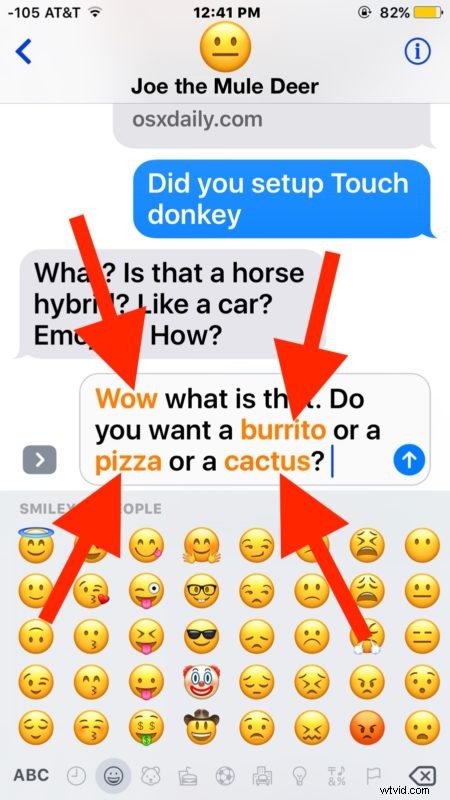
Only words that have a compatible Emoji can be “emojified” from a text word into an Emoji icon, which is why this feature works best with words about objects, foods, expressions, and items.
Remember you must have the Emoji keyboard enabled and you must switch to the Emoji keyboard to highlight the eligible words to be converted into Emoji within the Messages app.
This is just one of many of the new fun abilities baked into new releases of Messages for iOS, including the whacky and wild full screen message effects, Tapback icons, GIF search, Handwritten messages, Stickers, and more. Explore them all and have a good time spicing up those message conversations!