

Have you had trouble finding specific emojis on your iPhone? You’re certainly not alone, and the inability to find a specific emoji can be frustrating at times. Fortunately, the latest versions of iOS support Emoji search, allowing you to easily find an emoji by keyword or description.
The ability to search Emoji is available with any device running iOS 14 or newer, and lets you search for specific emojis by typing keywords, phrases, or categories. Prior to this, users had to scroll through pages of emojis to find one that they’re looking for, or something they don’t usually use. This Emoji search feature exists across all apps, so it doesn’t matter if you’re using iMessage, Instagram, WhatsApp, FaceBook, Notes, Pages, or any other app for texting or writing, the Emoji search feature is there. Let’s take a look at how you can search Emoji right from your iPhone.
How to Search for Specific Emoji on iPhone
Ready to find an Emoji by search? Here’s what to do:
- Launch the app you use for texting. In this instance, we’ll be using Instagram but you can use any app. Tap on the text field to bring up the stock keyboard.

- Next, tap on the emoji icon located at the bottom-left corner of your keyboard.

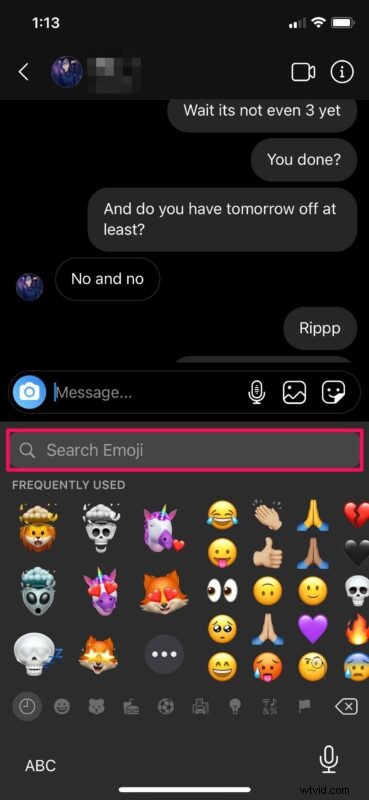
- Now, you’ll be able to see the emoji search field right at the top of your keyboard.
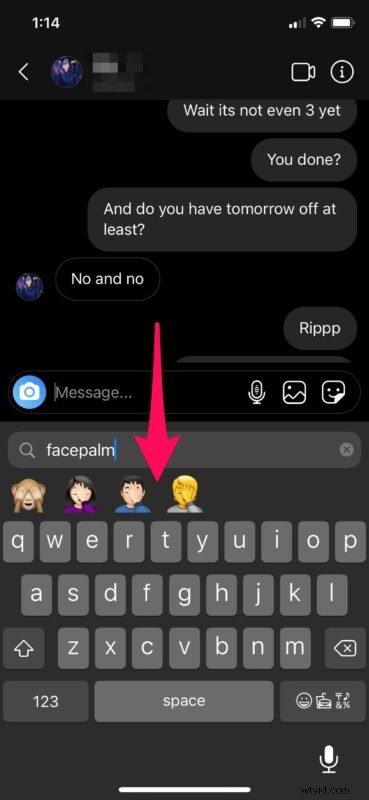
- You can search for specific emojis by typing in the respective keywords. For example, typing “facepalm” in the search field will show you all the available facepalm emojis as shown below.
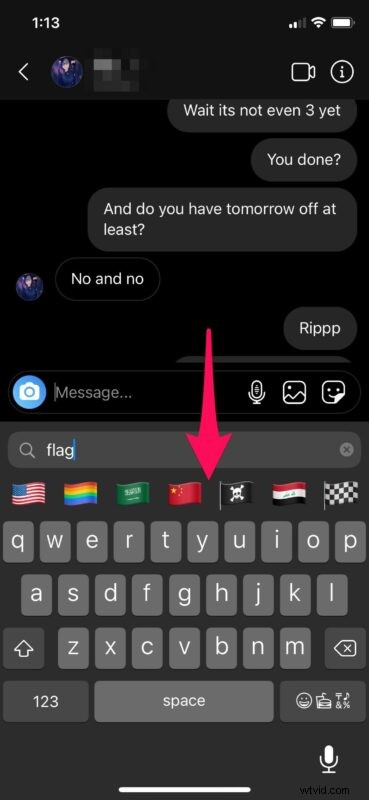
- You can also look for emojis based on its category. For instance, you can type “flag” and you can quickly access all the flag emojis. Or, you can type “gym” and get access to workout-related emojis.
There you go. Now you’ve learned how to use the new emoji search field on your iPhone. Pretty easy, right?
This emoji search feature that has been available on macOS systems for years, so it’s not entirely clear why the feature wasn’t available to the iPhones for a while.
If you use a Mac, you might want to learn how you can search and find specific emojis on your macOS machine as well. You can use the Command + Control + Spacebar keyboard shortcut to quickly type emojis across the entire Mac operating system, which is very fast.
What do you think of the Emoji search feature? Do you use it often? Will you use it now that you know it exists? Let us know your thoughts and comments.