
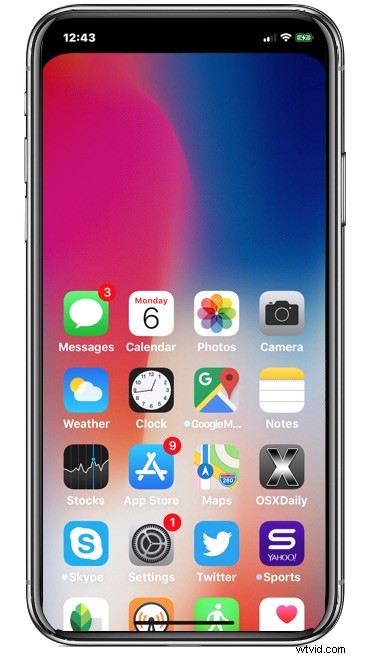
iPhone X offers the helpful Reachability feature, which shifts everything down from the top of the iPhone screen so that it can be more easily reached by a single finger or tap. Reachability was first unveiled on the iPhone Plus series and has a strong following of users, but if you want to use Reachability on iPhone X you’ll find it’s slightly different in how it works and how it must be activated.
First you will need to enable Reachability on iPhone X. Then, it’s a good idea to practice how to activate Reachability on iPhone X entirely with a gesture, since there is no longer a Home button to double-tap to activate like what existed one earlier iPhone models. It’s a little tricky at first, but practice makes perfect.
How to Enable and Access Reachability on iPhone X
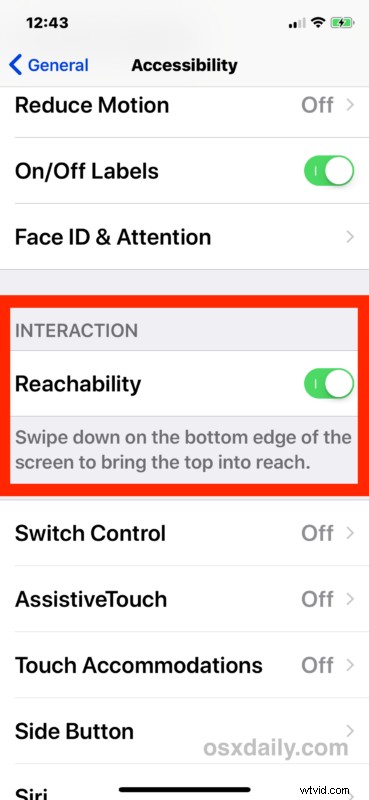
- Open “Settings” on iPhone and then go to “General” and to “Accessibility”
- Locate “Reachability” and toggle it the ON position
- Return to the Home Screen of iPhone
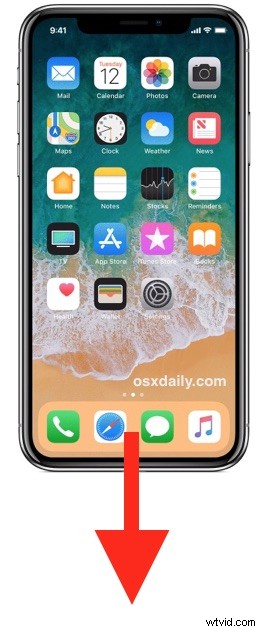
- Now to activate Reachability, swipe down near the very bottom of the screen, starting from about no more than halfway up the Dock icon bar
When Reachability is successfully activated, everything on screen will slide down by about half, making things once near the top of the screen more easily accessible by a single thumb or finger.
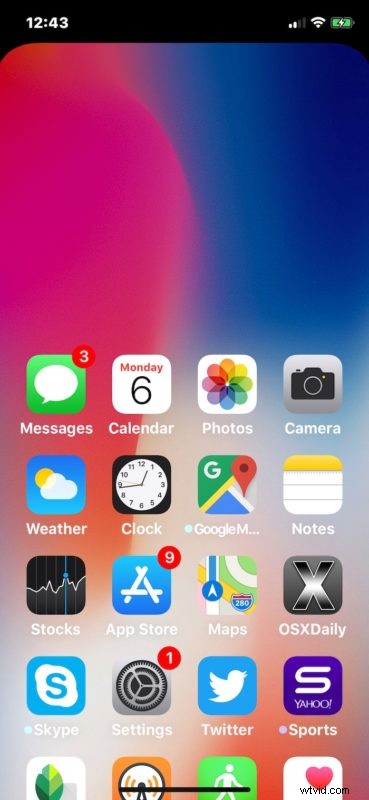
Notice how activating Reachability is totally different with the bottom of the screen swipe gesture, compared to how to use Reachability on iPhone Plus models. Obviously iPhone X has no home button so there’s nothing to double-tap on.
It’s critical to swipe down from near the very bottom of the screen on iPhone X to activate Reachability.
If you aim slightly too high, you will instead trigger the Spotlight search feature instead.
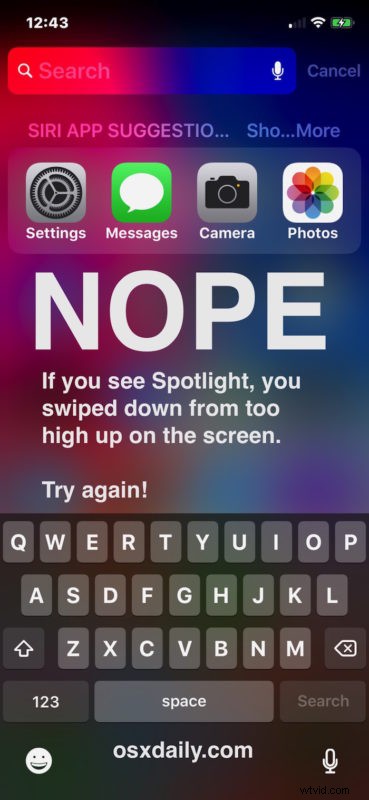
This can be a little frustrating or confusing at first until you get the placement right, which is why it’s a good idea to repeatedly practice using Reachability with the low swipe down gesture.
How to Exit Reachability on iPhone X
To exit Reachability on iPhone X, either swipe up from the bottom of the screen as you would to return to the Home Screen, or tap near the top blank area on the top of the screen.
And of course you can always disable reachability if you decide you don’t like it or don’t need it.