
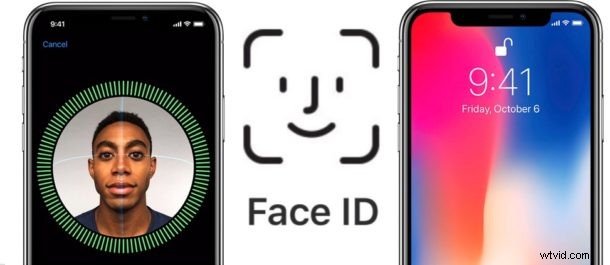
There are a lot of questions out there about using iPhone 13, iPhone 13 Pro, iPhone 12, iPhone 12 Pro, iPhone 11, iPhone 11 Pro, iPhone 11 Pro max, iPhone X, iPhone XS, iPhone XS Max, or iPhone XR and the new Face ID feature, which scans your face to unlock your iPhone X. Some people want to know if they can use iPhone X without Face ID, and without the iPhone X ever using facial recognition for unlocking the iPhone and performing other verification tasks, like paying with Apple Pay or authenticating other logins. Or perhaps you’re wondering what you do instead if you choose not to setup Face ID.
If you don’t like the idea of Face ID or having your iPhone scanning your face for whatever reason, then you’ll be relieved to know the answer is yes, you an absolutely use the iPhone X without ever using Face ID, it is not required. You can absolutely use iPhone X without ever registering or scanning your face for any facial recognition purpose.
We’ll aim to answer a few common questions about Face ID and iPhone X, iPhone XS, iPhone XS Max, iPhone XR, iPhone 11, iPhone 11 Pro, iPhone 11 Pro Max, iPhone 12, iPhone 13, etc if you have additional questions feel free to ask them in the comments below.
Do I have to use Face ID on iPhone 13, iPhone 12, iPhone 11, iPhone 11 Pro, iPhone X, iPhone XS, iPhone XS Max, or iPhone XR? Is Face ID required to use iPhone X?
No. If you do not want to use iPhone 11, iPhone 11 Pro, iPhone 11 Pro max, iPhone X, iPhone XS, iPhone XS Max, or iPhone XR with facial recognition then you can easily use iPhone X without ever registering a face with Face ID. Of course, without Face ID, you won’t be able to unlock the iPhone X with a simple face scan and by looking at iPhone, instead you will need to use a passcode. More on that in a moment.
Can you skip Face ID setup on iPhone right away? Is Face ID Optional on iPhone X?
Yes. You can skip the entire Face ID facial scanning process during the initial device setup, and instead rely entirely on a passcode entry to unlock and use the iPhone X or later.
How do you unlock iPhone X / iPhone 13/12/11 without Face ID?
You can unlock iPhone X and later with a passcode like any other regular iPhone.
To unlock iPhone X / iPhone 11/12/13 without Face ID, simply pick up the iPhone, raise to wake, tap the screen, or press the power button. Then swipe up from the bottom of the screen. This brings up the passcode screen where you enter a passcode to unlock the iPhone X.
This should be good news to those iPhone users who liked the old “swipe to unlock” gesture that used to exist before it was yanked from iOS, since iPhone X basically brings back swipe to unlock. Except, instead of swiping to the left, you swipe up from the bottom of the screen – the same gesture you use to return to the Home screen of iPhone X, XS, XDR, iPhone 11, iPhone 11 Pro, iPhone 11 Pro max.
Wait, so if I don’t use Face ID then I get ‘Slide To Unlock’ back?!?
Yes, that is correct. By not using Face ID, you will regain a Slide to Unlock gesture on iPhone X. But the swipe to unlock gesture is a swipe up, rather than the old fashioned swipe-right.
Can I turn off Face ID after I have already enabled it?
Yes. Even if you initially setup Face ID, you can later disable it if you choose to.
You can either turn off Face ID completely, or you can temporarily disable Face ID on iPhone X with a variety of methods and tricks.
Can I change my mind later, and then enable Face ID later?
Yes, even if you initially skip setup, you can configure and enable Face ID at any time on iPhone X, iPhone XS, iPhone XS Max, iPhone 11, iPhone 11 Pro, iPhone 11 Pro max, or iPhone XR through the Settings app Face ID & Passcode settings options.
Can I still use Animoji if I don’t use Face ID on iPhone X?
Yes. You can still make and send Animoji on iPhone X, iPhone XS, iPhone XS Max, iPhone XR, iPhone 11, iPhone 11 Pro, iPhone 11 Pro max without using Face ID elsewhere.
For the unfamiliar, Animoji uses the front facing camera to match your facial gestures with a little emoji-like onscreen character, via the Messages app. The result of Animoji is creating little short clips and recordings of your voice matched to a talking emoji character, like a talking poo emoji, a talking unicorn, bear, dog, cat, robot, etc.
What happens if I don’t use Face ID?
Aside from having no Face ID capabilities, not much. If you don’t use Face ID then you will lose access to a few nice Face ID features allows, including:
- You won’t be able to quickly unlock the iPhone 11, iPhone 11 Pro, iPhone 11 Pro max, iPhone X, iPhone XS, iPhone XS Max, or iPhone XR by having it scan and recognize your face as you swipe up, instead you must swipe and then enter a passcode
- You won’t be able to use face scanning to authenticate a payment, or Apple Pay purchase
- You won’t be able to use Face ID at all if you don’t enable the feature and scan your face with Face ID (that may sound obvious, but it’s a question we have seen!)
Remember there is no Touch ID on iPhone 11, iPhone 11 Pro, iPhone 11 Pro max, iPhone X, iPhone XS, iPhone XS Max, or iPhone XR, as Face ID is the biometric security replacement. Basically if you don’t use Face ID then you will have to enter a passcode for authenticating, unlocking, confirming purchases, using Apple Pay and wallet, Apple Cash, downloading from iTunes and the App Store, and other features which require authentication.
Can someone else use my iPhone X even though Face ID is registered to my face?
Yes, if they have the passcode to unlock your iPhone 11, iPhone 11 Pro, iPhone 11 Pro max, iPhone X, iPhone XS, iPhone XS Max, or iPhone XR.
Or, assuming you do have Face ID enabled, if another person held your iPhone X up to your face while you are looking at the iPhone X, they could unlock it that way too since it would trigger Face ID and successfully scan you.
You can temporarily disable Face ID on iPhone X several different ways, however, so if you are concerned about someone scanning your face without your permissions in some theoretical scenario, then you may want to understand how to temporarily turn off the feature.
Is Face ID secure? Is it safe? Is my face recognition data kept private?
Many people who don’t like the idea of Face ID are, understandably, concerned about privacy and security implications. Who or what has access to your Face ID data? How is the facial recognition data secured?
Apple answer those questions and more at this “About Face ID technology” page on Apple.com. In terms of privacy:
The concerns about Face ID are similar to those surfaced when Touch ID was released some years ago. Apple goes to great lengths to say that your personal biometric data is secured and won’t be shared with anyone, you’re welcome to read their detailed Face ID page here if you want to know more about how the technology works and how they protect your face data.