
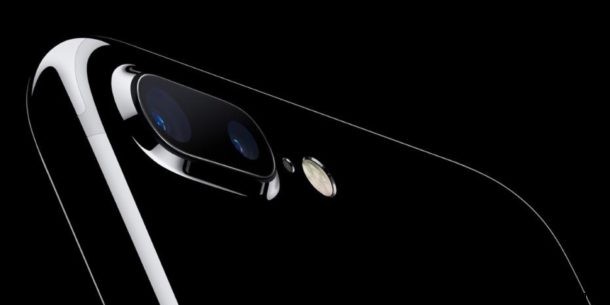
Wondering how to use the 2x zoom telephoto lens on iPhone camera? Many new iPhone models include dual or triple camera lens systems, with the secondary lens allowing for 2x optical zoom with a 10x digital zoom modifier. Using the 2x optical zoom feature on iPhone Plus is excellent and easy, but it works slightly different from zooming on a regular iPhone camera, which is accomplished with a pinch gesture. This article will show you how to use and access the 2x telephoto zoom lens feature, assuming your iPhone supports it.
How to Use Optical Zoom 2x Lens on iPhone Pro and iPhone Plus
Remember, you must have a dual camera equipped iPhone to have access to the 2x optical zoom lens.
- Open the iPhone Camera as usual, either from the lock screen or the Camera app
- Go to “Photo” mode by swiping over as necessary
- Tap the (1x) circle text that is near the camera shutter button
- You’ll immediately see the camera zoom in to be twice as close, as indicated by a (2x) text near the camera button
- Take your zoomed pictures as usual using the optical zoom camera
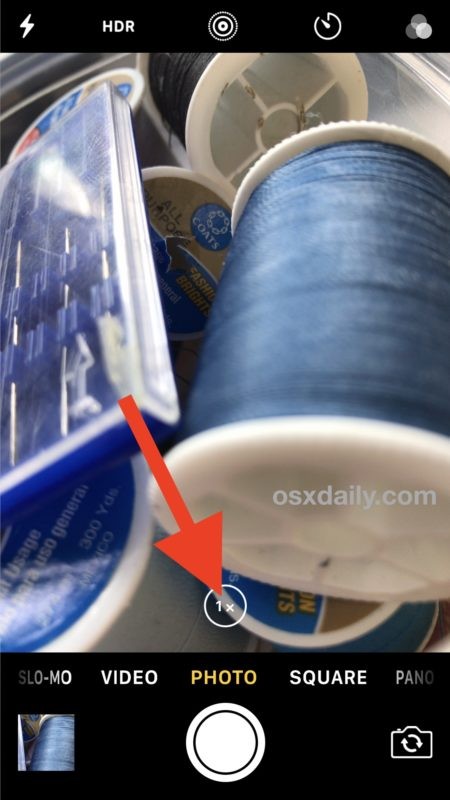
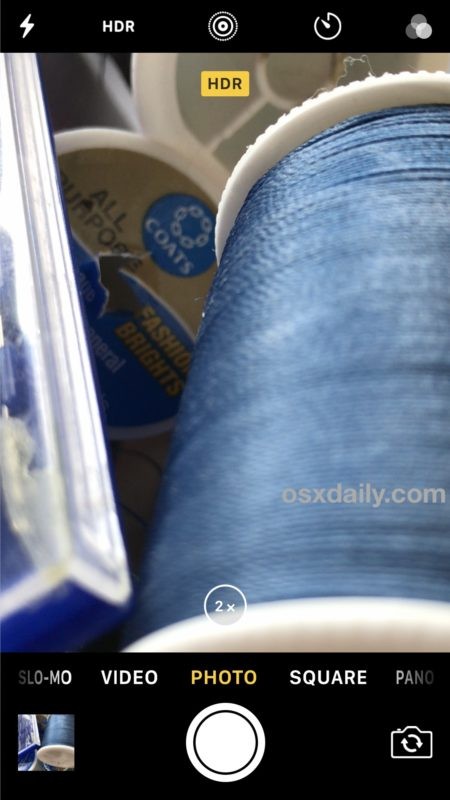
You can tap the 2x button again to return back to regular 1x camera mode.
HDR, Live Photo, camera flash, the camera self timer, filters, and video recording also work with the 2x optical zoom lens, but it’s worth mentioning that even if you set the camera to preserve settings, the camera app will default to opening to the 1x camera every time it is launched, meaning you will need to toggle between the 1x and 2x camera as needed.
What is optical zoom? What is digital zoom?
Without getting lost in the specifics on how to use optical zoom on the new iPhone Plus and Pro series, let’s briefly cover the differences between optical zoom and digital zoom.
Optical zoom uses the actual lens optics of iPhone camera to bring the subject being photographed closer. In this case, the lens is the secondary 2x zoomed camera available on the latest iPhone Plus models only.
Digital zoom uses software processing to bring the subject closer, similar to how you can zoom into a picture on your computer or iPhone after it has been taken. All iPhone cameras can use digital zoom.
Because optical zoom relies on the actual hardware lens itself and therefore receives more data (pixels) to compose the picture, the image quality from optical zoom pictures are far superior to those where digital zoom is used, which reduces the amount of data (pixels) used to compose a picture.
Using 10x Digital Zoom on iPhone Plus Dual Lens Camera
The iPhone Plus dual lens camera also allows you to use digital zoom from the 2x optical camera, which provides up to 10x digital zoom. As usual with digital zoom, the image quality will reduce the further zoomed in the picture gets, which tends to limit the effectiveness and usefulness of digital zoom. Nonetheless, many users may like to access the digital zoom feature anyway
- From the iPhone camera, tap on 2x to enter optical zoom as previously described
- Now tap and hold on “(2x)” and swipe left to zoom on a sliding scale
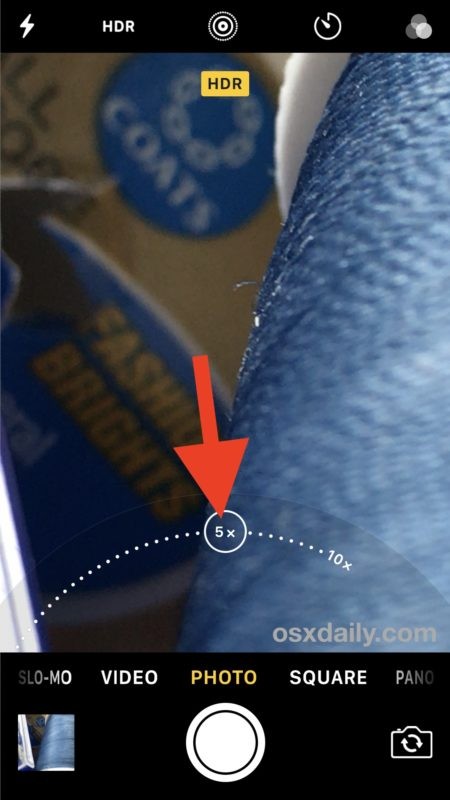
You can use digital zoom from 2.1x all the way to 10x, but again, digital zoom uses software to capture closer images and thus always offers reduced image quality. However, because the starting point for digital zoom is the optical 2x zoom camera, the image quality will be slightly better than a standard zoomed image would be on a non-dual camera equipped iPhone.
And yes, you can also use the pinch to zoom method like you can on other iPhone cameras without optical zoom lens capabilities if you have developed that habit.
It’s highly likely that additional future iPhone models will include the dual lens capabilities that are currently seen limited to the Plus model and Pro models, but for now you’ll only have access to this great ability with the iPhone 7 Plus, iPhone 8 Plus, iPhone X, iPhone XS, iPhone XS Max, iPhone 11 Pro, and iPhone 11 Pro Max.
Another option for users with other model iPhones is to buy a third party lens kit like the Olloclip, which offer similar features through hardware attachments and generally work quite well too.