
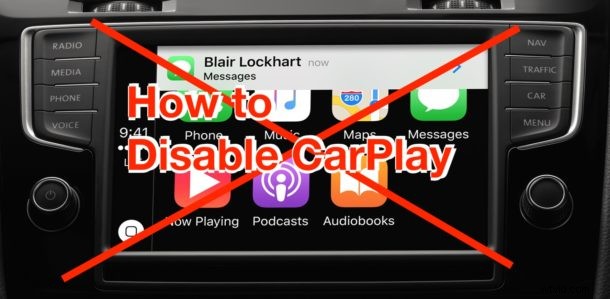
Ever wanted to disable CarPlay? Perhaps you want to turn CarPlay off because you find it distracting, or maybe you just want to disable it while a certain passenger(s) is riding around with you and your iPhone equipped vehicle. Or perhaps you want to disable CarPlay and turn it back on again as a troubleshooting function. Whatever the reason, you can disable CarPlay by using the iPhone that is paired and synced to be setup with CarPlay.
CarPlay is incredibly useful for many drivers, as it offers a way to interact with iPhone while you’re driving around giving access to Messages, Phone calls, contacts, Apple Maps, Google Maps, Waze, Spotify, Apple Music, Podcasts, Audiobooks, Amazon Music, and much more. But let’s assume you want to turn all of this off and not have iPhone synced up to CarPlay for the time being, thus in this article we’ll show you how to disable CarPlay on iPhone.
How to Turn Off CarPlay on iPhone
To disable CarPlay completely, you basically must remove the cars head-unit from the iPhone. Here’s how this is done:
- Open the “Settings” app on iPhone
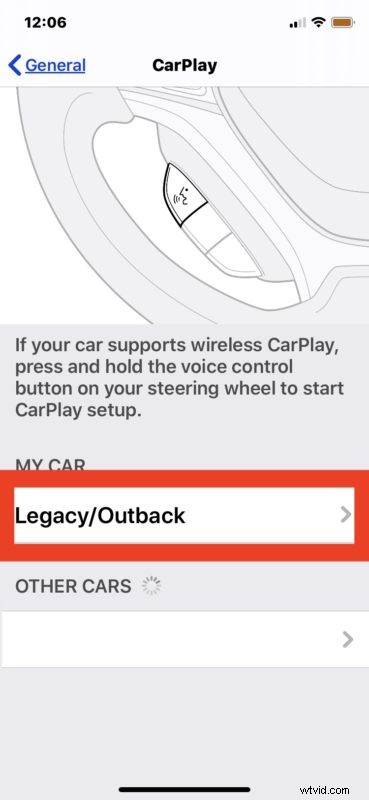
- Go to “General” and then choose “CarPlay”
- Tap the car you have CarPlay setup and enabled with the iPhone
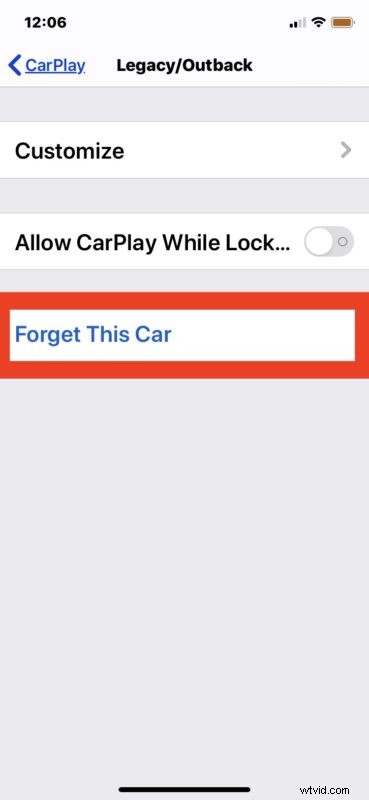
- Tap on “Forget This Car”
- Tap Forget to confirm that you want to forget that car to disable CarPlay for that vehicle
- Repeat with other CarPlay cars and head-units as desired to disable those as well

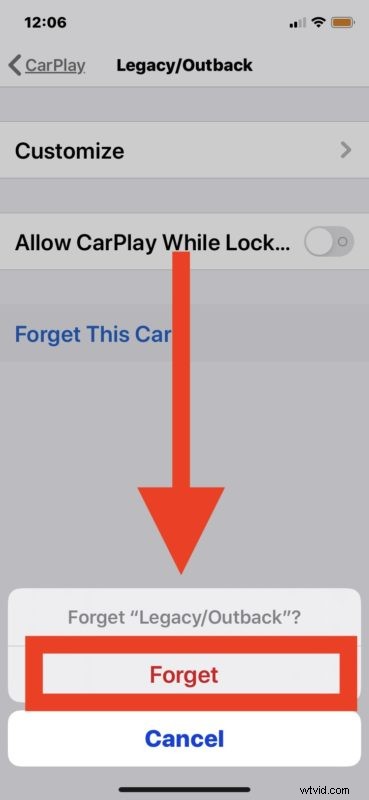
That’s it, now CarPlay is disabled and the iPhone will not display CarPlay data on the cars dashboard, screen, head unit, or elsewhere.
You can reverse this change at any time by going through the process to enable CarPlay with iPhone by setting it up again in the same car.
Temporarily Disable CarPlay by Turning Off Bluetooth & Disconnecting iPhone
Another option that may be available to some users is disabling CarPlay temporarily by turning off Bluetooth on the iPhone.
Additionally, if you connect iPhone to the car via USB you will need to disconnect the iPhone from the USB port in the car that enables CarPlay.
This just turns off Bluetooth syncing and won’t disable or remove CarPlay feature from the iPhone.
A downside (or upside) is that this is only temporary however, and the next time Bluetooth is enabled on iPhone, connected to the car again, or the iPhone is plugged into the car USB ports, CarPlay will be enabled and back again.
Finally, note that some cars also have manual settings deep in their in-dash or in-car units that allow CarPlay to be turned off, but this is not consistent across all cars and it often requires getting into hidden settings or even diagnostics sections of the dash unit and therefore this is not really a reasonable solution for most users if they simply want to turn off CarPlay with an easy method based around the iPhone.
Do you know of another way to disable CarPlay on iPhone, either temporarily or completely? Share with us your experiences with CarPlay in the comments below and let us know if you have any tips or tricks with the handy iPhone car feature.