

Newer iPhone models include a feature called Raise to Wake which is enabled by default, and much as it sounds, it wakes the display as the iPhone is physically raised, whether from a surface or out of a pocket. It’s a nice feature that completely removes the need to press any buttons to wake the display of an iPhone, but not all users may want to use Raise to Wake.
If you want to disable Raise to Wake on an iPhone, here’s what you’ll need to do.
By the way, if you have never noticed this feature or don’t seem to have it, it’s likely because the iPhone is older. Raise to Wake requires an iPhone X, iPhone 8, iPhone 7, iPhone 7 Plus, iPhone 6s Plus, or iPhone 6s or newer device.
Disabling “Raise to Wake” on iPhone with iOS
Raise To Wake is available on modern iPhone devices running current iOS versions. Here is where you can find the settings adjustment:
- Open the “Settings” app and go to “Display & Brightness”
- Locate the “Raise to Wake” setting option and toggle it to the OFF position
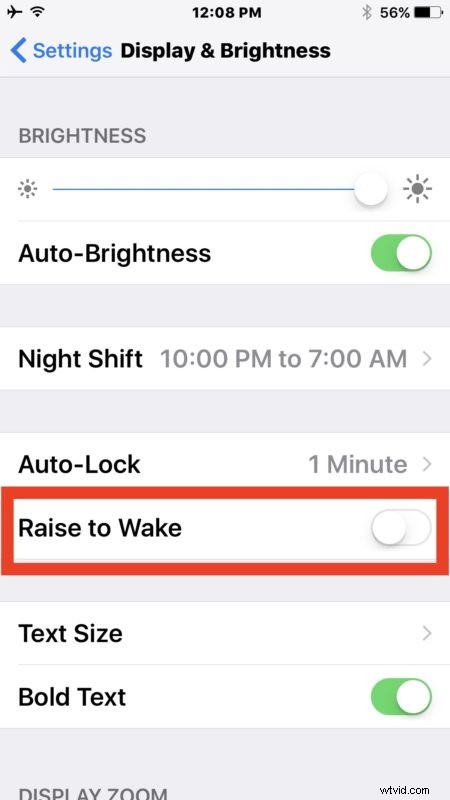
Once Raise to Wake is disabled you can lock the screen and raise the iPhone and nothing will happen, exactly the same as the iPhone behavior was for every other iOS release on every other iPhone model.
Aside from personal preference, some users may wish to disable Raise to Wake if they notice the feature is turning on more often than they’d like. For example, I have a friend who found they were triggering Raise to Wake frequently when on walks and they’d discover their iPhone was either stuck on the passcode entry screen or at the widgets display. One solution to that is to disable the Widgets screen in iOS 10 instead of turning off Raise to Wake, but because any screen usage can lead to faster battery drain, a better approach is likely to disable Raise to Wake if you’re accidentally enabling it instead, and you may find it helps helps increase iOS 10 battery life as well.
How to Enable “Raise to Wake” on iPhone
Of course you can also reverse this settings change and enable the Raise to Wake feature on an iPhone by doing the following:
- Open “Settings” app and choose “Display & Brightness”
- Toggle “Raise to Wake” setting to the ON position and exit Settings
Now when you physically raise the iPhone up, as if you’re looking at the display or pulling it out of a pocket to glance at, the screen will automatically turn on again. This is the default setting on new iPhone models with iOS 10.0 and newer.