
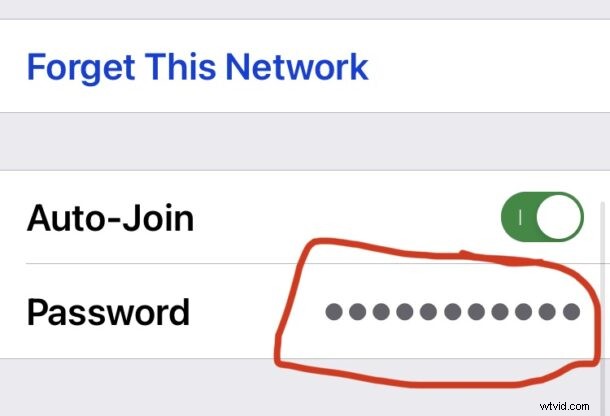
Need to view a wi-fi network password right on your iPhone? You can now do that, and it’s super easy thanks to the latest iOS update.
A common occurrence is joining a wi-fi network with a complex password, and then needing to relay that wi-fi network password to someone else, or to another one of your devices. For whatever reason, Apple did not implement the ability to view a wi-fi password after it had been entered until iOS 16. Now you can easily see and view wi-fi passwords that are you used on your device.
How to View a Wi-Fi Password on iPhone or iPad
Here’s how you can view a saved wi-fi password:
- Open the “Settings” app on iPhone or iPad
- Go to “Wi-Fi”
- Tap on the wireless network whose wi-fi password you want to see
- Tap on the password field that looks like a bunch of dots ••••••••
- Authenticate to see the wi-fi password revealed
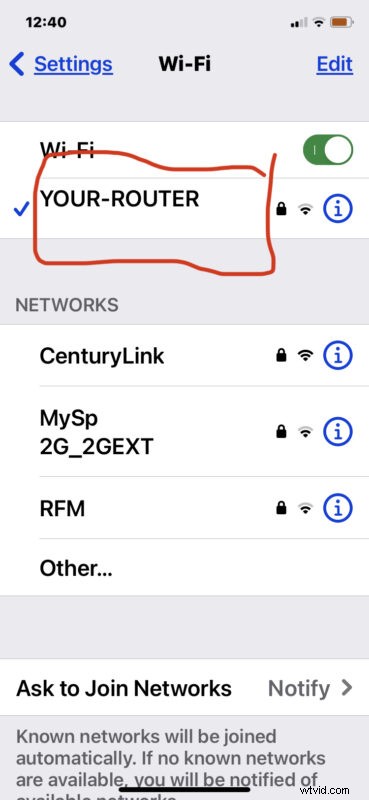
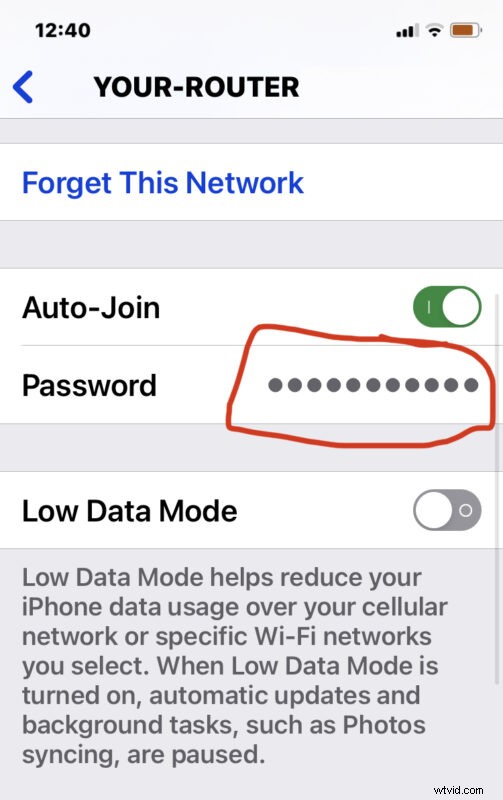
You can copy the wi-fi password directly to your clipboard as well, making it easy to share this through iMessages, Notes, with Continuity Clipboard, or other apps too.
Seeing the exact password is particularly handy if you or someone else is having issues with an incorrect password error when joining wi-fi since that is most commonly caused by a typo, especially when the password in use on that network is lengthy or complex.
Prior to this handy implementation, Apple offered other handy solutions like sharing wi-fi passwords between devices without actually seeing what the password itself was. That feature still exists too by the way, and it’s super handy when you’re sharing passwords between devices and users, since you don’t even have to enter or see the password (unless you want to or need to for whatever reason).
Being able to view the password directly on the iPhone or iPad brings this feature to the iOS and iPadOS world finally, after being available on the Mac for basically as long as wi-fi was a thing via Keychain Access and Terminal.