
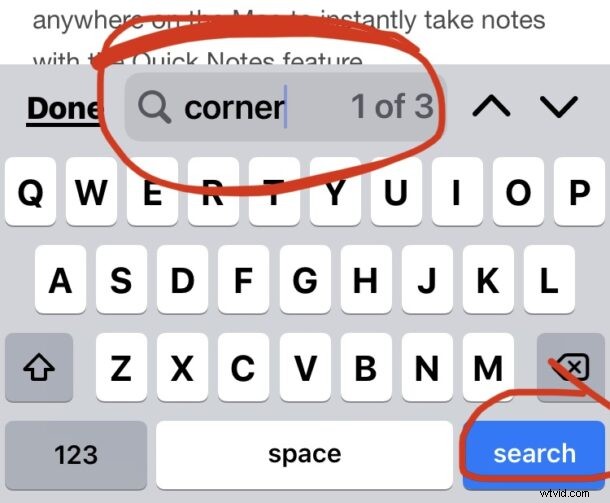
Many computer users associate Control+F with searching for text on a web page, and if you’re coming to the iPhone or iPad from the Windows world, you may be wondering how you can use the equivalent to the Control+F search in the Safari browser on iPhone and iPad.
The Safari web browser on iPhone and iPad has a built in Find On Page search feature that easily allows you to search for matched text on a webpage, mimicking the behavior of Control+F search for users who are coming to the platform from Windows. And arguably, the iPhone and iPad method is even easier to search matched text for than using Ctrl+F, as you’ll see in this walkthrough.
How to Use the Control+F Equivalent in Safari for iPhone & iPad
Ready to search for matching text on a web page in Safari? Here’s all you need to do:
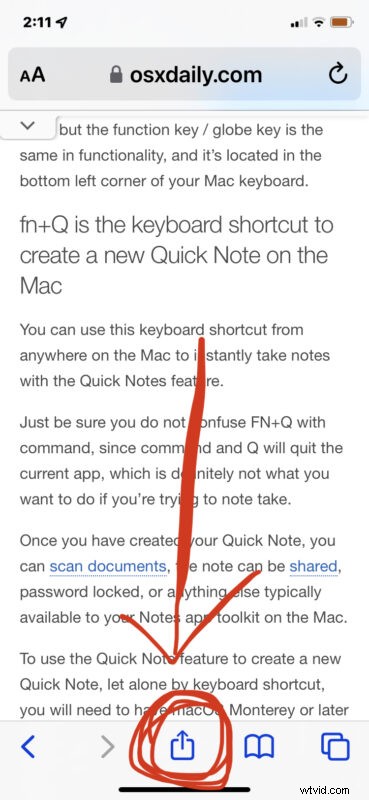
- Open the Safari browser if you haven’t done so and visit the web page you want to search for matched text on
- Tap the arrow button flying out of the box in the Safari toolbar
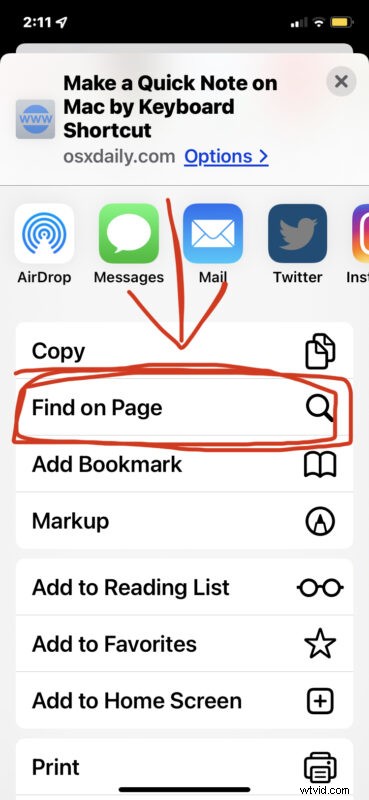
- Scroll down and tap on “Find On Page”, this is the Control+F equivalent on iPhone and iPad Safari
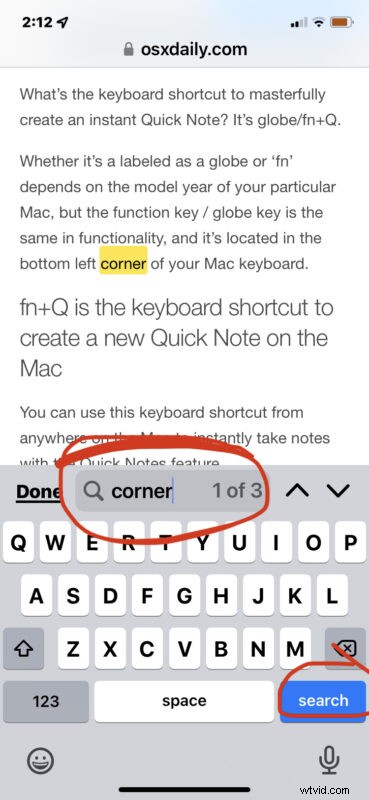
- Enter the text you want to find on the web page
- Use the arrows to navigate to the next or prior instance of the matched text if desired, when finished tap “Done”
There you go, is that easy or what?
This works exactly the same on Safari for iPhone and iPad.
Depending on which versions of iOS or iPadOS are in use, the Find On Page option in the menu may appear as a line option or a button, but it’s always available in Safari for iPhone and iPad.
Bonus Trick: Command+F is Control+F equivalent for iPad Safari Users
One added trick is available for iPad users that have an external keyboard or keyboard case connected to their device, like the Magic Keyboard or Smart Keyboard.
- From Safari on iPad, hit Command+F on the keyboard to bring up Find On Page instantly
- Type the text you want to search for on page and hit return to find the matching text on the web page
The Command+F for Find On Page keystroke on iPad with keyboard is also the same for using Find On Page in Safari for Mac, and even Chrome for Mac.
Command+F as Control+F replacement should be extra simple for iPad users to remember, since the keystrokes are so similar.
What do you think? Do you find selecting the Find On Page item easier than using the Ctrl-F keyboard shortcut? Do you think the Command-F keyboard shortcut for iPad is simpler or the same? Let us know your thoughts in the comments.