

Did you know you can set your Telegram account to self destruct, automatically deleting itself after a set amount of time if you don’t login to it?
If you’re a privacy and security buff and you’re looking to gain a unique additional layer of privacy with Telegram, you can set your Telegram account to delete itself after no activity has been detected in 1 month, 3 months, 6 months, or 12 months. For example, if you choose one month, and you don’t sign into your Telegram account in a month, the account will automatically delete itself, including all messages and conversations in the app.
It’s easy to set this up on Telegram on your iPhone, so if it interests you let’s see how this feature works and set it up.
How to Set Telegram Account to Delete Itself After an Amount of Time
If you want your Telegram account to self destruct, deleting itself and all messages, after an amount of time, here’s how it works:
- Open Telegram on iPhone
- Tap on Settings
- Go to “Privacy & Security”
- Look for “Automatically Delete My Account” and tap on “If Away For”
- Set the number of months you want the account to delete itself after: 1 month, 3 month, 6 months, 12 months
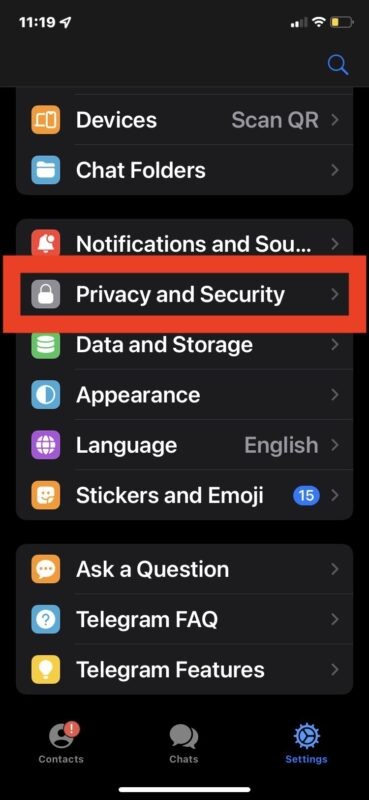
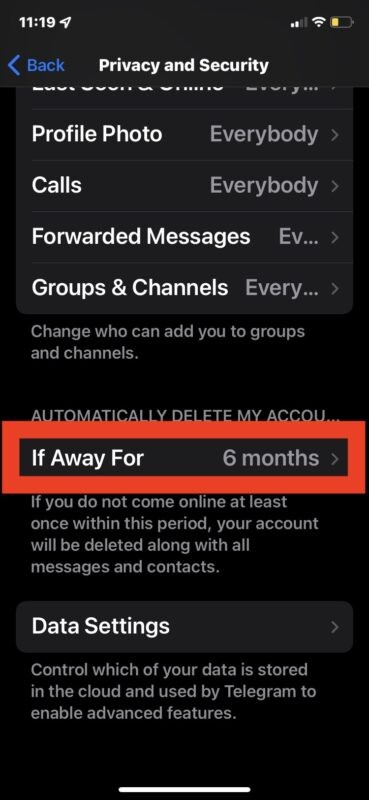
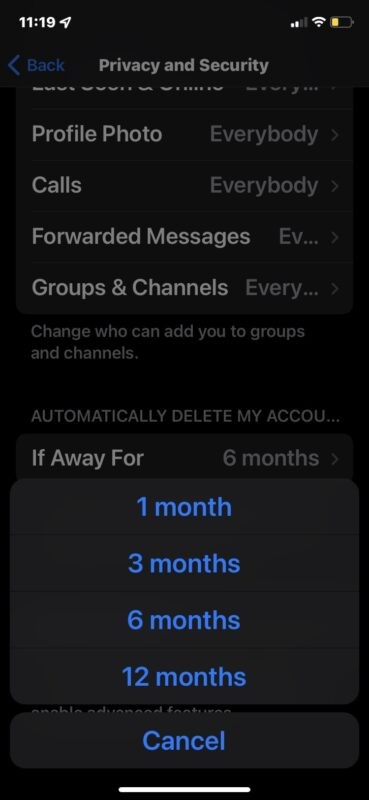
Now your Telegram account will delete itself if you don’t login to it in that amount of time.
It’s important to set a time frame that works well for your Telegram usage. If you choose 1 month but never get on Telegram, don’t be surprised if you go to login and your account is missing.
Most users probably want to choose a long length of time for this, but if you’re particularly security conscious or privacy motivated, choosing a short amount of time may be reasonable for you.
If you’re doing this with your Telegram account, you might also appreciate knowing you can set your iPhone to erase itself automatically after several failed passcode attempts as well.