
If you want to download all your photos, videos, messages, etc. from Instagram, you can directly save your Instagram data archive. In this post, you will know how to download Instagram data, how to view downloaded Instagram data, and how to delete Instagram account.
Instagram lets you back up your data by using the Download Data option. It can download all the data you’ve uploaded to Instagram including photos, videos, stories, messages, comments, likes, and more. Let’s see how to download Instagram data.
Want to make a video with downloaded Instagram photos? Try MiniTool MovieMaker.
How to Download Instagram Data
Using the Instagram App
Here’s how to download Instagram data on mobile phones.
Step 1. Launch the Instagram app on your phone.
Step 2. Go to your profile and click the Menu button (three horizontal lines) in the top right corner.
Step 3. Select the Settings option from the pop-up menu.
Step 4. Then choose Security and tap on Download Data.
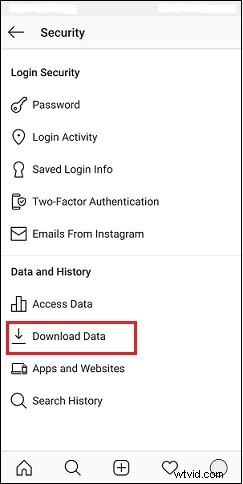
Step 5. Enter your email address and click Request Download.
Step 6. Type your Instagram password and click Next > Done. Instagram will send you a link. Click the link to download all your Instagram data.
Using the Instagram Web App
Here’s how to download Instagram data on computers.
Step 1. Go to the Instagram website and log in to your Instagram account.
Step 2. Click on your profile picture and choose Settings.
Step 3. In the left sidebar, select Privacy and Security. Then tap on Request Download under the Data Download.
Step 4. Then type your email address and your Instagram password. Click Request Download. You’ll receive the data link within 48 hours.
How to View Downloaded Instagram Data
All your Instagram data are JSON files. How to view the downloaded Instagram data on your device? Take the steps below:
Step 1. Open a JSON to CSV converter.
Step 2. Upload your JSON files.
Step 3. Convert JSON files to CSV and download them.
Step 4. Then you can view your CSV files in Excel.
How to Delete Instagram Account
If you don’t want to use Instagram, you can choose to delete or disable your Instagram account after downloading Instagram data.
How to Permanently Delete Your Instagram account
Step 1. Open Google Chrome and go to the Delete Your Account page. Log in to your Instagram account.
Step 2. Click the down arrow icon next to Why do you want to delete your account and select an option from the drop-down menu.
Step 3. Click the Delete button to delete your Instagram account.
Related article: How to View Instagram Posts and Stories without Account
How to Temporarily Disable Instagram Account
Step 1. Open the Instagram web app in your browser.
Step 2. Tap on your Profile icon and click Profile > Edit profile.
Step 3. Scroll down to find Temporarily disable my account.
Step 4. Select a reason why are you disabling your account and then enter your password.
Step 5. In the end, click on Temporarily Disable Account. Then Instagram will hide your account, profile, photos, etc. until you reactivate your account.
Conclusion
That’s all about how to download Instagram data and how to delete or disable an Instagram account. Hope this post is helpful to you!