

Are you looking to take a break from Twitter? Or perhaps, quit the platform altogether? Either way, it’s quite easy to deactivate your Twitter account, and you can do it right from your iPhone or iPad within seconds.
Twitter is without a doubt one of the most popular social networking platforms out there. Sure, it may not have anywhere near the user base that Facebook has amassed over the past decade, but Twitter’s target audience is different. While Facebook focuses mostly on friends, Twitter focuses on businesses, politics, random conversations, and establishing connections. Sometimes, the never-ending controversies, perpetual outrage cycles, and drama instigated by people on Twitter might be too much to handle though, or perhaps you’re simply finding yourself wasting too much time on the social network. In such cases, the simple solution is to deactivate your Twitter account. And fortunately, you can delete your Twitter account directly from iPhone or iPad, or the web client.
How to Deactivate / Delete a Twitter Account
Deleting your Twitter account is a pretty simple and straightforward procedure regardless of whether you’re using the mobile app or the web client. However, there are a couple of things to know about during deactivation. Let’s run through this together:
- Open the “Twitter” app on your iPhone or iPad.

- Tap on your profile icon at the top-left corner to access the Twitter menu.

- Next, choose “Settings and Privacy” as shown in the screenshot below.

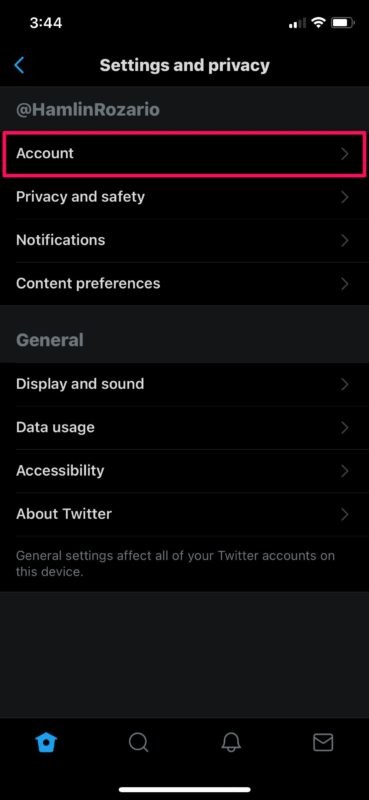
- In the settings menu, tap on “Account” to proceed further.
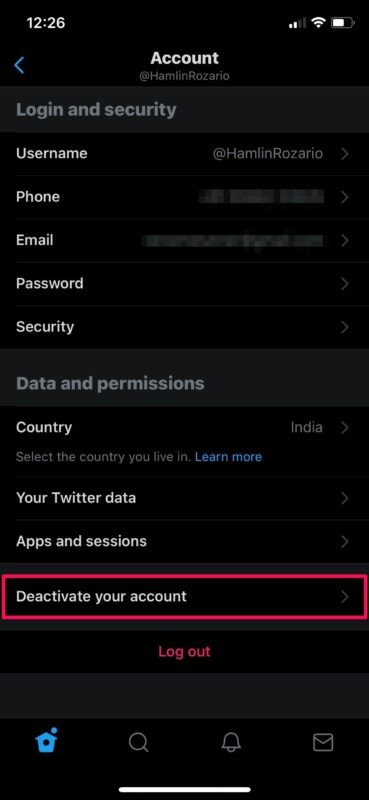
- Next, tap on “Deactivate your account” located just above the Log out option.
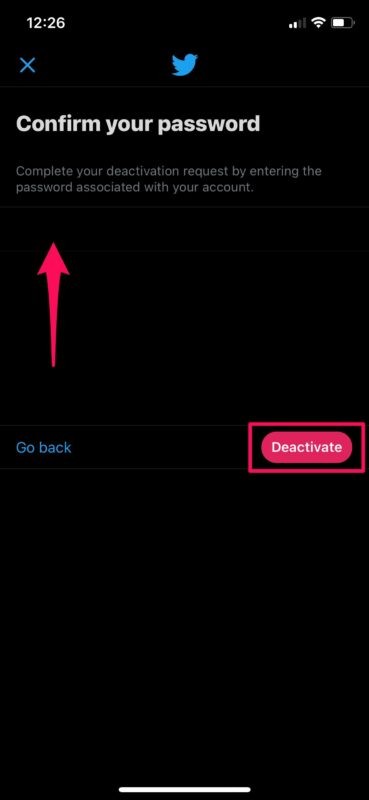
- Now, tap on “Deactivate” at the bottom of your screen, as shown here.

- You’ll be asked to enter your Twitter password to verify. Type it and tap on “Deactivate” to continue.
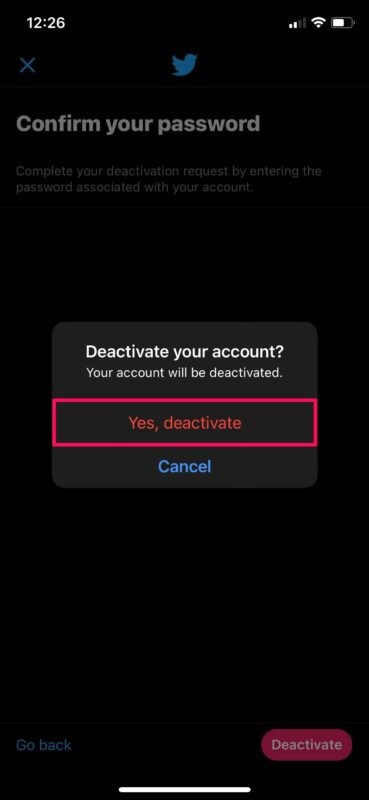
- When you’re prompted to confirm, choose “Yes, deactivate” to finalize your decision.
And there you go, your deactivated Twitter account is on the way to be deleted.
Keep in mind that your Twitter account won’t be deleted instantly. This is to provide you with the option to restore your Twitter account if it was deactivated accidentally, or if you changed your mind.
You will be able to restore your account for up to 30 days after deactivation. After this 30-day period, your Twitter account will be permanently deleted.
Although we were focusing primarily on the Twitter app for iPhone and iPad, you can use the above steps to delete your Twitter account from an Android smartphone, Mac, or Windows PC as well.
Before you permanently delete your Twitter account, you might want to grab a copy of all the data you’ve shared with Twitter. This will give you an insight into the type of information stored by Twitter for your account. The kind of data that Twitter has access to includes your tweets, media, advertising topics you’re interested in, and a lot more.
Do you use other popular social networking platforms? If so, you might be interested in learning how you can delete your Facebook account or permanently delete or temporarily deactivate your Instagram account as well.
Did you delete your Twitter account? What’s your reason for deactivating your account? Will you be restoring your account within the 30-day period? Share your experiences and thoughts in the comments!