
Google Photos is a great application to use to backup your photos, but sometimes, you want to delete some photos to free up space for more recent ones. Keep reading to find out how to delete Google backup photos on your computer or through the mobile app.
Some Info About Deleting Photos
Photos you delete from Google Photos are removed from:
- The web application (photos.google.com)
- Any synced devices, such as your smartphone or Android tablet
- Google Photos albums
- Google Drive, but only when your photos are automatically synced with Google Drive
- Shared albums you added those photos to
With that out of the way, here's how you can delete photos from Google Photos.
Delete Google Photos From the Gallery on the Web App
-
In your web browser, navigate to photos.google.com.
-
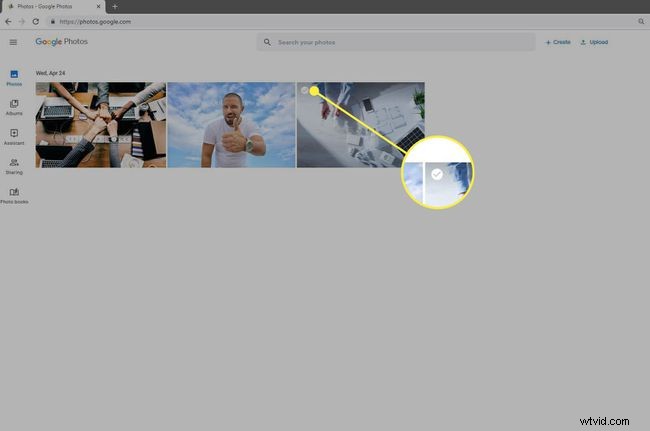
Mouse over the photo you want to delete and select the gray checkmark in the upper left of the photo.
-
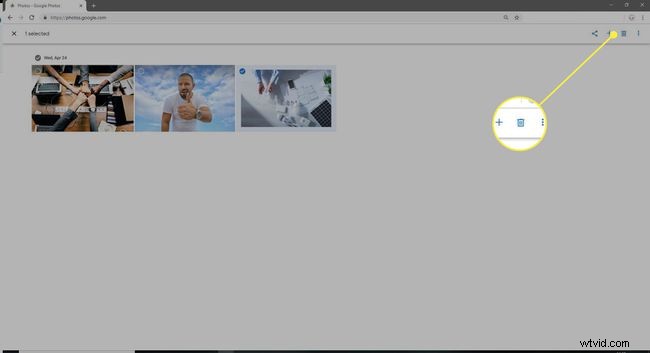
At the top right, select the Trash can icon.
-
Select Move to trash. The photo is deleted from your Google Photos account, as well as any synced devices like your smartphone and tablet.
Deleting a photo on Google Photos moves it to the Trash, where it will stay for 60 days before being permanently deleted by the system.

Permanently Delete Photos and Videos in the Google Photos Web Application
All items in the trash are deleted automatically every 60 days, but you can get rid of them sooner.
-
On your computer, navigate to photos.google.com.
-
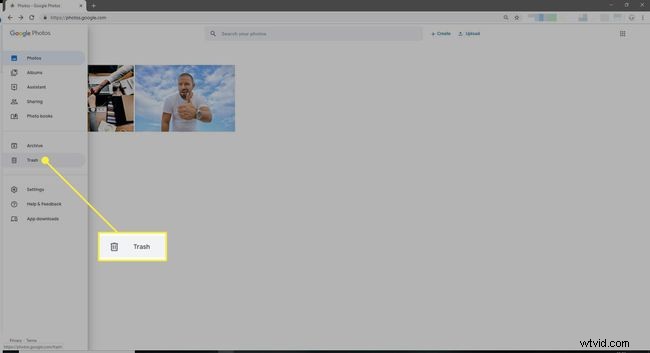
From the upper left, open the Hamburger menu (three stacked lines).

-
Select Trash.
-
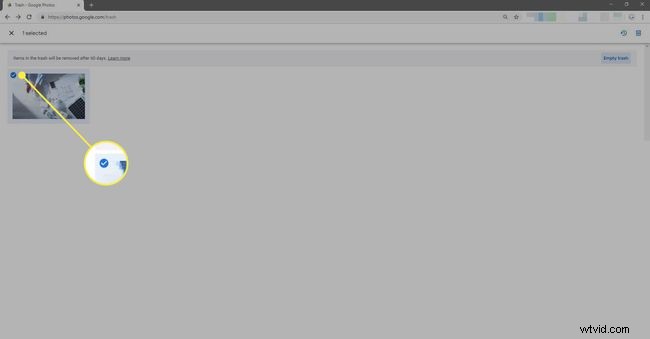
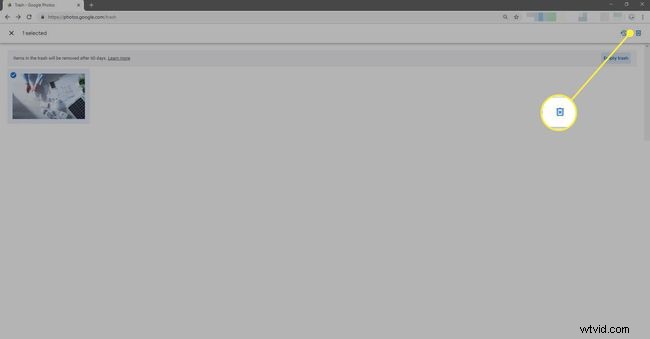
To delete individual photos, mouse over the appropriate photo and at the top left, select the gray checkmark.
-
Select the Trash can icon to permanently delete the photo.
-
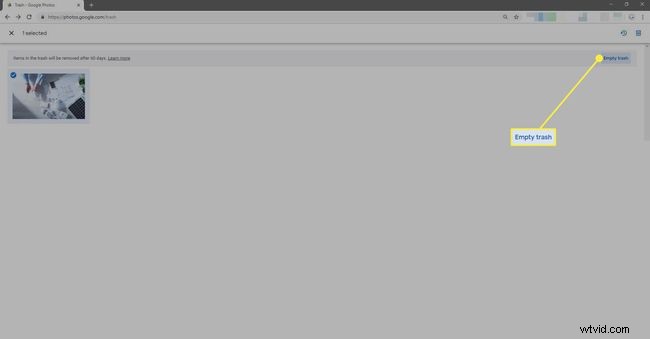
Alternatively, to delete all the photos in the trash without selecting them, select Empty Trash.
-
Select Delete to confirm your choice. Your photo(s) will be permanently deleted from your Photos library and cannot be retrieved.
Delete Google Photos From the App on an iPhone or iPad
-
On your iPhone or iPad, open the Google Photos app.
-
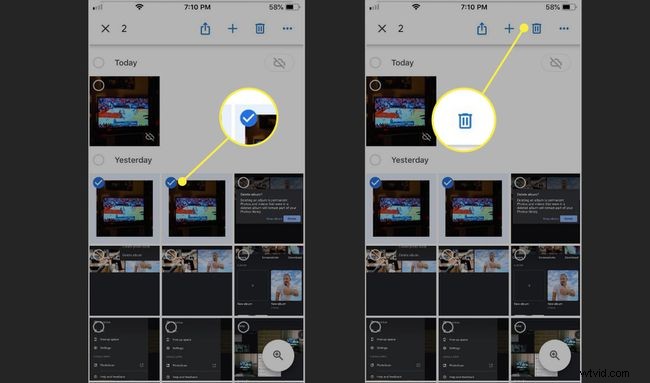
Tap the photo (or photos) to delete.
-
At the top right, tap the Trash can icon to delete the photo. The photo is deleted from your Google Photos library, as well as any synced iPhones and iPads.
Deleting a photo through the Google Photos app moves it to the Bin, where it will stay for 60 days before being permanently deleted.
Permanently Delete Pictures From Google Photos on iOS
All items in the trash are deleted automatically every 60 days; you can delete them permanently whenever you like.
-
On your iPhone or iPad, open the Google Photos app.
-
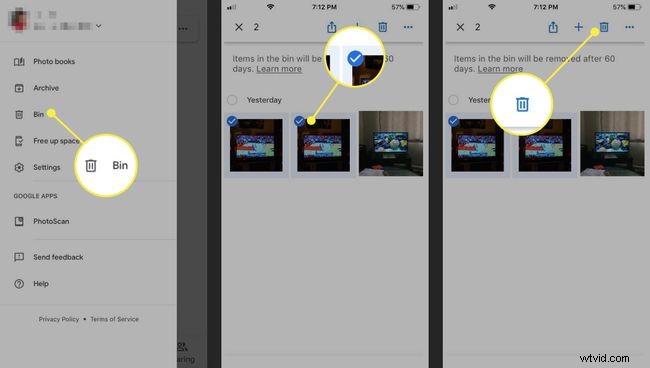
In the upper left, tap Menu > Bin.
-
Tap the photo(s) to permanently delete, then tap the Trash Can icon.
To permanently delete all the photos in the Bin, tap the three horizontal dots > Empty Bin > Delete.
-
Confirm the deletion. Your photo(s) is/are deleted permanently from your Google Photos library and cannot be retrieved.
Delete Photos From the Google Photos App on Android
-
On your Android phone or tablet, open the Google Photos app.
-
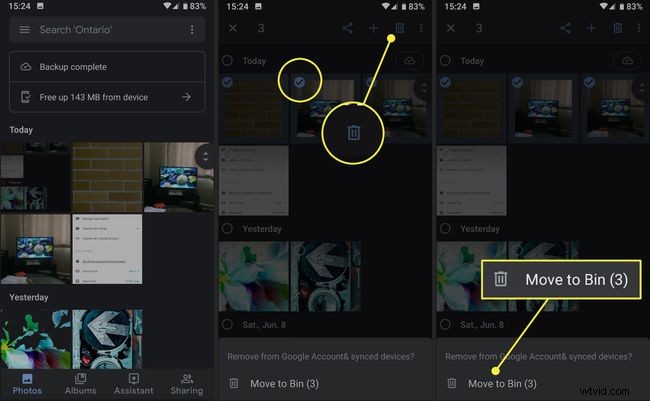
Tap one or multiple photos, then tap the Trash Can icon to delete the photo(s).
-
Tap Move to Bin to confirm the deletion. The photo is deleted from your Google Photos library, as well as any synced Android devices.
Deleting a photo through the Google Photos app moves it to the Bin, where it will stay for 60 days before being permanently deleted.
Permanently Delete Photos on Google Photos for Android
All items in the trash are deleted automatically every 60 days, but you can delete them permanently whenever you like.
-
On your Android phone or tablet, open the Google Photos app.
-
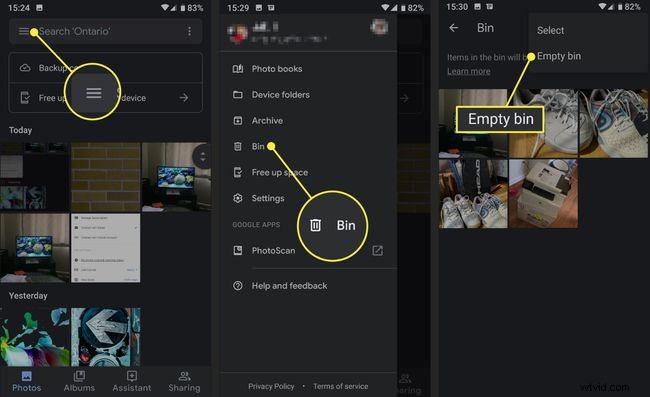
Tap the Hamburger menu > Bin.
-
Tap one or multiple photos you want to permanently delete, then tap Delete.
-
To permanently delete all photos in the Bin, tap the three vertical dots > Empty Bin > Delete.
-
Tap Delete to confirm the deletion. Your photos are permanently deleted from your Google Photos library and cannot be retrieved.
How to Delete Google Photos Albums
An album is a collection of photos stored in your Google Photos library, so when you delete an album, it only deletes the collection and not the photos themselves.
From the Web App
-
On your computer, navigate to photos.google.com.
-
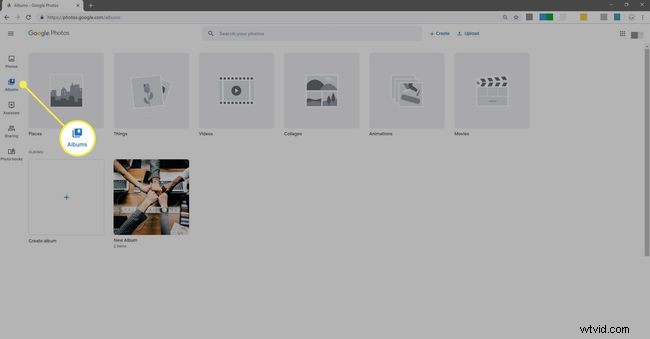
Select Albums.
-
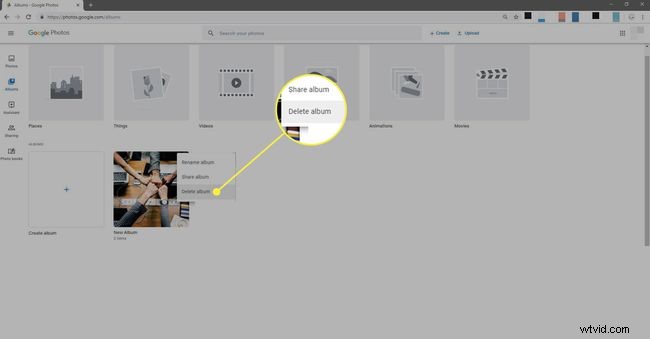
At the top right of the album, select More > Delete album.
-
Confirm the deletion. Your album is deleted, but the photos in the album will still be in your Google Photos library.
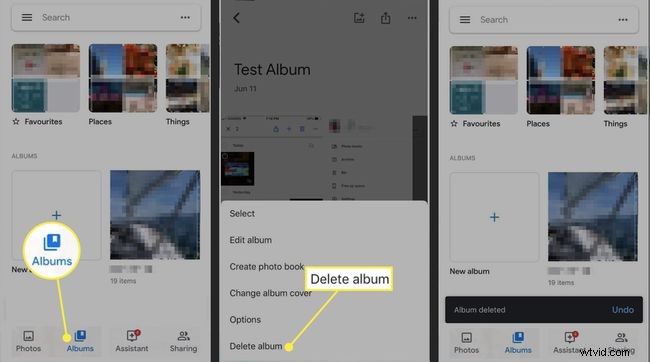
On iPhone or iPad
-
On your iPhone or iPad, open the Google Photos app.
-
Tap Albums and open the album to delete.
-
At the top right, tap More > Delete album.
-
Tap Delete Album again to confirm the deletion. Your album is deleted, but the photos in the album will still be in your Google Photos library.
On Android Devices
-
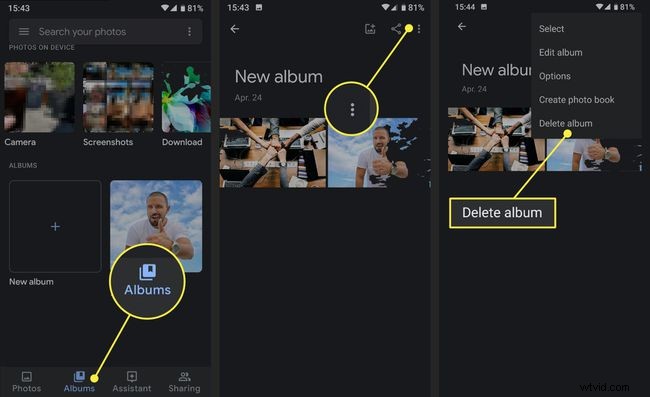
On your Android phone or tablet, open the Google Photos app.
-
Tap Albums, then tap the album you want to delete.
-
Tap More > Delete album.
-
Tap Delete to confirm your choice. Your album is deleted and the photos in the album will still be in your Google Photos library.