
If you want to know how to draw on images, you should view this post. It offers ultimate guides on how to draw on the image in Photos App, Google Docs, and online. And if you desire to make a photo slideshow after drawing, just try MiniTool MovieMaker.
Want to draw on images? Now, look at the following guides on how to draw on images quickly and easily.
How to Draw on Image in Google Docs in Photos App?
What’s the simplest method to draw on images on Windows? With the Photos app, you can draw on images without any third-party tools. Microsoft Photos lets you view and edit images and videos, make albums, and create movies. This app enables you to draw on a photo or video, crop and rotate images, trim video clips, and more.
Step 1. Select an image, right-click it, choose Open with > Photos.
Step 2. Click on Create & Edit then choose the Draw.
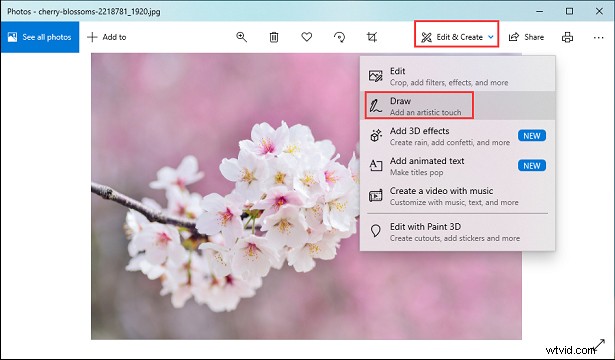
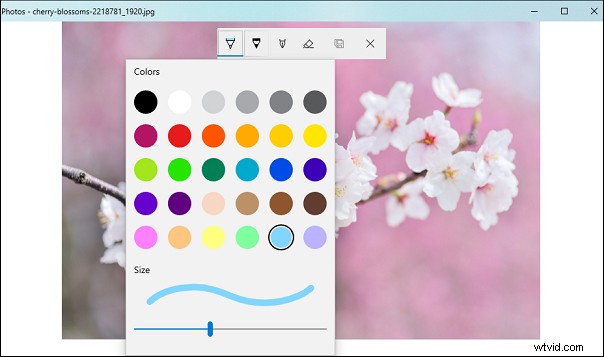
Step 3. Select your preferred pen between Ballpoint pen, Pencil, and Calligraphy pen from the ink toolbar.
Step 4. Choose the size and color of the fonts, and start drawing on the image.
How to Draw on Image in Google Docs?
Step 1. Open a new document in Google Docs.
Step 2. Select the Insert > Drawing > + New option.
Step 3. Click on Image to upload a picture in the Drawing window.
Step 4. To insert shapes, click the Shape icon, choose one from Shapes, Arrows, Callouts, and Equation. Then draw on the picture.
To insert lines, tap on the Select line button, then select a style and start drawing.
To add text, hit the Text box, then draw a text box, and type your text.
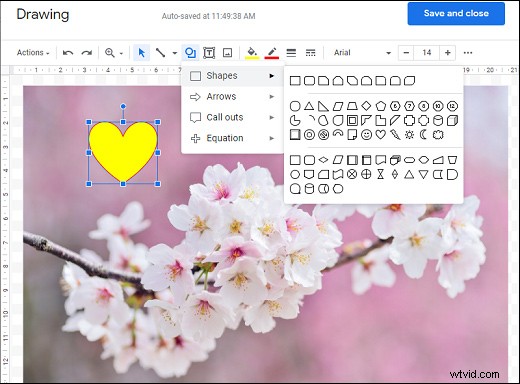
Step 5. Tap on save and close to save your project.
How to Draw on Image Online?
Solution 1 – Draw on Image Using LunaPic
Lunapic is a free online photo editor, and it offers many tools to edit pictures. It allows you to add text to the image, apply filters and effects, rotate, flip, crop images, make image background transparent, draw on images, and more.
Step 1. Open the Lunapic website, click the Upload then select the Choose File to upload an image.
Step 2. Click on Draw then choose the Drawing Tool.
Step 3. Choose your preferred pen, color, and size, and hit the Apply.
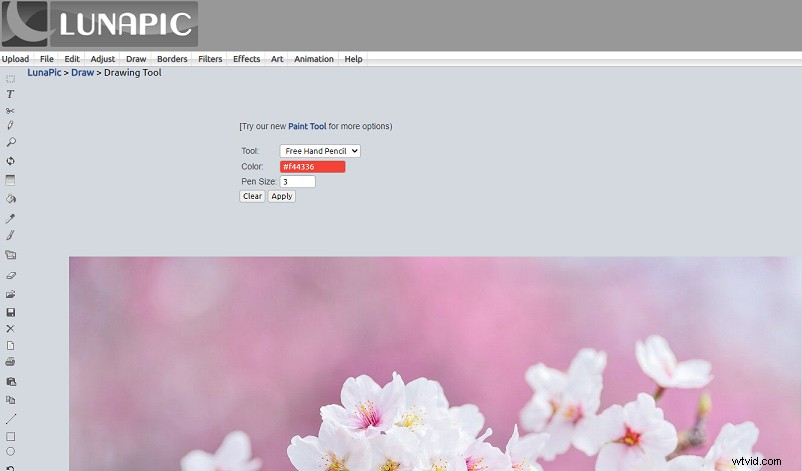
Step 4. Draw on the image as you like, and tap on Apply again to save your changes.
Solution 2 - Draw on Image Using PicMonkey
PicMonkey also works as a great photo editor. This online tool enables you to resize, rotate, crop images, change the background color, adjust color or exposure, add text, filters, and more. Here’s how to draw on image online using PicMonkey.
Step 1. Go to the PicMonkey website and log in.
Step 2. Click on Create new to open image in PicMonkey
Step 3. Tap on the Draw icon from the tool tabs menu on the left.
Step 4. Choose a drawing tool from Pencil, Paint Brush, or Spray Paint.
Step 5. Choose the color, size, hardness, and strength to adjust the stroke appearance.
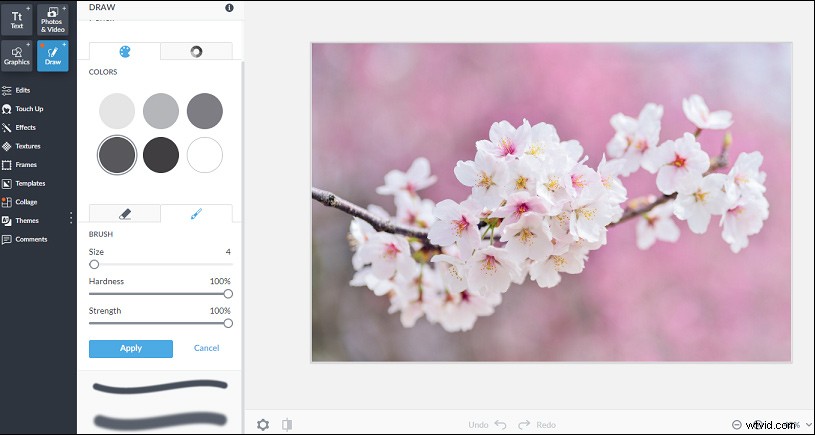
Step 6. Draw on the picture. When finished, click the Apply.
Conclusion
This post tells you 4 methods on how to draw on image. Now, it’s your turn. Choose one and try to draw on your photo.