
Most people enjoy taking photos in daily life, and they also desire to enhance the beauty of their photos. At this time, they may wonder how to enhance a photo to make it more beauteous? Luckily, this post will introduce how to enhance a photo in Photoshop
Nowadays, most of you are accustomed to taking photos and videos to record the precious moment when you travel, attend parties, and reunite with family, etc. And then you like to share these good memories on social media.
To make the content more attractive, you need to embellish these pictures and photos. If you want to make a photo slideshow or edit videos, like adding music, transitions, or text, etc., MiniTool MovieMaker should be given the priority.
How to enhance a photo? Here are 9 tips to increase the beauty of your photos.
9 Easy Tips to Enhance a Photo
If you’re not satisfied with your pictures or images, you can use these hacks to improve your photos.
- Adjust saturation: To make the photo more natural, you can adjust the saturation to enhance or reduce the color intensity.
- Change contrast: To enhance highlights or shadows, you can increase or reduce the contrast.
- Adjust brightness: To make everything on the picture lighter or darker, you can use it as an image brightener to adjust the brightness carefully.
- Add filters: To make photos more vivid and beautiful, you can add different filters.
- Add frames and layers: To change the style and shape of photos, or want them to be more noticeable, you can add picture frames and layers.
- Add text: To enable your viewers to understand pictures better, you’re supposed to add text to pictures.
- Crop images: To remove the unwanted parts and focus on something, you can crop images.
- Blur photos: To emphasize a part of your photos or to protect your privacy, you can blur a picture.
- Sharpen images: To improve clarity and draw attention, you can increase the sharpness of photos.
After viewing these tips, now it’s time to pay attention to the specific steps on how to enhance a photo.
How to Enhance a Photo in Photoshop
Photoshop is a powerful photo editor that helps you beautify pictures with ease. Sharpness, brightness, contrast, and lights are important factors in enhancing photos. In this part, you’ll be told how to sharpen an image in Photoshop, and how to adjust brightness and contrast.
How to sharpen an image in Photoshop
Step 1. Download, install, and open Photoshop.
Step 2. Click File > Open to upload the image you want to sharpen.
Step 3. Tap on the Window > Layers to see the layer panel.
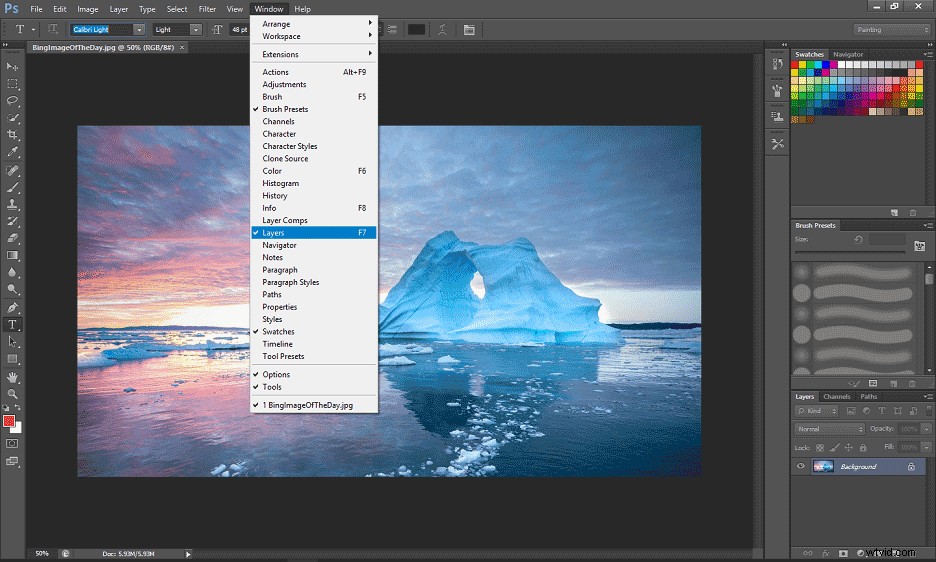
Step 4. Right-click the Background > Duplicated Layer in the lower right corner, and then click OK button.
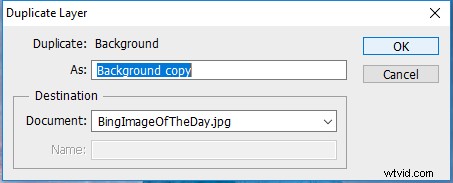
Step 4. In the layer panel, changer Normal to Luminosity.
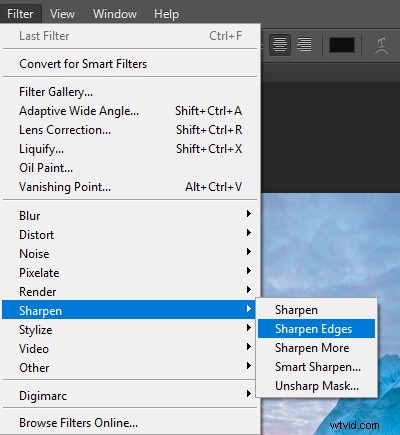
Step 5. Choose Filter > Sharpen, you can see Sharpen, Sharpen More, Sharpen Edges, Smart Sharpen, and Unsharp Mask.
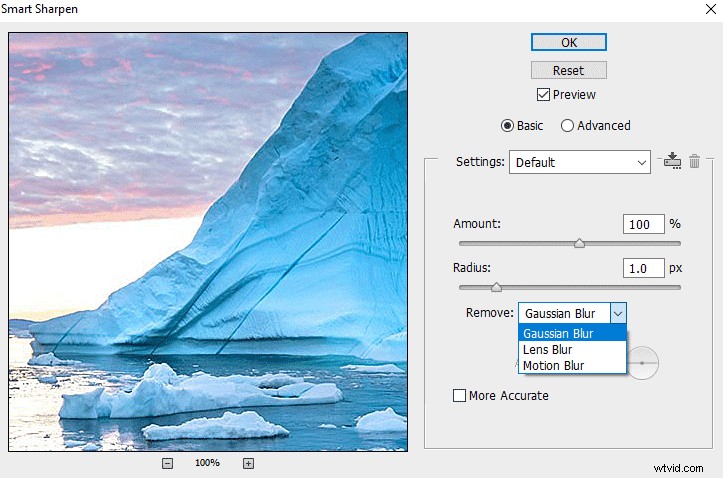
Step 6. Sharpen an image using Smart Sharpen, click Preview, set Amount, Radius, Motion Blur, Gaussian Blur, and Lens Blur, and click OK to save your changes. (optional)
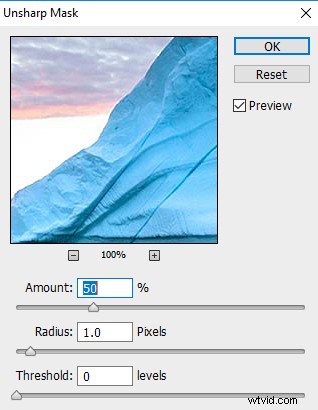
Step 7. Sharpen an image using Unsharp Mask, then adjust Amount, Radius, and Threshold, and lastly click OK. (optional)
Step 8. Choose File > Save to save the image on your computer.
How to Adjust Brightness and Contrast in Photoshop
Step 1. Launch Photoshop and import the desired image.
Step 2. Click Image > Adjustments > Brightness/Contrast.
Step 3. Move the slider to change the brightness and contrast.
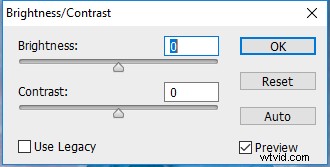
Step 4. Click OK to save changes, and then save the image on the computer.
Bottom Line
Now, you’ve learned how to enhance a photo in Photoshop, including how to adjust brightness and contrast and how to sharpen an image in Photoshop as well as 9 tips to enhance a photo. And if you like this post, share it with your friends.