
Google Photos is a photo-sharing and storage service. And people use it for a variety of reasons. With it, people can find any photos they like. But how to download all photos from Google Photos? Luckily, this post will offer the how-to guide. If you want to turn your downloaded photos to a video, you can try MiniTool MoveoMaker.
Google Photos is an excellent photo viewer and photo organizer. And it offers users tons of photos, you can find all the photos of the type you like. But how to download all photos from Google Photos? This post will show you how to do it with ease.
How to Download All Photos from Google Photos to Phone?
Smartphone has already been an indispensable part of the daily life. For some reason, you may need to save all images from Google Photos to phone. But how to download all photos from Google Photos to phone? The following part will show you how to download all photos from google photos to iPhone and Android.
Step 1. Download and install the Google Photos app.
Step 2. Open this app, if you want to save a photo, just select the photo, tap on the More > Save to device. To download all photos from Google Photos, you can use your Google account to download your data.
Step 3. Go to the Download your data page, and it will automatically present the selected data.
Step 4. Click the Next to customize the archive format.
Step 5. Choose a delivery method from send download link via email, add to Drive, add to Dropbox, add to Microsoft OneDrive, or add to Box.
Step 6. Make sure the export type. You can make an archive of chosen data or select scheduled exports.
Step 7. Choose the file type as zip files or tag files.
Step 8. Choose the archive size based on your downloads.
Step 9. Get your Google data archive.
Can You Download All Photos from Google Photos to Computer?
Solution 1 - RaiDrive
RaiDrive is a professional application to manage the files in many devices, such as Google Photos, Google Drives, OneDrive, and more. With it, you can also download all photos from Google Photos. The following is the how-to guide.
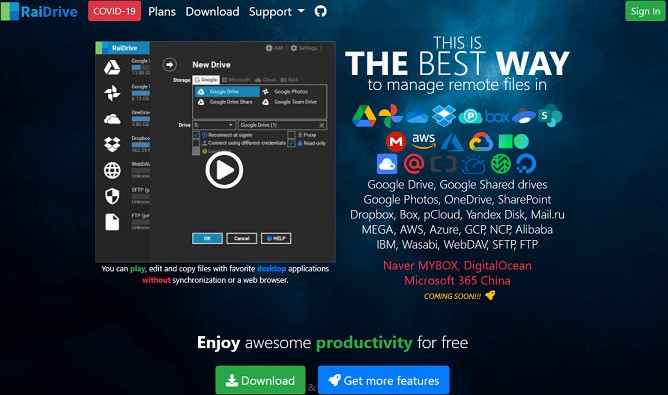
Step 1. Download and install RaiDrive on your computer.
Step 2. Open it, and hit the Add button.
Step 3. Choose Google Photos and the drive name.
Step 4. Submit Google Account details and required permissions.
Step 5. All photos will present after your Google Photos account linking to RaiDrive.
Step 6. Choose and download photos.
Solution 2 – Google Takeout
Step 1. Enter Google Takeout in the browser and open it.
Step 2. Click SELECT NOTE > Google Photos.
Step 3. Tap on the NEXT > CREATE ARCHIVE button.
Step 4. The Download button will appear after the archive is created.
Step 5. Click the Download to download all photos to your computer.
Bottom Line
This post gives you 3 ways on how to download all photos from Google Photos. Choose one method and try to download all photos from Google Photos.