
Google Photos is a good place to store all your photos & videos and gives you an option to share your photos with family and friends. How to share photos from Google Photos? This post will show you how to share Google Photos and how to stop sharing them with others.
Now, let’s see how to share Google Photos and how to disable access to shared photos & albums with others. (Try MiniTool MovieMaker to make a photo slideshow!)
How to Share Google Photos on the Web
Take the following steps to learn how to share photos on Google Photos using Google Chrome.
Step 1. Launch Google Chrome and click the Google apps icon next to your profile picture. Scroll down until you see the Photos app. Then choose Photos.
Step 2. Hover the mouse cursor over the photo you want to share and click the checkmark icon.
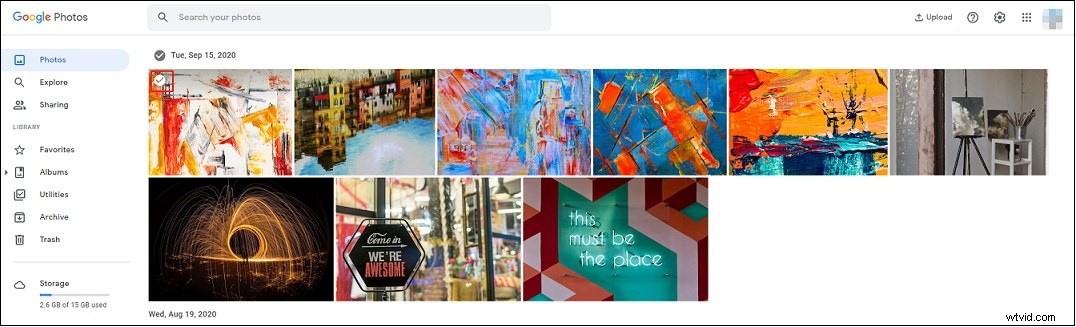
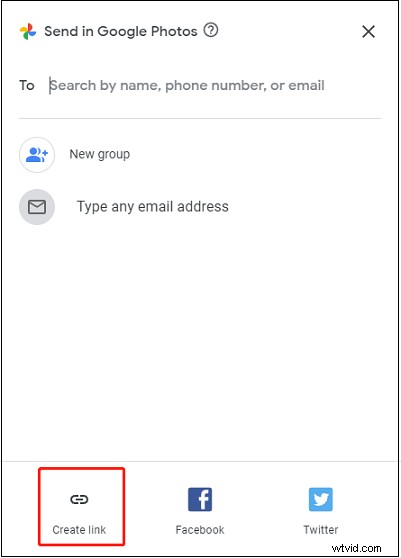
Step 3. Click the Share icon located in the top-right corner and the Send in Google Photos window appears. Choose Create link and click Create link. Copy the link and send it to your friends. Anyone with the link can see the shared photos.
If you want to share photos privately with a specific person, you can type the email address in the search bar and click it in the search results.
Disable access to shared photos
If you don’t want to share photos with others anymore, you can disable the sharing option. Here’s how:
- Click Sharing in the left panel.
- To find shared photos, click Other shared links.
- Find the link you want to stop sharing and click the trash icon.
- Click the Delete button to confirm the operation.
Related article: How to Download All Photos from Google Photos at Once?
How to Share Google Photos on Android and iOS
Step 1. Open the Google Photos app.
Step 2. Tap the photos you want to share and click the Share icon.
Step 3. Select another app to share, create and share a link or send the link to someone via email.
How to Share an Album and Stop Sharing it
How to share an album on Google Photos
Step 1. Open the Google Photos app in your web browser.
Step 2. Choose Albums to view all the albums and click the three dots on the desired album. From the popup menu, choose Share album.
Step 3. Now, you can invite people to see your photos via email, link, Facebook, and Twitter.
If you want to create a shared album, just select the needed photos and click the Plus icon. Choose Shared album > New shared album. Give it a name and tap Share in the upper-right corner of the window. Then share this album with others.
How to stop sharing an album
Step 1. Open the shared album.
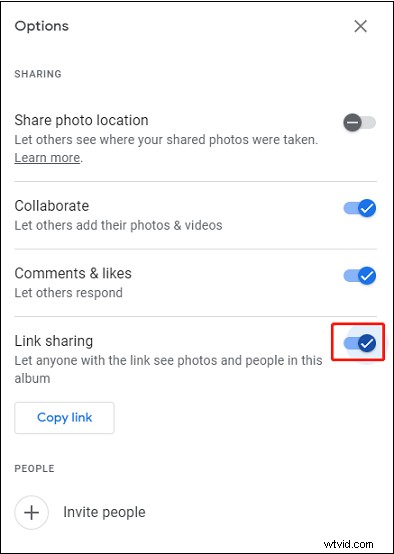
Step 2. Click the three dots and choose Options.
Step 3. Disable the Link sharing option and click Make private to stop sharing the album.
Conclusion
Google Photos is the best photo-sharing app. Now, follow the above guides to learn how to share Google Photos on different platforms and how to disable the Sharing option.