

Do you want to share your Apple Music subscription with friends or family members? Perhaps, you’re looking to cut down on monthly or annual subscription costs? Thanks to Family Sharing, you can easily share your Apple Music access and this can be done on your iOS or iPadOS device.
Apple’s Family Sharing feature allows users to conveniently share their purchases and subscriptions with up to five other people. The feature isn’t just limited to Apple Music and other Apple services but also third-party apps that support Family Sharing. When it comes to Apple Music, you either need to be on the family plan or be subscribed to Apple One Family to share your subscription.
If you haven’t figured out how to use Family Sharing to share subscriptions just yet, we’re here to help you out.
How to Start Sharing Apple Music with Family Members
As mentioned earlier, you need to be on the Apple Music family plan or subscribed to Apple One Family to share your subscription. Once you’re certain about this, simply follow the steps below.
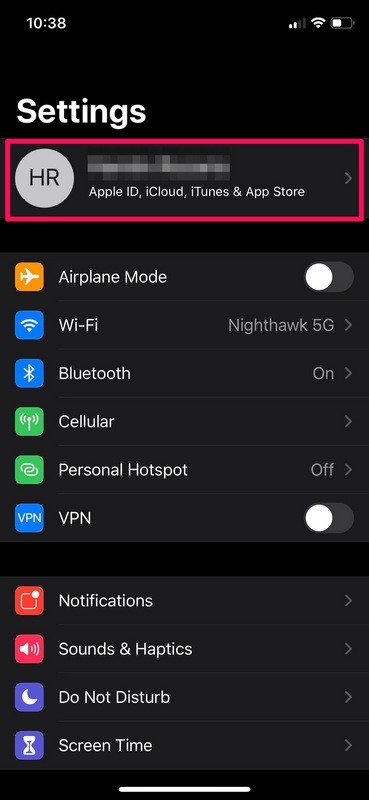
- Head over to “Settings” from the home screen of your iPhone or iPad.

- In the settings menu, tap on your Apple ID name located right at the top.
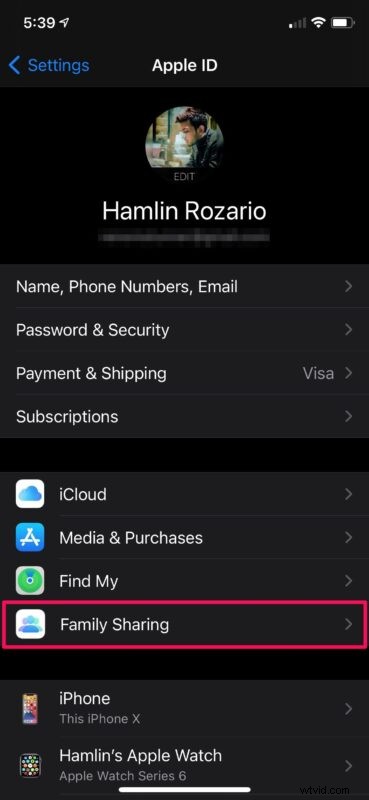
- Next, tap on the “Family Sharing” option located just above the list of devices you currently use.
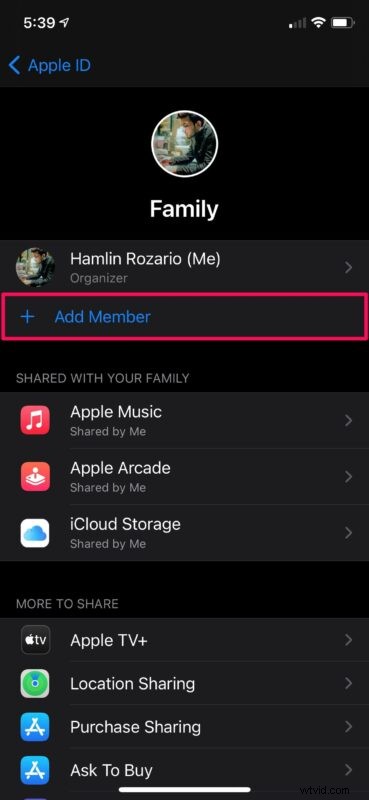
- This will take you to the Family Sharing section where you are the organizer for your family group. Here, tap on “Add Member” to get started.
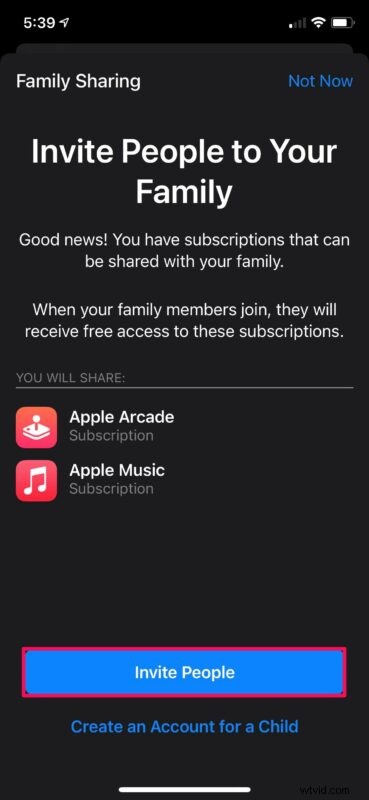
- Next, choose “Invite People” to add people to your family. Or, if you’re looking to share your Apple Music subscription with a family member who’s less than 13 years old, you can create a child account instead.
- Now, you’ll have the option to invite anyone you want. The invite can be sent via AirDrop, Mail, or Messages. Simply select the contact you want to send the invite to
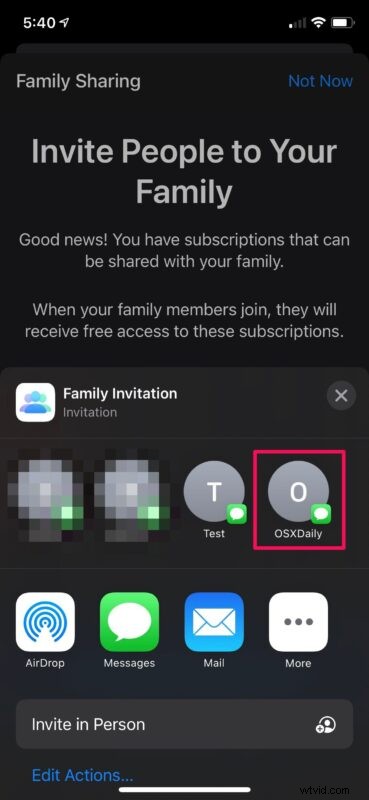
- The invite will pop-up as shown below. If you’re using Messages to invite people, tap on send when the preview shows up.
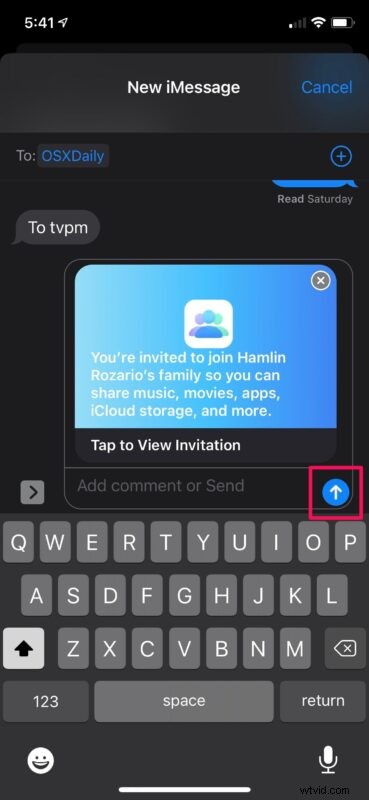
That’s it. Now, you just need to wait for the recipient to click and accept the invite.
How to Stop Sharing Apple Music with Family Members
Depending on whether you want to stop sharing your subscription with the entire family group or just a specific person, there are two ways to go about this. So, without further ado, let’s take a look.
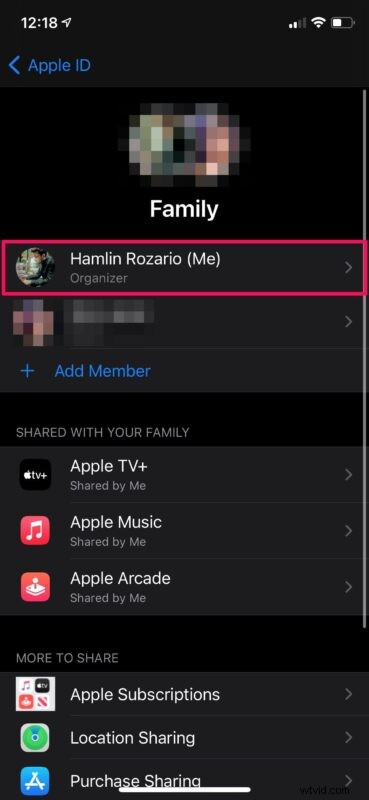
- To stop sharing Apple Music with everyone in the family group, go to the Family Sharing section, and tap on your Apple ID name. Keep in mind that you have to be the organizer to do this.
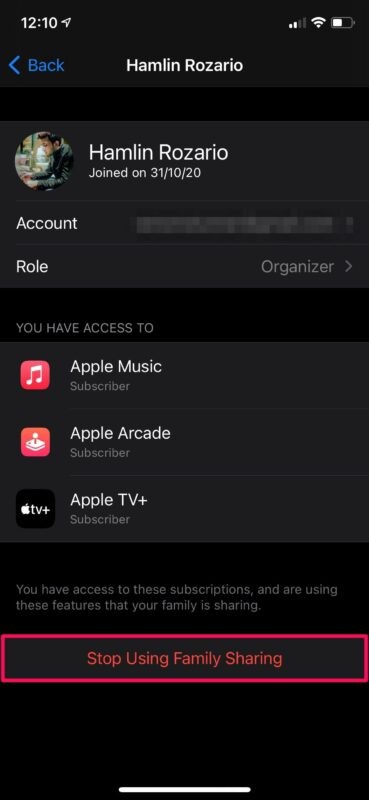
- Now, tap on “Stop Using Family Sharing” and everyone in the family group will no longer have access to your Apple Music subscription.
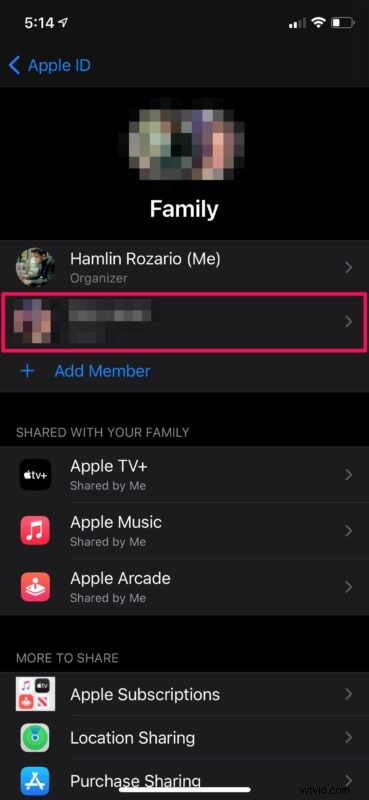
- On the other hand, if you just want to stop sharing with a specific person, you can remove them from the family group. To do this, select their Apple ID name in the Family Sharing section.
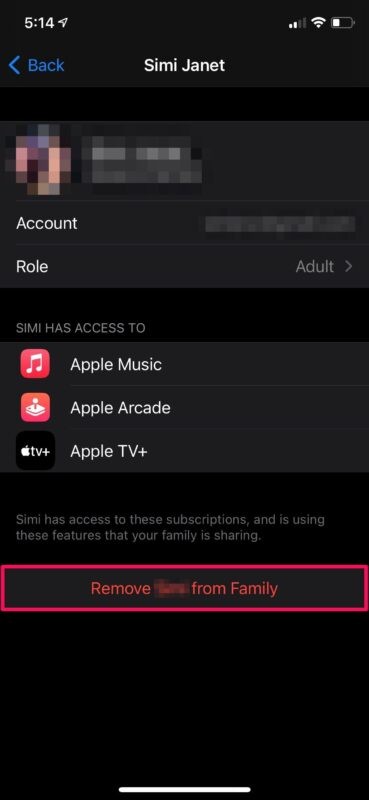
- Now, tap on “Remove from Family” and you’re done.
There you go. Now you know how to start and stop sharing your Apple Music subscription, if you ever change your mind.
It’s worth pointing out that when you choose to stop using Family Sharing, all the members of your family group will be removed immediately and all the apps that support Family Sharing will be affected. You cannot stop Family Sharing specifically for Apple Music. This is applicable if you’re removing a specific member from your family group as well.
If you don’t want your other subscriptions to be affected, you can downgrade your Apple Music subscription to the Individual plan by adjusting the renewal settings. However, the plan migration will only happen on the next billing/renewal date.
Although we were focusing mainly on the iPhone and iPad in this article, the procedure is fairly similar on macOS too. Regardless, the changes you make to your family group will be synced across all the devices signed in with your Apple account.
If you followed along, you should now know how to start and stop sharing Apple Music with other people using Family Sharing. How many users are you currently sharing your subscription with? What’s your take on this valuable feature? Let us know any particular experiences, thoughts, or comments!