

Are you trying to remove a child from your Family Group? If so, you may have noticed that the option to remove a child account isn’t available in the Family Sharing settings menu. However, there are a couple of workarounds if you really want to get the child account user removed.
Apple doesn’t allow users under the age of 13 to create a regular Apple account. Instead, they’re forced to use a child account that can be created with consent from a parent or legal guardian. With Family Sharing, parents can make a child account easily on their Apple devices and pass on the account details to their kids. However, doing this results in the child account being added to your Family Group and once added they cannot be removed from it until they’re 13 years old. At this point, you only have two options. You can either move the child account to a different family group or delete the account altogether. Most people would prefer the latter option since it’s easier.
Here, we’ll be covering how you can delete an Apple child account from Family Sharing. This is done from the web, meaning you can do this from just about any device.
How to Remove an Apple Child Account from Family Sharing
You’ll need access to your child’s account to raise an account deletion request. But, if the password was changed by your kid after you created it, you can ask them to get it done for you.
- Head over to privacy.apple.com using a web browser on your computer and sign in with your child’s account.
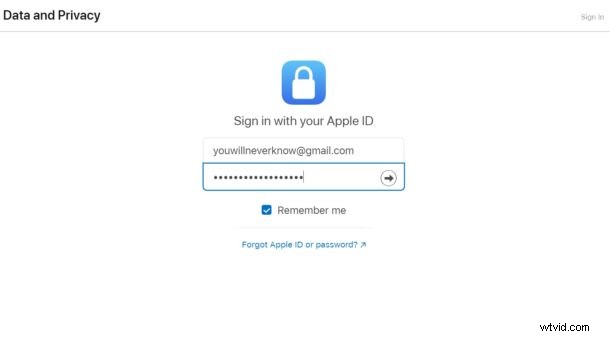
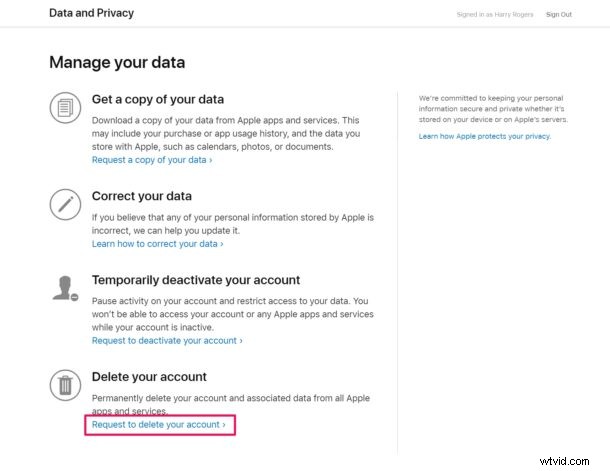
- This will take you to the Data and Privacy section for your Apple account. Here, at the bottom, you’ll find the option to delete the account. Click on “Request to delete your account”.
- Similar to how parental consent is required for creating a child account, consent is required to delete the account as well. Click on “Request consent”.
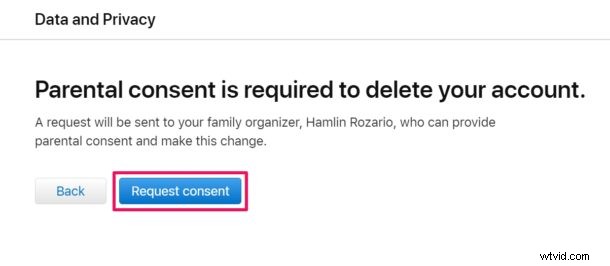
- This request will be mailed to the parent’s email address that was linked when the child account was created. At this point, you can log out of the child account.
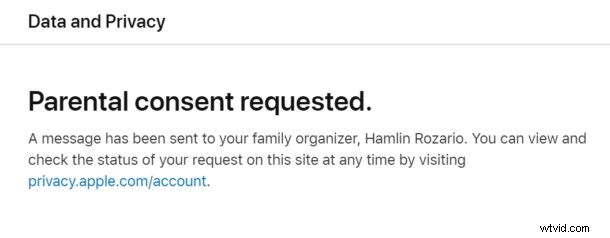
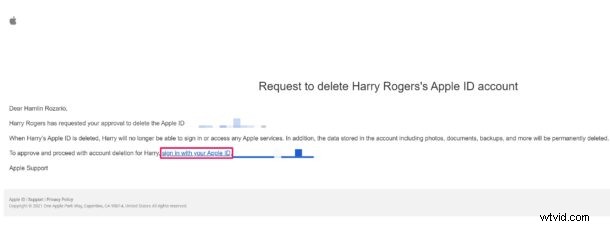
- Proceed to check your email inbox for a message from Apple. Open the mail and click on “sign in with your Apple ID” as shown in the screenshot below to approve the request and proceed with the account deletion.
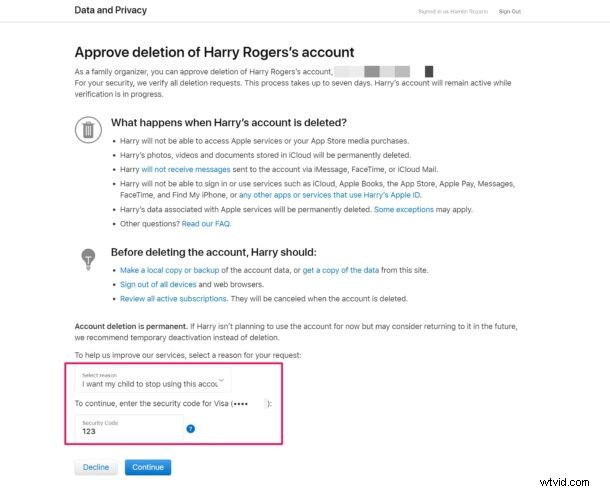
- Clicking on the link will take you to privacy.apple.com where you can sign in with your main account’s login details. Once signed in, select the reason for account deletion and type in the security code or CVV for your credit card to verify. Click on “Continue” to proceed.
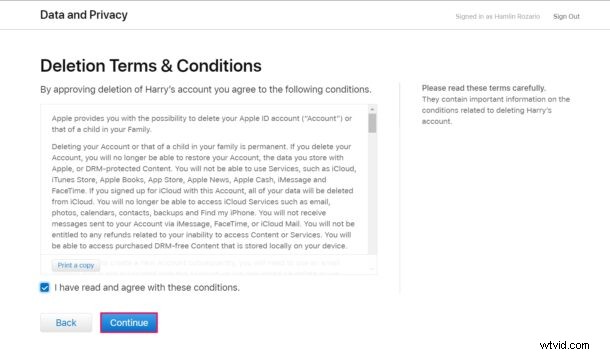
- Now, read the terms and conditions, check the box to agree, and click on “Continue”.
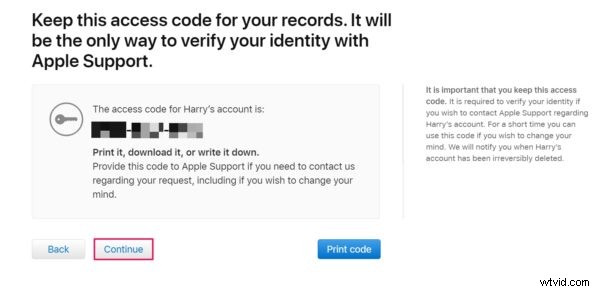
- In this step, you’ll be shown a 12-digit access code for your child’s account that will be needed to verify your identity if you ever have to contact Apple Support in regards to account deletion. Note it down somewhere safe and click on “Continue”.
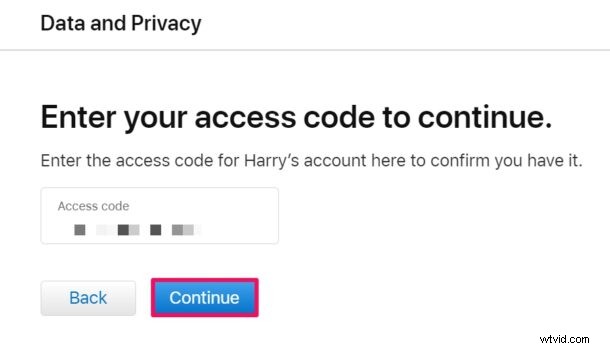
- You’ll be prompted to type in your access code in this step. Once you enter it, click on “Continue”.
- You’ll be shown what will happen when the child account is deleted. Click on “Delete account” to confirm your action.
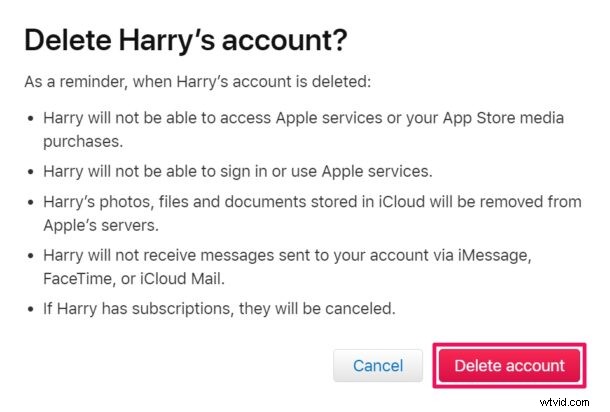
There you go. You’ve successfully managed to delete your child’s Apple account.
Note that your child’s Apple account will not be removed from your Family Sharing group immediately. This is because it takes up to seven days for Apple to verify your deletion request. But, make sure to check back in a few days and the account will be removed and you will have space to add someone else.
This entire procedure may be necessary for some users who’re looking to make space in their Family Sharing group since the benefits can only be shared with up to five other people. By removing a child account, you have space for another adult. This could even be your friend.
As mentioned earlier, the only other way to remove a child account from your Family is by moving the user to a different family group. Child accounts have to remain linked to a family since they cannot operate individually. To move the child account to a different family, the family organizer of the other group must first invite the child to their family. You can learn more about inviting people to a Family Sharing group right here.
Were you able to initiate the account deletion request so that you can remove the child account from your family group? Do you want Apple to give family organizers the option to remove child accounts or maybe give extra slots for children? What do you think of this feature? Share your thoughts and experiences in the comments.