

The Handwritten Messages feature in iOS is fun and can be used to scribble a note or draw a quick little sketch, but after you have sent a handwritten messages from an iPhone or iPad you’ll find the sketch is saved within a little panel at the bottom of the handwritten messages screen. If you’d like to remove a recent handwritten note so that it no longer shows up in the thumbnails panel for quick sending, we’ll show you how to quickly do that from iOS Messages app.
How to Delete a Recent Handwritten Message from the Quick Access Panel in iOS Messages
- From the Messages app, open any message thread as usual and rotate the iPhone to the side to access Handwritten Messages mode as usual (or on an iPad, tap the handwriting button)
- Now tap and hold on any handwritten message thumbnail until you see them jiggling with the (X) button, then tap the (X) button overlaid on any handwritten note to delete it from the thumbnail list
- Repeat with other handwritten messages as desired
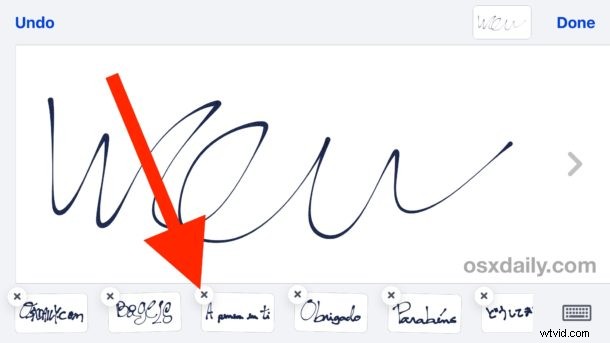
You can clear all of the default handwritten messages this way as well as any handwritten notes or scribbles that you’ve created and sent.
The tap-and-hold to delete method is widely used throughout iOS, you’ll likely recognize the gesture as the same as that is used to delete an app quickly and to remove default apps from the iOS Home Screen, as well as removing sticker packs and apps from Messages too.