
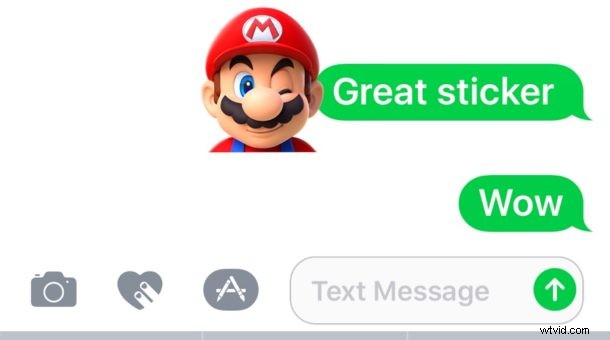
Have you ever received a Messages sticker in iOS from someone and thought “wow that’s an amazing sticker, I wish I knew where it came from!”?
Well if you and your friends are among the people who use the fun Messages Stickers feature in iOS, you might be wondering where each others stickers plastered into your iMessages are originating.
Wonder no more, iOS Messages offers a simple way to tell you exactly where a sticker originated from so that you too can have the same stickers available in your Messages app on iPhone or iPad, so that you can smack them all over iMessages too.
How to Find Where a Sticker Originated From in iOS Messages
This will allow you to find out where a sticker came from and also to download that sticker pack yourself, it’s easy here is what you’ll want to do:
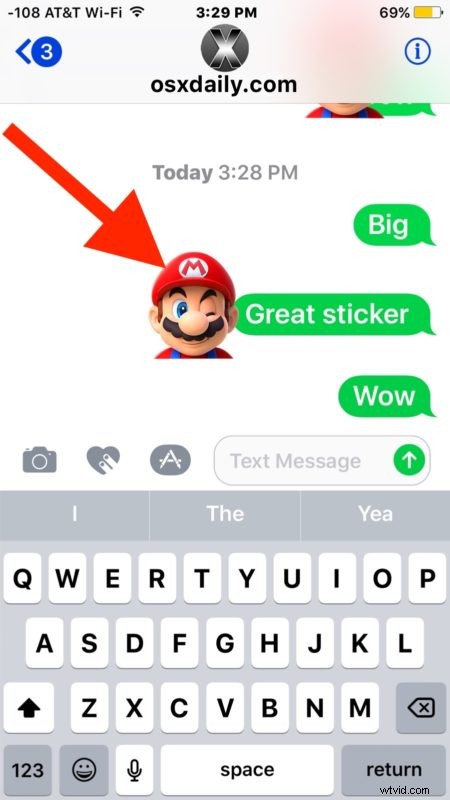
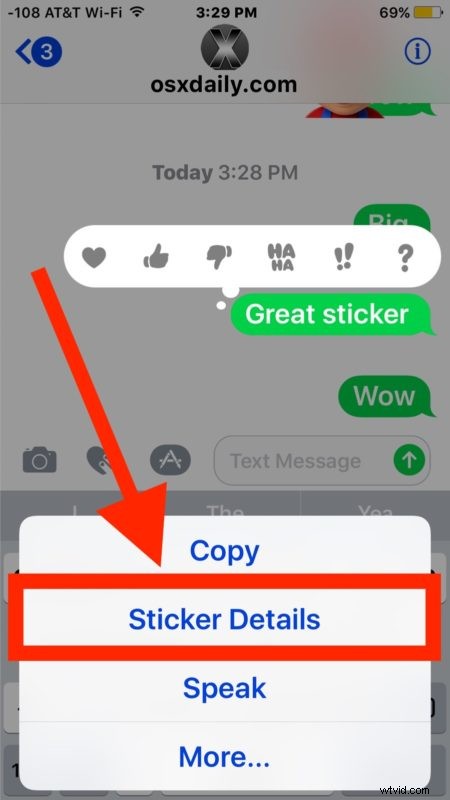
- When you receive a sticker in a message thread you’d like to know the origin of, tap and hold on that sticker in iOS Messages
- Choose “Sticker Details” from the list of available options
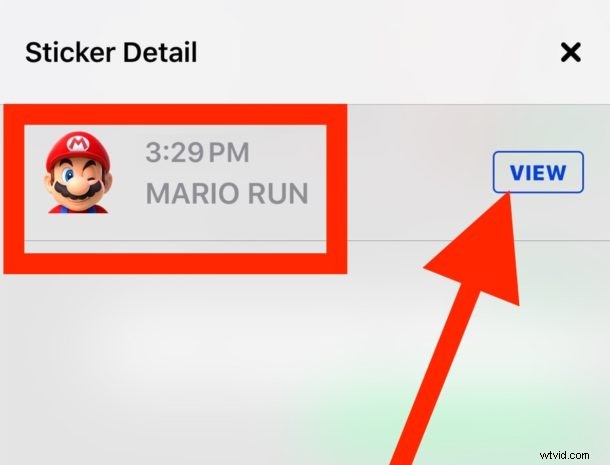
- Here the sticker, the sticker name of the associated app or sticker pack, the sender name and time will be visible – to see and get access to the sticker yourself tap on “View”
- You’ll now be in the App Store section for that sticker pack where you can download the stickers to your iOS Messages app too
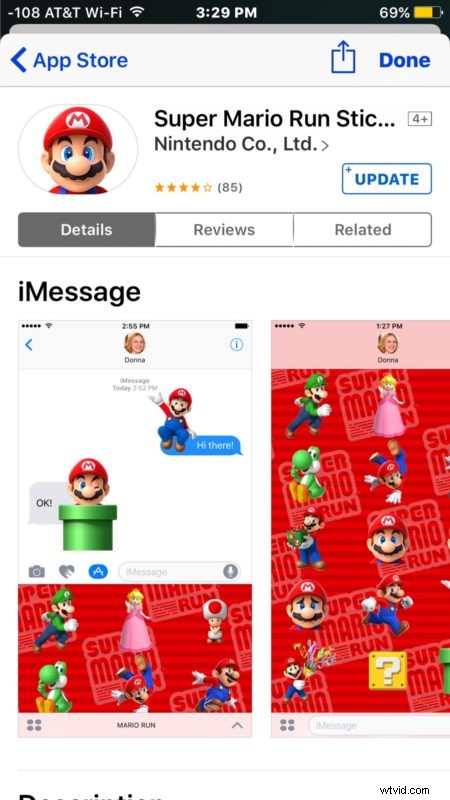
You can investigate stickers origins even if you don’t have any sticker packs currently downloaded on your iPhone or iPad. You can also download sticker packs and install them and then easily delete sticker packs later too if you no longer want them available to slap onto messages on your iPhone or iPad.
The Stickers feature of iOS requires a modern version of the iOS operating system installed on your iPhone or iPad, anything past 10.0 will have the Sticker feature. You can learn how to get and use Messages Stickers in iOS here.