
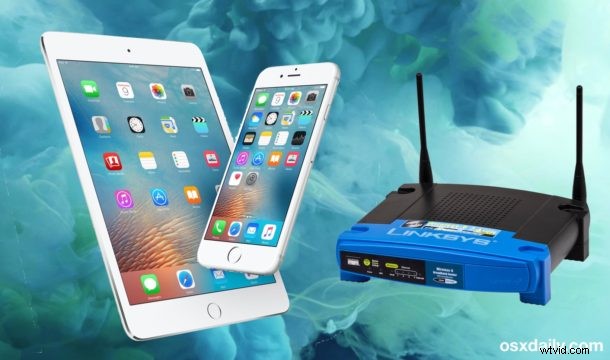
Getting the IP address of a connected router or default gateway is pretty simple in iOS, so if you find yourself in a situation where you’re using an iPhone, iPad, or iPod touch and need to get a connected router or gateway address, you won’t have to leave iOS to do so. This is frequently necessary for networking purposes, perhaps to access a routers admin settings page or to manually configure some networking options.
You’ll find you can easily retrieve the needed IP through a connected devices network settings in iOS, follow along and we’ll show you where to look.
This may go without saying, but you must be joined to a wi-fi network for this to work, if the device is not connected to a network then there would not be a router or gateway address to retrieve in the first place.
Getting the Router / Gateway IP Address in iOS
This is the same for finding the routers IP on every iOS device, be it an iPhone, iPad, or iPod touch, so join a network then do the following:
- Open the Settings app in iOS and go to the ‘Wi-Fi’ section
- Locate the name of the wi-fi network that is currently connected, and tap on the (i) blue info button next to the name
- Look under the IP Address section for “Router” – the number next to this is the IP address for that router or gateway
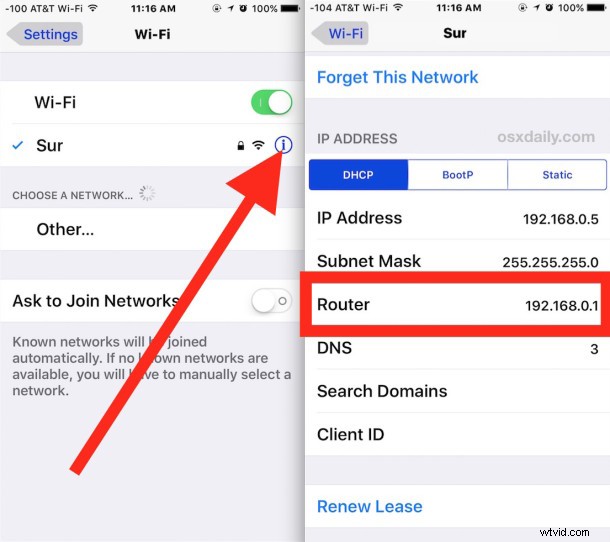
This can be helpful knowledge for many reasons, particularly for networking purposes, like when configuring a router through a web based administrator tools to change a WPA2 password or DHCP info or the devices broadcast name. Additionally, this is helpful if the currently connected device is joined to a network that you want to share with another user but don’t know the routers IP address, or if the SSID is unknown because it’s hidden and must be joined directly by SSID or IP. If you’re requiring the router IP for network administrative purposes, simply copy the address and switch to Safari and enter the IP as the URL, where you’ll be able to access that routers administrative panel. Some routers admin settings are optimized for mobile, while others aren’t, that tends to depend on the manufacturer of the router itself.
This same wi-fi network settings screen in iOS is also where you can uncover the device specific IP address, change DNS settings, renew a DHCP lease , set manual static IP for the device, and perform many other network specific actions. While the average iPhone or iPad user may not need to access this data often if ever, it’s extremely useful for advanced users and for systems and network administrators.
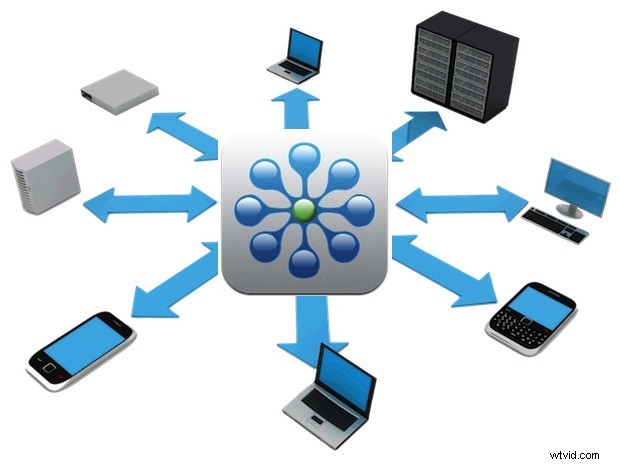
If this isn’t an option for whatever reason, iOS network scanners like FING can also be helpful. Of course you can also go about finding the routers IP on a Mac too, and assuming the devices are connected to the same network, the router IP would always be the same as well for other hardware that is on the same network and using the same gateway to access a LAN or the outside world.