
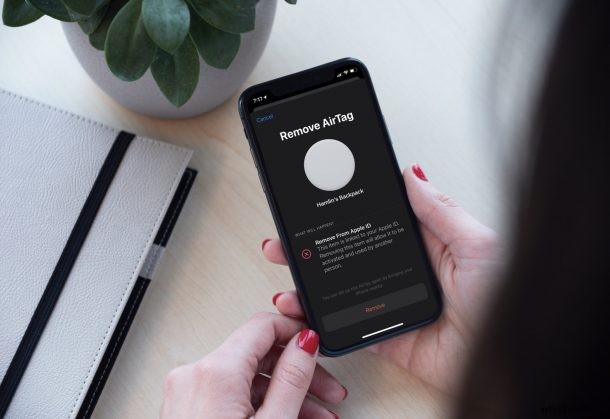
Are you planning to sell or giveaway the AirTags you currently own? In that case, hold up for a second. You can’t just transfer the ownership of your AirTags right away. There’s something you need to do first, and that’s remove the AirTags from Find My.
AirTags are the handy trackers that can help you locate keys, bags, and other stuff. Similar to how you’d typically restore your iPhone before you sell or give it away, you’ll need to remove your AirTag from your list of Find My devices so that a new user is able to take ownership of the device. If you give your AirTag to a family member or anyone else without doing this, they simply won’t be able to set it up on their devices since it’s tied to your Apple ID.
Interested in learning what you need to do to get this done? Let’s go over the steps on how to remove your AirTag from Find My, from either iPhone or iPad.
How to Remove AirTag from Find My on iPhone & iPad
Removing a paired AirTag is actually a pretty simple and straightforward procedure. A moment of your time is all we need here. So, without further ado, let’s take a look at the steps:
- First, launch the built-in ‘Find My’ app on your iPhone or iPad.

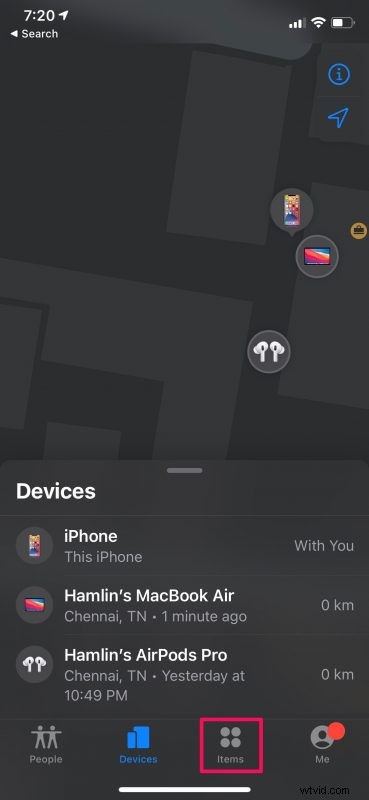
- Upon launching the app, you’ll see all your Find My-enabled Apple devices. Head over to the “Items” section from the bottom menu.
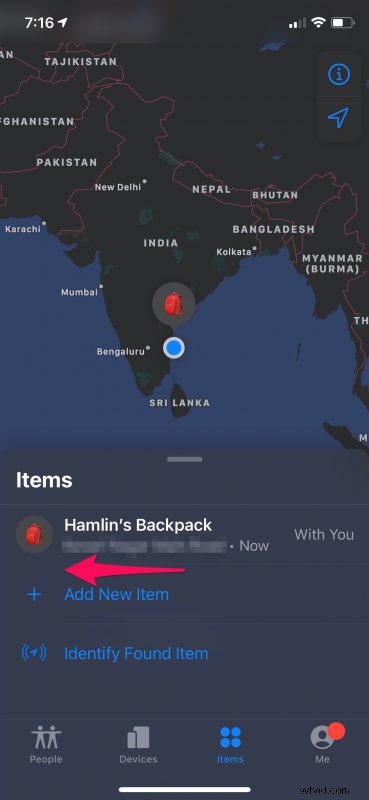
- Under Items, you should see your AirTags and other third-party Find My accessories that are tied to your account. Swipe left on the AirTag that you want to remove.
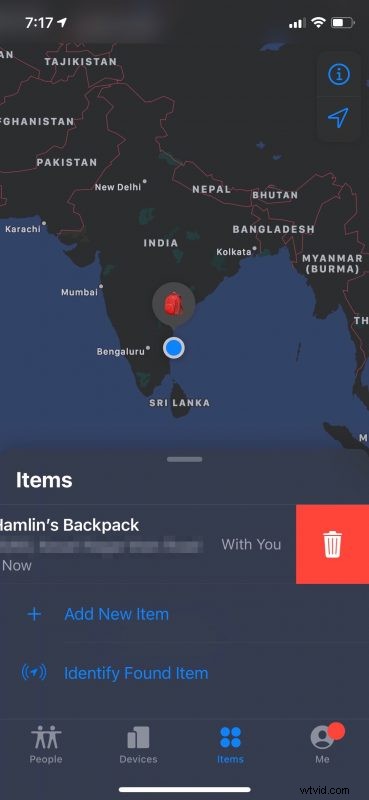
- Now, you’ll see the option to delete the AirTag. Simply tap on the trash can icon to proceed.
- Doing this will take you to the following screen. Here, you’ll be warned what will happen once you remove the AirTag. Just tap on the “Remove” option that you see here.
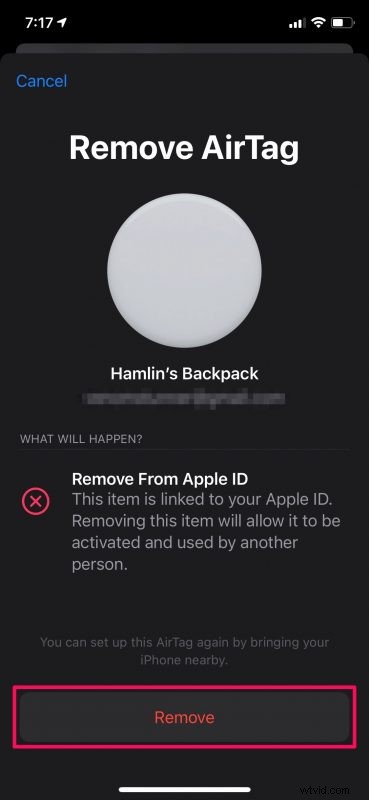
- When you get an additional prompt for confirmation, choose “Remove” again and you’re good to go.
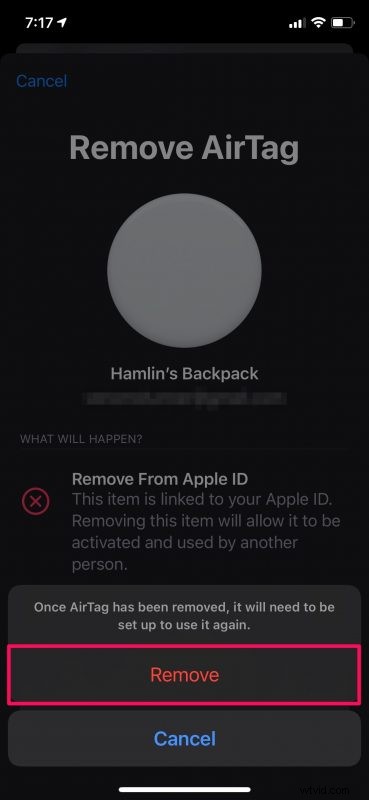
It’s that easy to remove or unlink your AirTag from your Apple account that’s used by Find My.
Now, you’re free to transfer ownership of your device, whether you’re selling it or giving it away. The new user will be able to set up this AirTag by bringing it close to their iPhone or iPad as usual.
Did you know that AirTags aren’t the only “Items” that you can add to the Find My app? That’s right, accessories and devices that are made by other manufacturers are now supported by the Find My service as well, thanks to Apple’s Find My network accessory program. You can check out how to add third-party accessories to Find My on iPhone and iPad which may be helpful if you purchase a compatible device down the line.
At the time of this writing, you can only remove or factory reset your AirTag from the Find My app that’s pre-installed on your iPhone and iPad. Apple hasn’t added the option to remove AirTags from the Find My app for Mac just yet, although you can see it and get directions. Apple’s iCloud.com client on the other hand doesn’t even show AirTags right now. Hopefully, these shortcomings get addressed soon.
Were you able to remove your AirTag from your list of Find My-enabled devices without any issues. How many AirTags do you have currently? What have you been using them for? Do share all your individual experiences, drop your valuable feedback, and sound off in the comments section down below.