
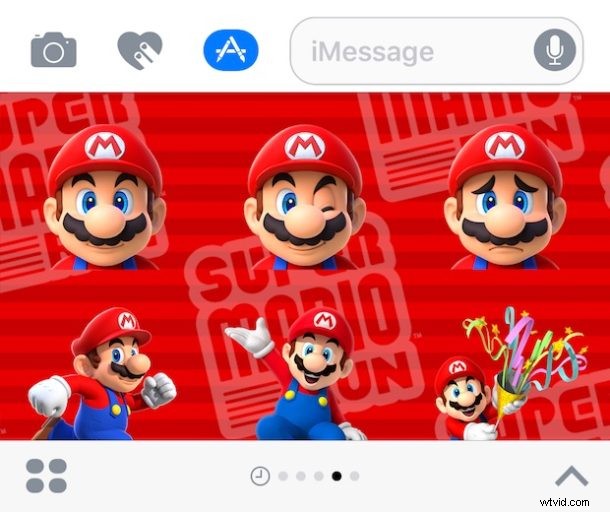
The all new Messages app in iOS is quite busy and full of new features and abilities, and a major new component is the wild world of Message stickers and apps. Stickers are basically little images and icons you can slap all over a message thread, and iMessage apps can be everything from simple photo manipulations to full fledged games, all embedded in the Messages app of an iPhone or iPad. They can be chaotic or a lot of fun, maybe even a bit of both, so let’s review how to download, install, and use Messages stickers and Messages apps in iOS 10, iOS 11, or later.
A quick note: Message Stickers and Message apps are different from Message effects, but all are part of the broader refresh of Messages in iOS 10 or later, meaning you must have a modern version of iOS on the iPhone or ipad to have Stickers. Turning off or on iOS 10 Messages effects has no impact on Message stickers or apps, and at the moment there is no way to opt-out of the stickers or apps features.
How to Download, Install & Use Messages Stickers & Apps in iOS
- Open Messages on the iPhone, iPad, or iPod touch and go to any message conversation thread
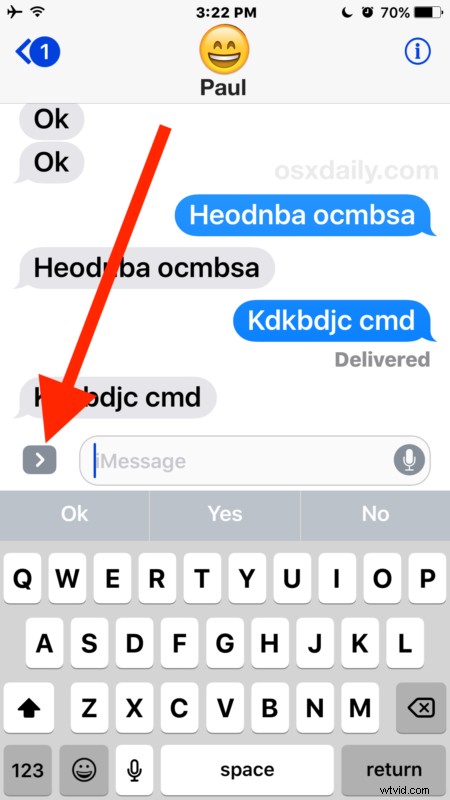
- Tap on the “>” arrow button next to the iMessage text entry field
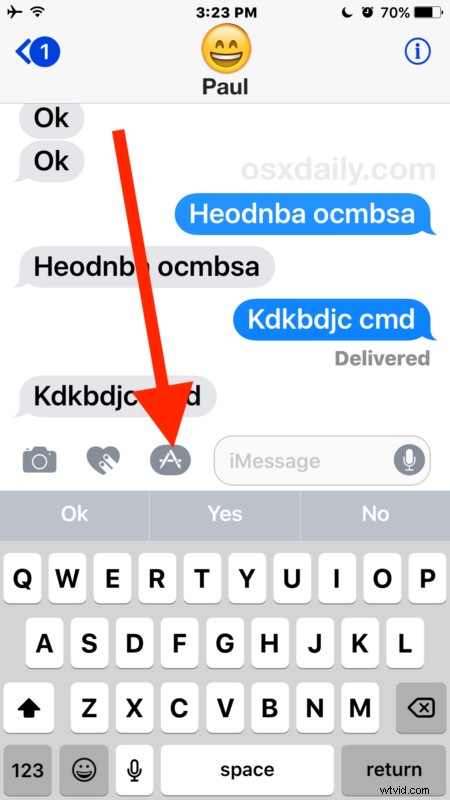
- Now tap on the little “(A)” button, which is an icon for the Messages App and Sticker section
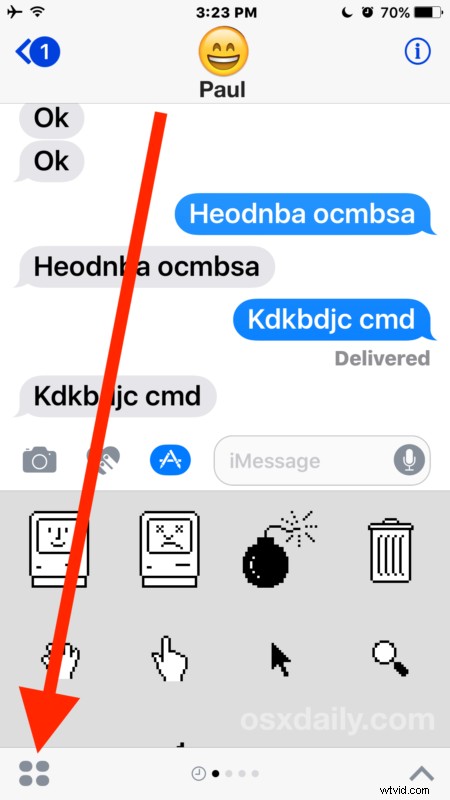
- Next tap on the little grid of four bubbles blobs button
- This is the stickers and apps panel in iOS Messages, click on the “+” plus “Store” icon to visit the App Store for Messages
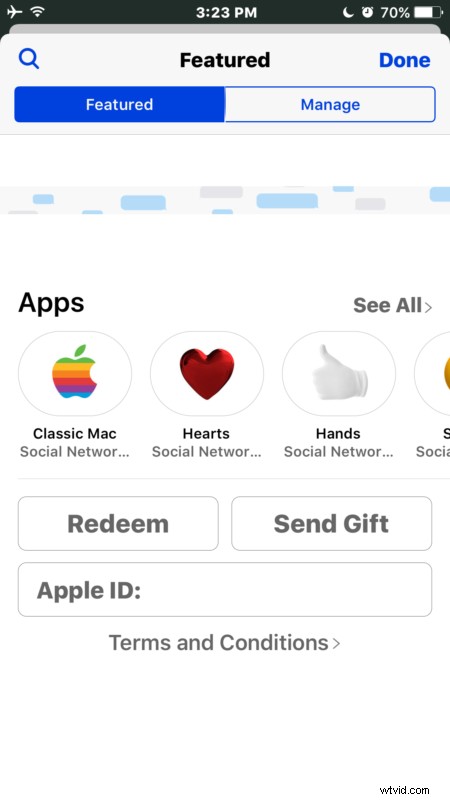
- Now in the Messages App Store, you can download or search for any apps or sticker packs you want to add to iMessage in iOS 10
- Once you have chosen an app or sticker pack, choose the “Get” button to download and install the app or stickers into Messages
- Now return to any Messages thread or conversation and through the same “A” button in Messages you can access your iMessage apps or stickers for use in a conversation
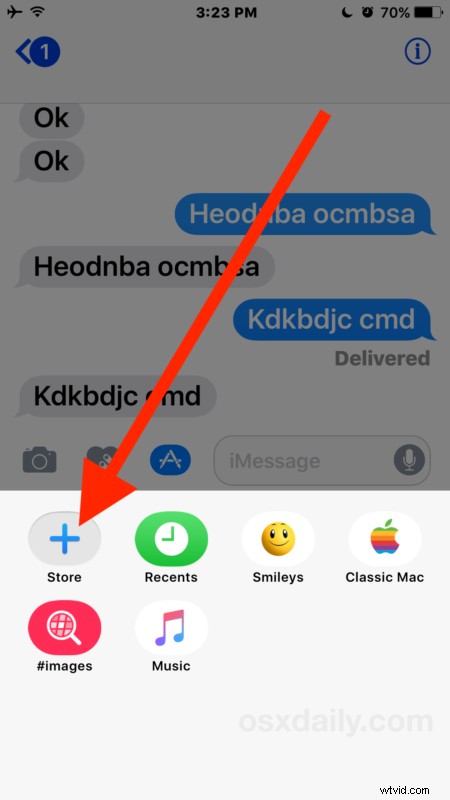
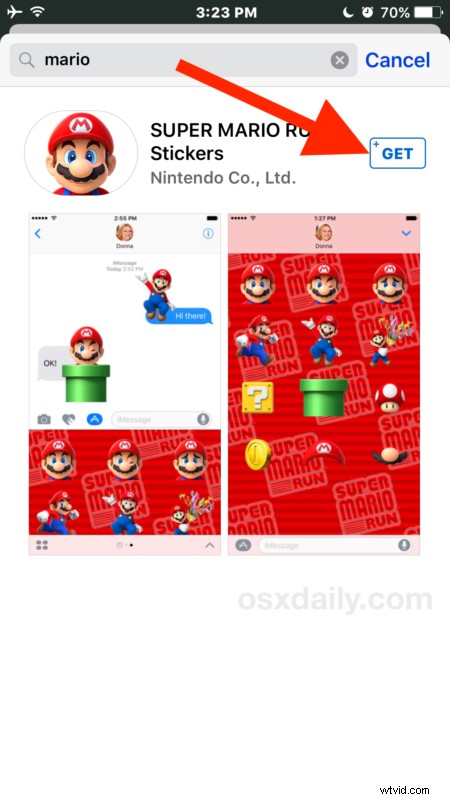
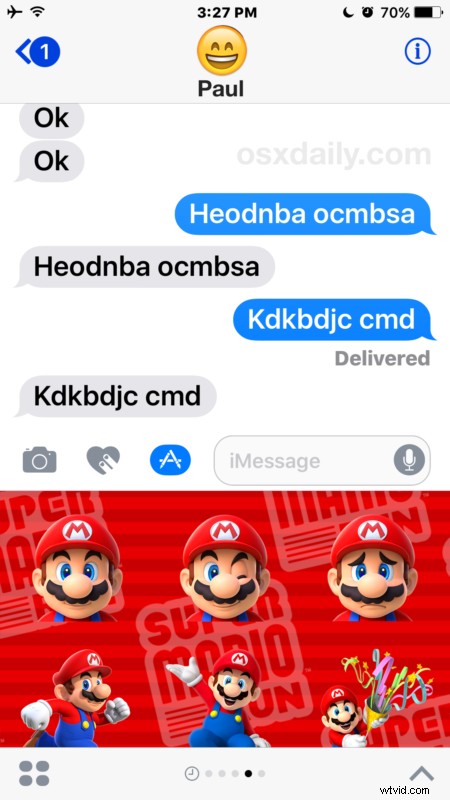
In the example here, we downloaded and installed a simple Mario sticker pack. As you can see it’s basically just a bunch of Mario pictures, tapping on one will insert it into a message, and you can drag and drop them directly onto any message as well to apply the picture just like a sticker (hence the name). By the way, if you are a fan of retro Apple, you should grab the “Classic Mac” pack which are basically a collection of icons and art from the original Macintosh OS System release.
Keep in mind that you must have iOS 10 or later, and the recipient of the iMessage must also have iOS 10 or later on their iPhone or iPad to properly receive the message stickers or apps. If the recipient is on an older version of iOS, the stickers just come across like sending any other picture and they aren’t applied to a specific message or location, and some of the apps won’t work at all with the recipient if they are not on a compatible device. If the receiving end is a Mac, they also don’t work (at the moment anyway) beyond displaying the picture as a normal message.
Messages sticker packs and Messages apps can be a lot of fun, or they can be totally chaotic and kind of weird, and as you likely noticed the entire interface for using them and managing the stickers or apps is clunky and cluttered, but once you use it a few times you’ll get a better understanding of how it works, even if it’s a bit unusual. The interface is likely to change a tiny bit as iOS updates continue to refine the experience, but the core feature is here to stay. Whether or not there will be an option to hide and disable stickers and Message apps in a future version of iOS remains to be seen.
Anyway, explore, download a few apps and stickers, and then have fun sending stickers and Messages apps to your friends and family!