
Regardless of desktop apps or mobile apps, there are now many apps that can put a border to the video. This article will introduce you to how to put a border on a video on two different devices easily and quickly. If you’re looking for ways to add border to video, just read the post.
You may see lots of videos with borders on major social media. These bordered videos tend to get peoples’ attention better. If you want to add border to video but don’t know how to do it, then this article will give you a specific introduction. If you want to make an attractive video, MiniTool MovieMaker is a great choice.
How to Put a Border on a Video on Windows
You can use EaseUS Video Editor to put borders on videos on Windows. This app provides users with a variety of borders, which is convenient for users to make more wonderful videos.
In addition, it can also help you add filters, transitions, overlays and other visual effects to make your video unique.
There is no doubt that those basic and advanced video editing tools are also included in this software, such as watermark remover, video merger, video trimmer, video rotator, video speed controller and so on.
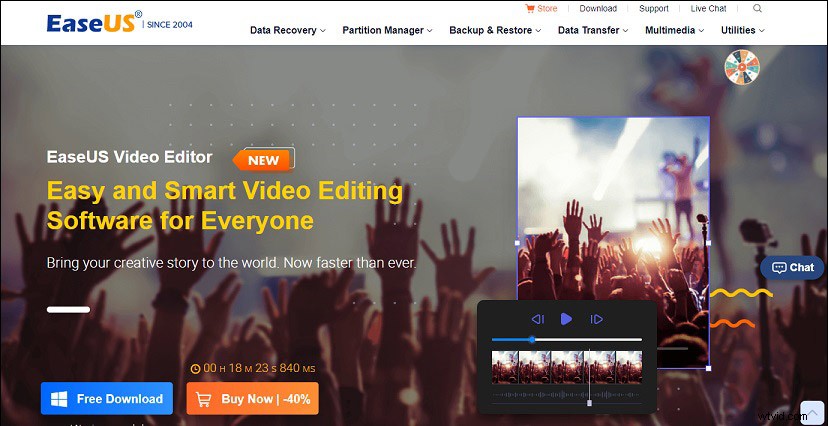
Next, let’s take a look at how to use the put border to video app to add video borders.
Step 1. Start EaseUS Video Editor and select the aspect ratio you need.
Step 2. Click the Import button, choose and put the video you need to import in the media library and pull it on the timeline.
Step 3. Click the Overlay button and choose the Frame option. You can select the border you like and drag it to the track.
Step 4. Change the length of the overlay in the timeline. After completion, you can watch whether the video meets your expectations in the preview window. If you’re satisfied, click the Export button to keep the edited video on your device.
How to Put a Border on a Video on Mac
I believe that most people are no strangers to iMovie, the multi-functional video editing app built into Mac. Not only can iMovie add a border to your video, but it can also set the border color flexibly according to your requirement.
iMovie has many similarities with other video editors. It can help you split video, merge video, add watermark, separate audio and more. Moreover, you can share your videos directly to major social media platforms.

So how to put a border on a video in iMovie?
Step 1. Launch iMovie, then pull the video to the timeline.
Step 2. Find the Background option, then choose the border you want and add it to the iMovie overlay track.
Step 3. Click the Video Overlay Settings button, you can use special effects to the video, put background music or make other edits.
Step 4. After watching the edited video, if you are pleased with it, you can save your videos to your Mac.
Conclusion
This post provides you with two reliable solutions about how to put a border on a video on Windows and Mac. You can choose one or both of them according to your needs.